Vælg en organisation
How to Generate Gmail App Password and Send Email with Gmail Account on Mule 4
Udgivelsesdato: Sep 17, 2025
Opgave
GOAL
The following steps show how to generate App password for a Gmail account and use the App password for sending email on Mule4 applicationTrin
- enable Gmail 2-step verification on https://www.google.com/landing/2step/
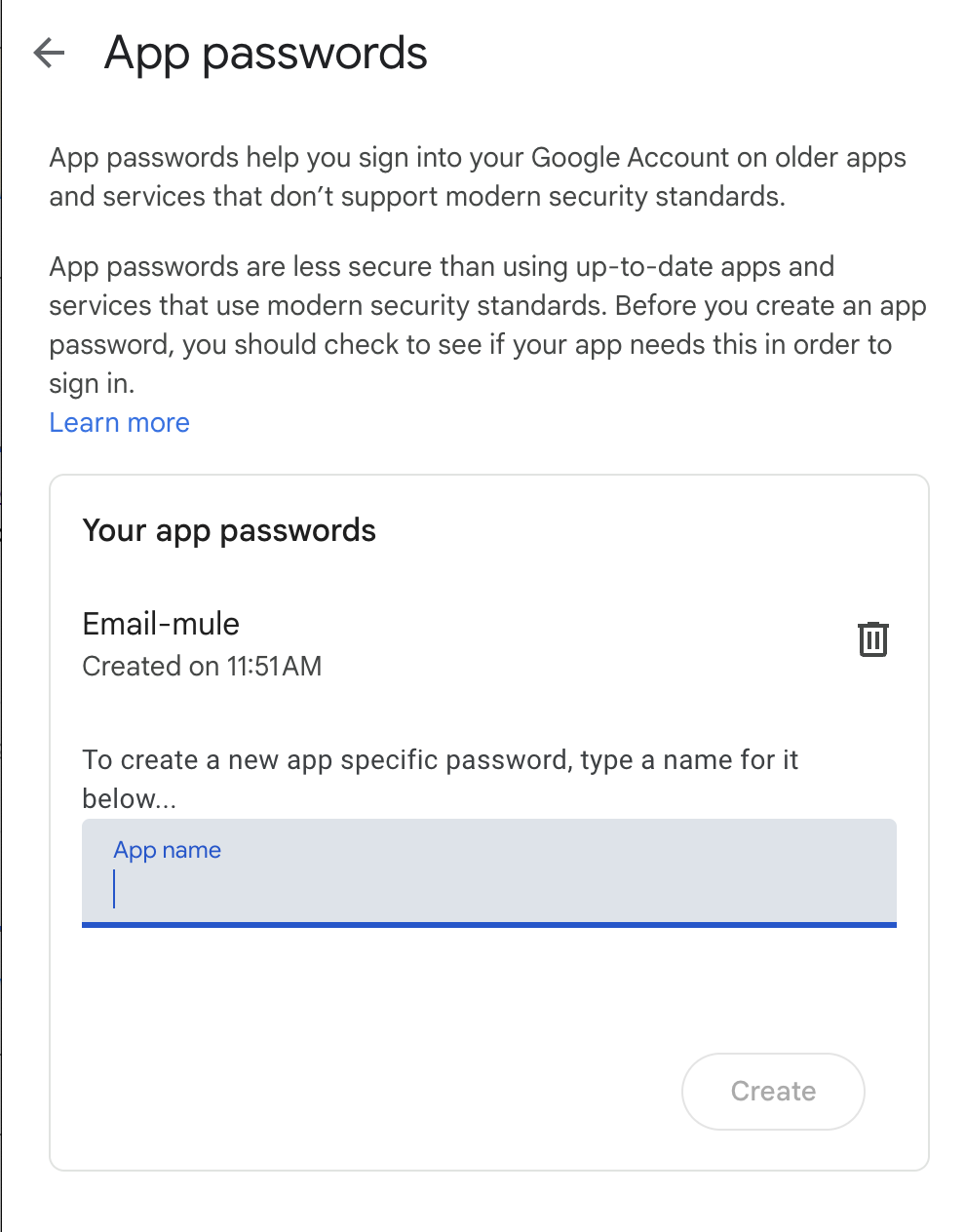
- access https://security.google.com/settings/security/apppasswords, try to generate an App password
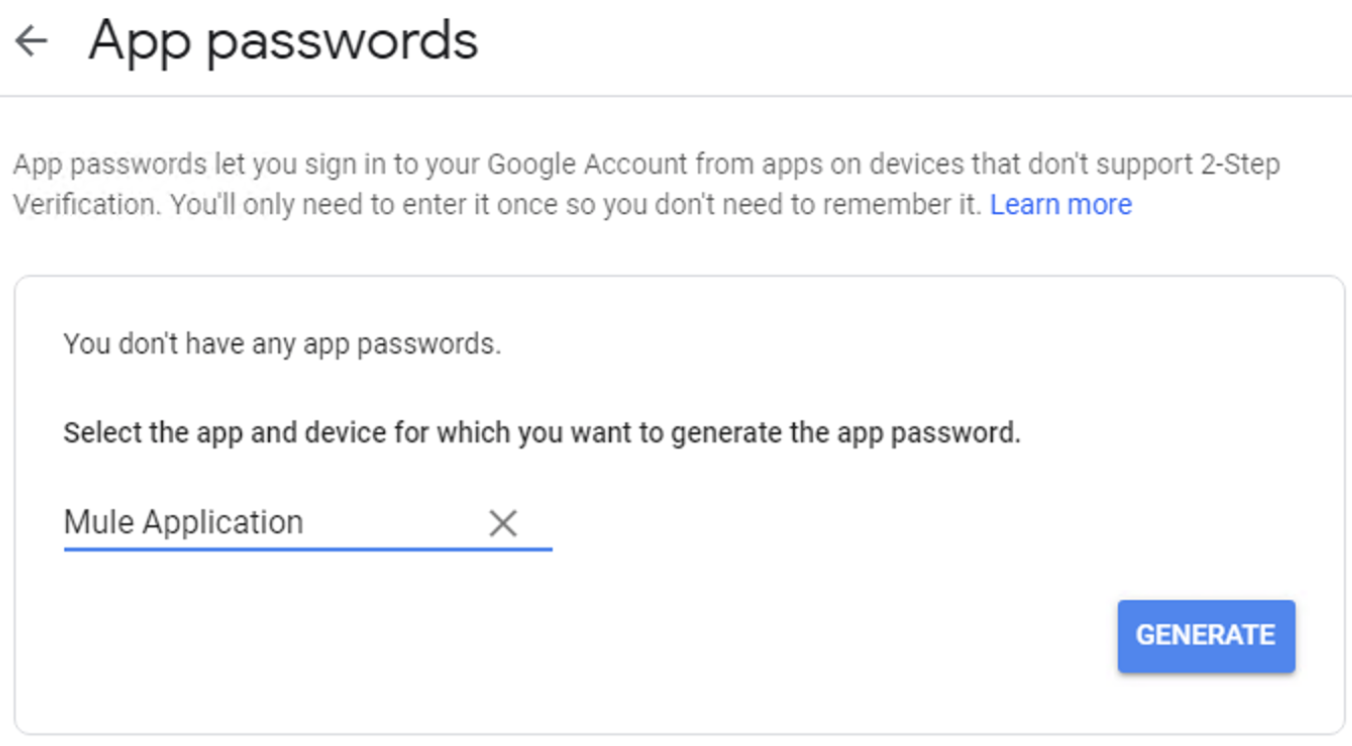
- Supply an Application name, for example, Mule Application
- Click on GENERATE button to generate a password
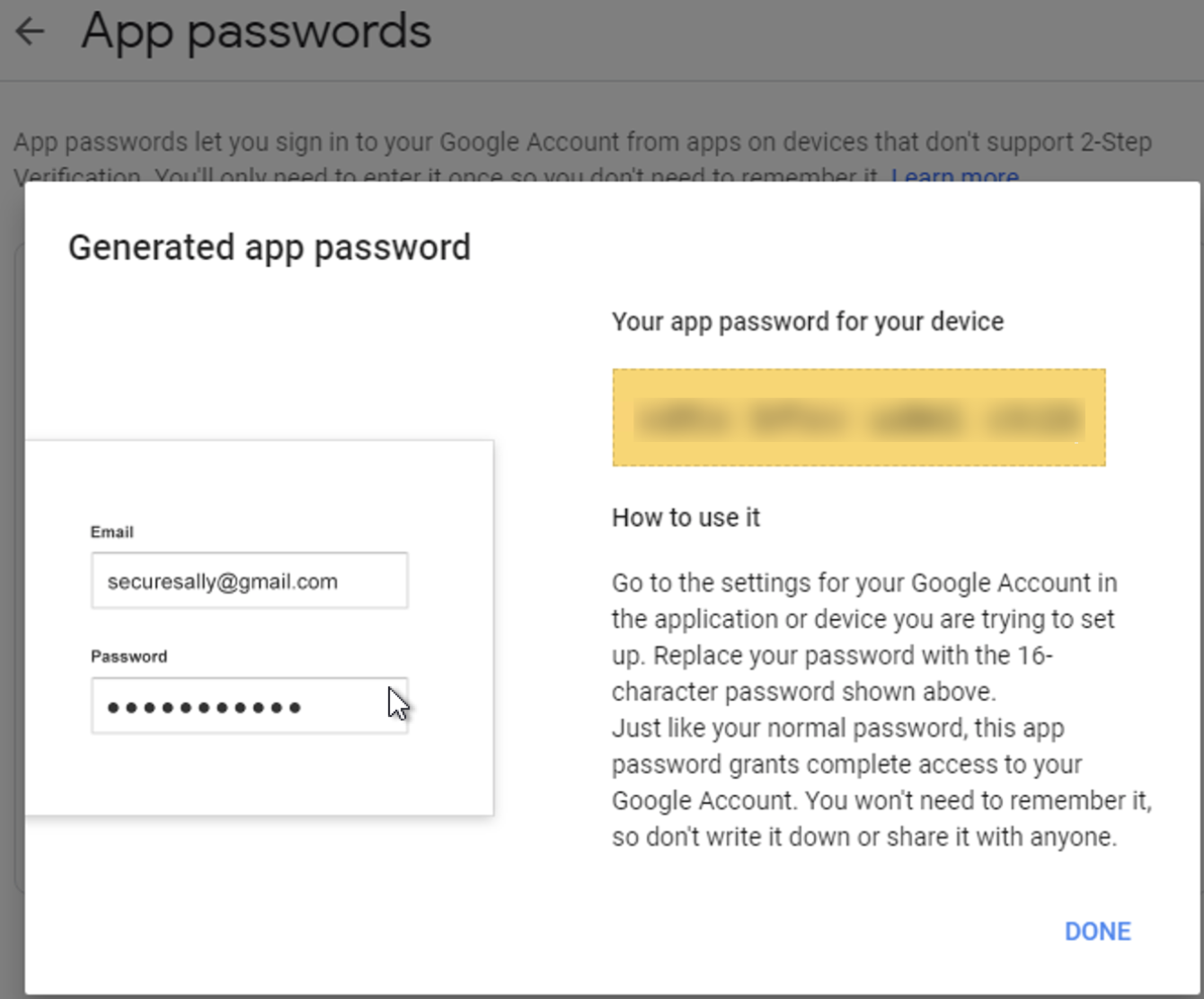
- Copy and save the App password
Note: if you lose the App password, you can only generate a new one. - Click the DONE button
- On your Mule Application, define a SMTP config
<email:smtp-config name="Email_SMTP" doc:name="Email SMTP">
	<email:smtp-connection host="smtp.gmail.com" port="587" user="SenderAccount@gmail.com" password="App_password" >
		<email:properties >
			<email:property key="mail.smtp.starttls.enable" value="true" />
		</email:properties>
	</email:smtp-connection>
</email:smtp-config>
Note:
a. Please replace SenderAccount@gmail.com with your Gmail address, and replace App_password with the generated App password.
b. Please also ensure mail.smtp.starttls.enable to be set to true as we are using Gmail TLS port 587, otherwise, an error will be returned from smtp.gmail.com:530 5.7.0 Must issue a STARTTLS command first
- On your mail send flow, define an Email Send processor to send email, for example
<email:send doc:name="Send" config-ref="Email_SMTP" fromAddress="SenderAccount@gmail.com" subject="Sending a gmail!">
	<email:to-addresses >
		<email:to-address value="RecipientAccount@gmail.com" />
	</email:to-addresses>
	<email:reply-to-addresses >
		<email:reply-to-address value="SenderAccount@gmail.com" />
	</email:reply-to-addresses>
	<email:body contentType="text/plain">
		<email:content ><![CDATA[#["Sending a gmail!"]]]></email:content>
	</email:body>
	<email:attachments/>
</email:send>
Note: Please replace SenderAccount@gmail.com and RecipientAccount@gmail.com with actual values - Run the Mule application and test the mail send flow
TROUBLESHOOTING
If there is mail send error, please enable <email:property key="mail.debug" value="true" /> for troubleshooting, for example:
<email:properties >
	<email:property key="mail.smtp.starttls.enable" value="true" />
	<email:property key="mail.debug" value="true" />
</email:properties>
Vidensartikelnummer
001116984
Løste denne artikel dit problem?
Giv os besked, så vi kan forbedre os!
