Organisation auswählen
Support Mule Runtime watcher tool
Veröffentlichungsdatum: Jul 22, 2025
Aufgabe
.
Schritte
Installation / Update
Usage
Available triggers
Commands
Inline help (help command)
Get Mule Runtime process ids (pids command)
Watch (watch command)
Interactive mode (interactive command)
How to use this tool together with support-collector
Use complex actions
Self upgrade process
Reporting an issue/enhancement
Installation / Update
This is a standalone tool and you'll need to use the corresponding version for your operating system. The binaries for each supported operating system can be found here:Mac OSX (64-bit)
Linux (32-bit)
Linux (64-bit)
Windows (32-bits)
Windows (64-bits)
Download your OS matching executable and place it in the system running your Mule Runtimes. Depending on your operating system you may need to grant executable permission to the downloaded file.
The command will check if new versions are available (when possible) and notify you what's the latest version, giving you the option to update the tool automatically for you. More information about the process here
Usage
Available triggers
With this tool you can configure one or more triggers of the next types:-
Heap size (heap)
This trigger will check the actual size of the Java heap for the Mule process and compare it with the maximum allowed size. If the usage percentage is higher or lower (depending on the operator choose) the trigger with fire and the action executed. Note that this control the heap size, no the other memory spaces available, like metaspace, permgen or native memory.
IMPORTANT: Heap trigger requires the same user of mule process to work. Run support-watch with the same user that owns the Mule Runtime PID. -
CPU usage (cpu)
This trigger will fire when the CPU usage for the Mule Runtime process id (PID), is higher or lower (depending on the operator choose) than the parameter. The parameter is in usage percentage.
-
Thread's count (thread)
This trigger checks the current thread count of the Mule Runtime process id (PID). If it's higher or lower (depending on the operator choose) than the parameter, then it fires.
-
Connections count (conns)
This trigger will fire when the number of sockets opened by the Mule Runtime process id (PID) is higher or lower (depending on the operator choose) than the parameter. It takes inbound and outbound sockets into consideration.
IMPORTANT: Connections trigger requires the same user of mule process to work. Run support-watch with the same user that owns the Mule Runtime PID. -
Interval or Timed (time)
This trigger fires every X seconds, where X is configured by parameters.
-
Script execution result (time)
This trigger executes a script if it fails, then it fires. It's considered a failure when the script returns a non-zero value. In Windows/Linux, it would be "exit 1" for a BAT/SH scripts respectively; "exit 0" is considered a success.
Commands
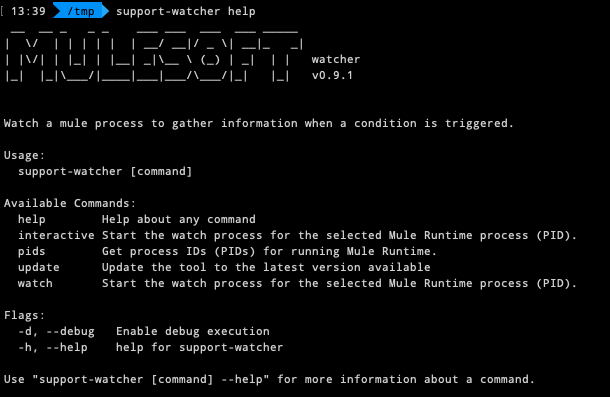
Inline help
You can get usage help on-screen with the command `help` support-watcher help
support-watcher help watch
Get Mule Runtime process ids (PIDs)
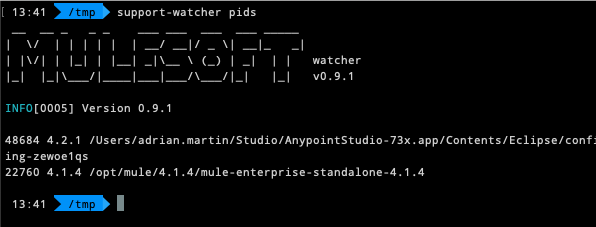
You can get the id number of the java process running the Mule Runtime with the "pids" option. This command will list you all the running Mule Runtimes in the current machine. It shows the next information:<pid> <mule_version> <mule_home>
support-watcher pids
Watch command
This command allows the configuration of the watching process through command arguments.Are mandatory, for this command, the following options:
- --pid, -p - indicates the running Mule Runtime process id
- --action, -a - string representing the script to be called when the conditions are meet. The strings "<PID>" and "<WORKDIR>" are repleace by the corresponding value.
- --trigger, -t - configure one trigger (you can add more that one --trigger argument)
For example, the next line will start a watching process over the Mule process ID 9999. If the CPU % is over 80%, or 5 minutes has passed, it will call the jstack command with the PID.
support-watcher watch -p 9999 -t "time=300" -t "cpu>80" -a "jstack <PID>"
Example of running "echo" every 5 seconds, 3 times.

Additional flag for this command
- --checkperiod
How often this tool checks the triggers (in seconds). If you use a 'time' trigger, the lower value will takes precedence. This can cause overload in the system if it's too often. (default 30) - --workdir
Working base directory. (default ".") - --daemon
Run the Daemon mode. You'll need to kill this background process manually if you require to stop it (Linux kill command or Windows' TaskManager can help you to force the process shutdown) - -o, --occurrences
Number of occurrences before stop. 0 means infinity. (default 1) - --test
Just run the action configured. Useful the test and tune the action. With this option the watch process doesn't begin. - -d, --debug
Run the command in debug mode.
IMPORTANT NOTE:
This command will access the java process directly. It required that the same user that is the owner of the process run this command.
- In Linux/Max you can use sudo to run the command as another user.
i.e., 'sudo -u <user_owner> support-watcher interactive'
- In Windows, you can use psexec tool provided by Microsoft.
i.e., psexec -s support-watcher interactive
Interactive mode
This command allows you to configure the watcher using interactively through a CLI like screen. To start it just use the "interactive" command and you'll be asked in this screen for:- Running Mule Runtime you want to collect the information for, from the list of all running ones.
- The triggers to use. Tt's possible to select more that one, to finish the trigger selection, choose "done" from the list.
- Action script to run. Indicate here the script/program to run.
- Ocurrences. Indicates the number of time to execute the triggers. 0 means forever.
- Run as Daemon? If true, the watcher will run in backgroound until killed or meet the configured parameters.
Sample command
support-watcher interactive
Example of running "echo" every 5 seconds, 3 times.

Additional flag for this command
- --checkperiod
How often this tool checks the triggers (in seconds). If you use a 'time' trigger, the lower value will takes precedence. This can overload the process if it's too often. (default 30) - --workdir
Working base directory. (default ".") - -d, --debug
Run the command in debug mode.
IMPORTANT NOTE:
This command will access the java process directly. It required that the same user that is the owner of the process run this command.
- In Linux/Max you can use sudo to run the command as another user.
i.e., 'sudo -u <user_owner> support-watcher interactive'
- In Windows, you can use psexec tool provided by Microsoft.
i.e., psexec -s support-watcher interactive
How to use this tool together with support-collector
It's very simple to use the support-collector with this tool to gather information. Just use it with the download command in the action parameter.
For example, to gather the logs every 5 minutes, 3 times you can use the command as follows:
support-watcher watch -p 9999 -t "time=300" -o 3 -a "support-collector -p <PID> -o logs -w <WORKDIR>"
This will generate 3 compressed output files from support-collector in the current folder.
NOTE: you need the support-collector tool and support-watcher in your environment PATH to use like the example. Otherwise you'll need to explicit the fullpath to the executable. Remember that you can use "--test" argument to just run the action to check everything works as expected.
Use complex actions
If you required to run an action that contains several steps, the best way to do it is with a dedicated script.
For example, for linux you can have the next script that will search a loaded class for the indicated process ID:
#!/bin/sh
PID=$1
echo "my process id is ${PID}"
jcmd ${PID GC.class_histogram | grep org.mule.module.launcher.MuleApplicationClassLoader
To call this action just use "sh script.sh <PID>" as the action.
Same concept applies to Windows and OSX
Self upgrade process
This tool contains a feature to ease the upgrade to the latest versions. This feature use a HTTPS Rest API request to check for new versions so it requires an internet connection.
If your system doesn't have internet access, the tool will work as usual, but you'll need to check for new versions in this article and upgrade it manually if required. The manual upgrade process is very simple, just replace the previous binary with the new one.
The command `update` will check for new version and upgrade when possible. If it's not possible to perform the automatic upgrade you'll be notified.
Also, each command check for new version at execution time letting you choose to upgrade or not.
Reporting an issue/enhancement
Please use the Mulesoft Support Tools group to report any issues/enhancement you have. Also, you can subscribe to receive new updates by email about Mulesoft Support tools.Nummer des Knowledge-Artikels
001117000
Konnten Sie Ihr Problem mithilfe dieses Artikels lösen?
Geben Sie uns Feedback, damit wir uns verbessern können.
