組織を選択
Amazon S3 Connector | How to connect with Role Based ARN
公開日: Jul 24, 2025
タスク
GOAL
How to connect to AWS S3 with role-based ARNステップ
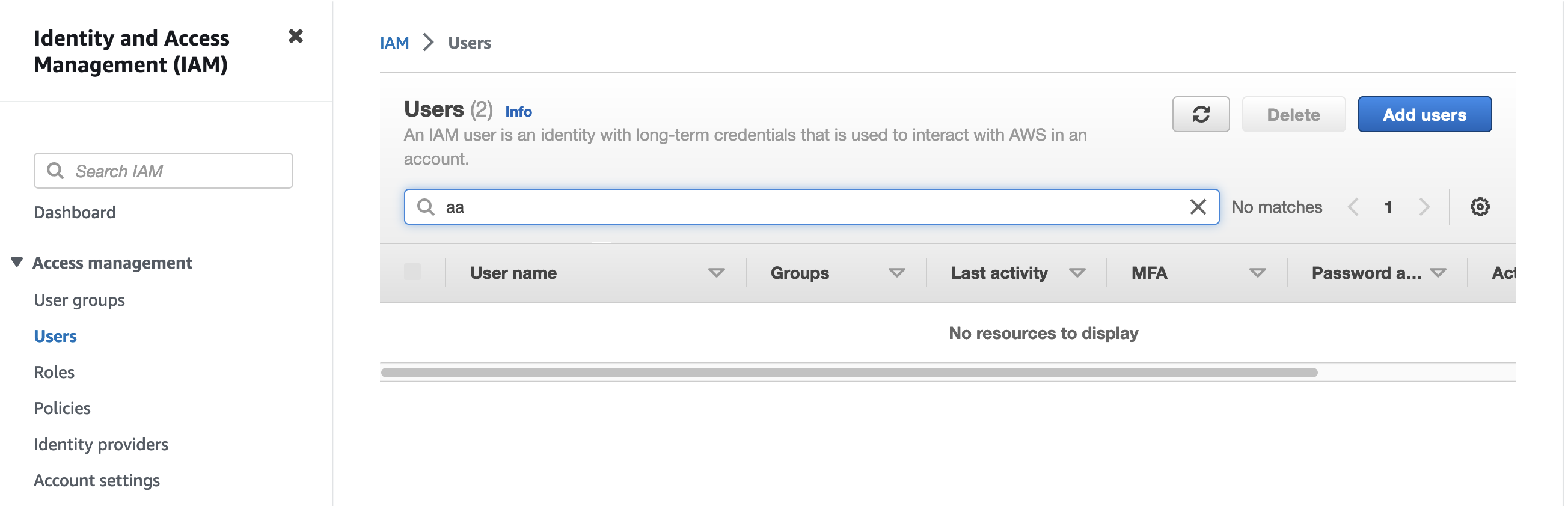
- Create a user from IAM
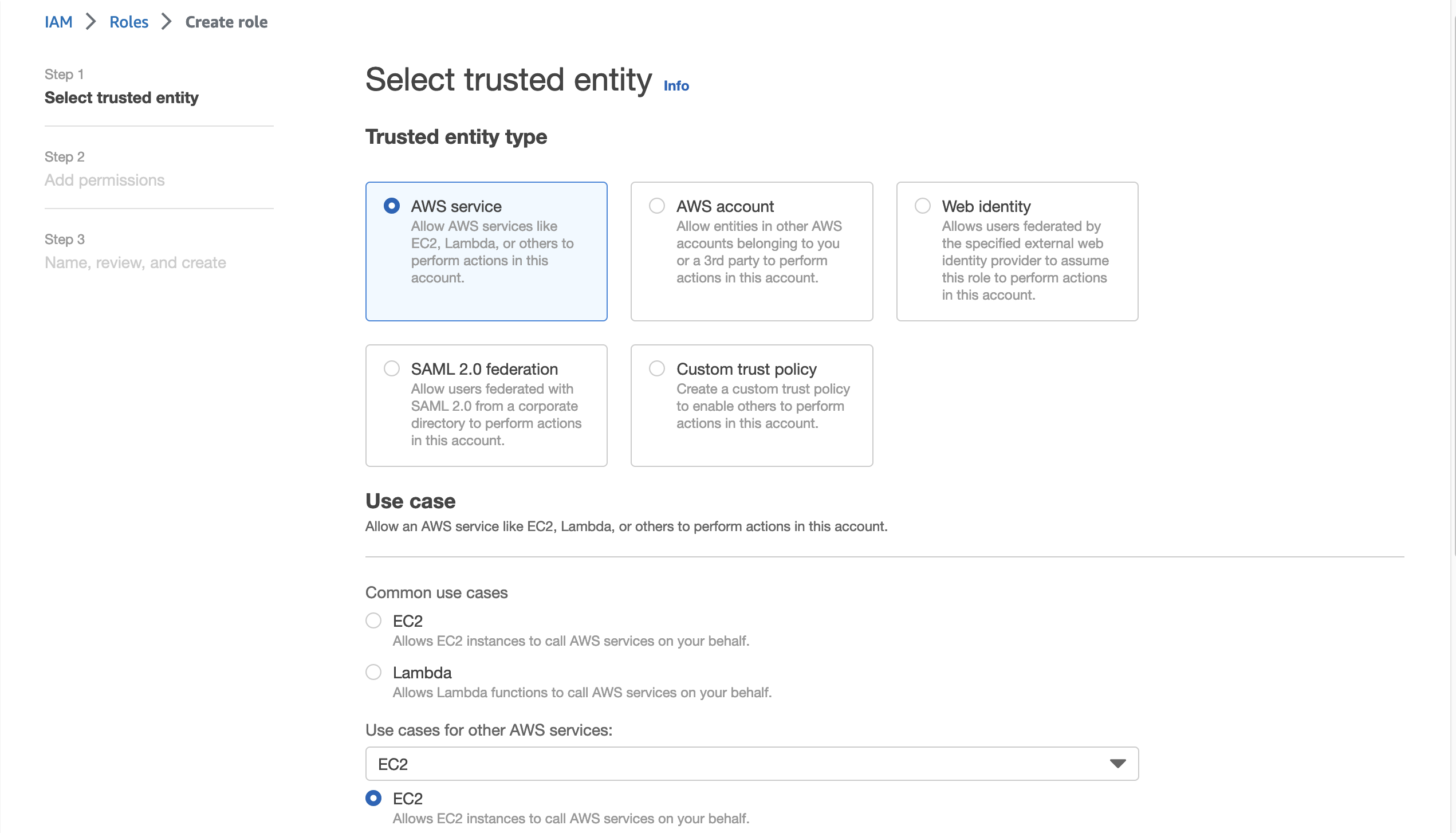
- Create a role from IAM with Allows EC2 instances to call AWS services on your behalf.
- Create and assign Policy for a role with Assume Role as below :
{
    "Version": "2012-10-17",
    "Statement": [
        {
            "Sid": "VisualEditor0",
            "Effect": "Allow",
            "Action": "sts:AssumeRole",
            "Resource": "arn:aws:iam::<Account-Id>:role/<role-name>"
        }
    ]
}
- <Account-Id> is AWS account Id and <role-name> is the name of the role created before.
- Assign a permission AmazonS3FullAccess to a role.
- Now Role has permission for Assume Role as well as S3 Full access.
- Edit the role and add a trust relationship for the user created before as below :
{
    "Version": "2012-10-17",
    "Statement": [
        {
            "Effect": "Allow",
            "Principal": {
                "AWS": "arn:aws:iam::<Account-Id>:user/<username>"
            },
            "Action": "sts:AssumeRole"
        }
    ]
}
- In AWS s3 connector configuration select Edit Inline for Role and provide the required details :
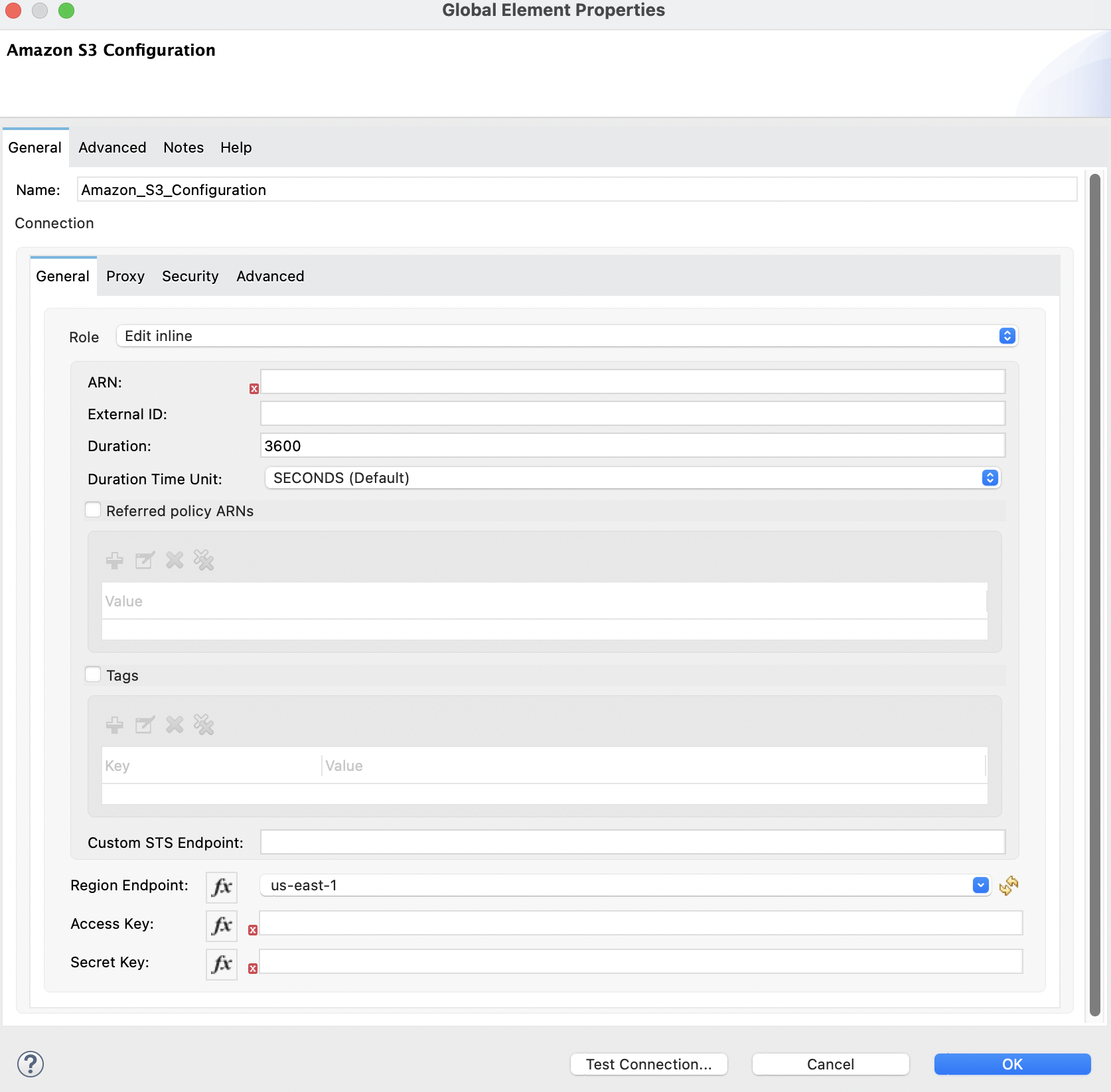
- ARN : Role ARN that we just created
- Access Key and Secret Key for the new user that we created
NOTE:
Role-based ARN is not applicable for Cloudhub 1.0 as this is not supported.
This article is for Local Development, RTF and On-Premise Mule Deployments.
ナレッジ記事番号
001117060
この記事で問題は解決されましたか?
ご意見をお待ちしております。
