Velg en organisasjon
How to update RTF Runtime Release versions
Publiseringsdato: Mar 2, 2024
Oppgave
GOAL
Periodically MuleSoft RTF releases updated runtimes for each version of Mule Runtime. The release notes for all the releases can be found here: https://docs.mulesoft.com/release-notes/runtime-fabric/runtime-fabric-runtimes-release-notes. This article shows the steps to take in Anypoint Runtime Manager to update your application to the latest RTF release for that runtime.Trinn
2. Select the business group and environment in which applications and API Gateway instances are deployed on Runtime Fabric.
3. Navigate to the Applications tab to view the list of deployed applications and API Gateway instances within that business group and environment.
4. Browse the specific RTF application that needs to be updated
5. If there is an updated runtime available for that application, it will be automatically selected (notice the Postpone button if you don't want to update the runtime version) and you will see "Apply Changes" button enabled as shown in the screenshot below. **Note that if you don't see an updated release message, it means that you are on the latest version of your runtime release.
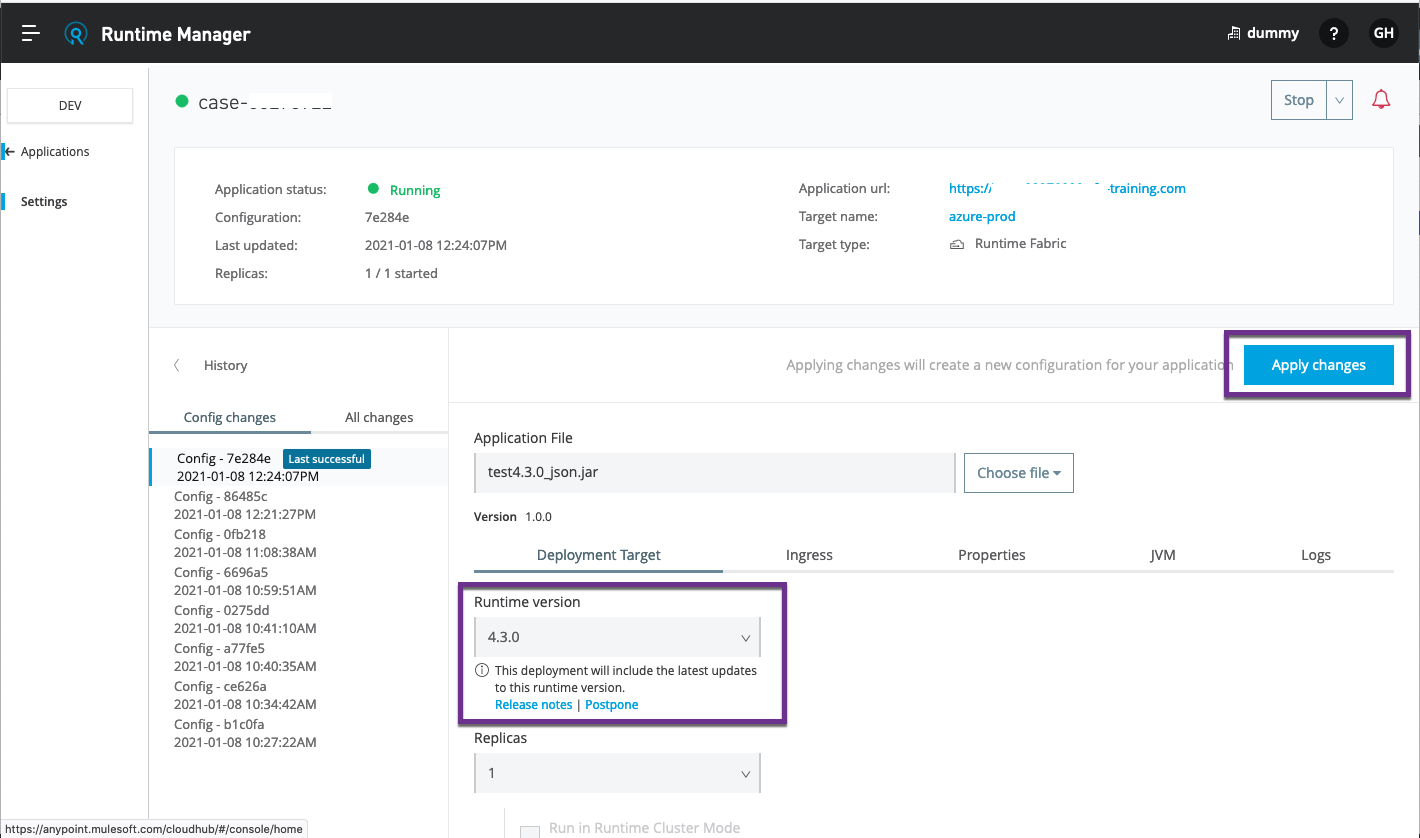
6. To update the runtime, click "Apply changes"
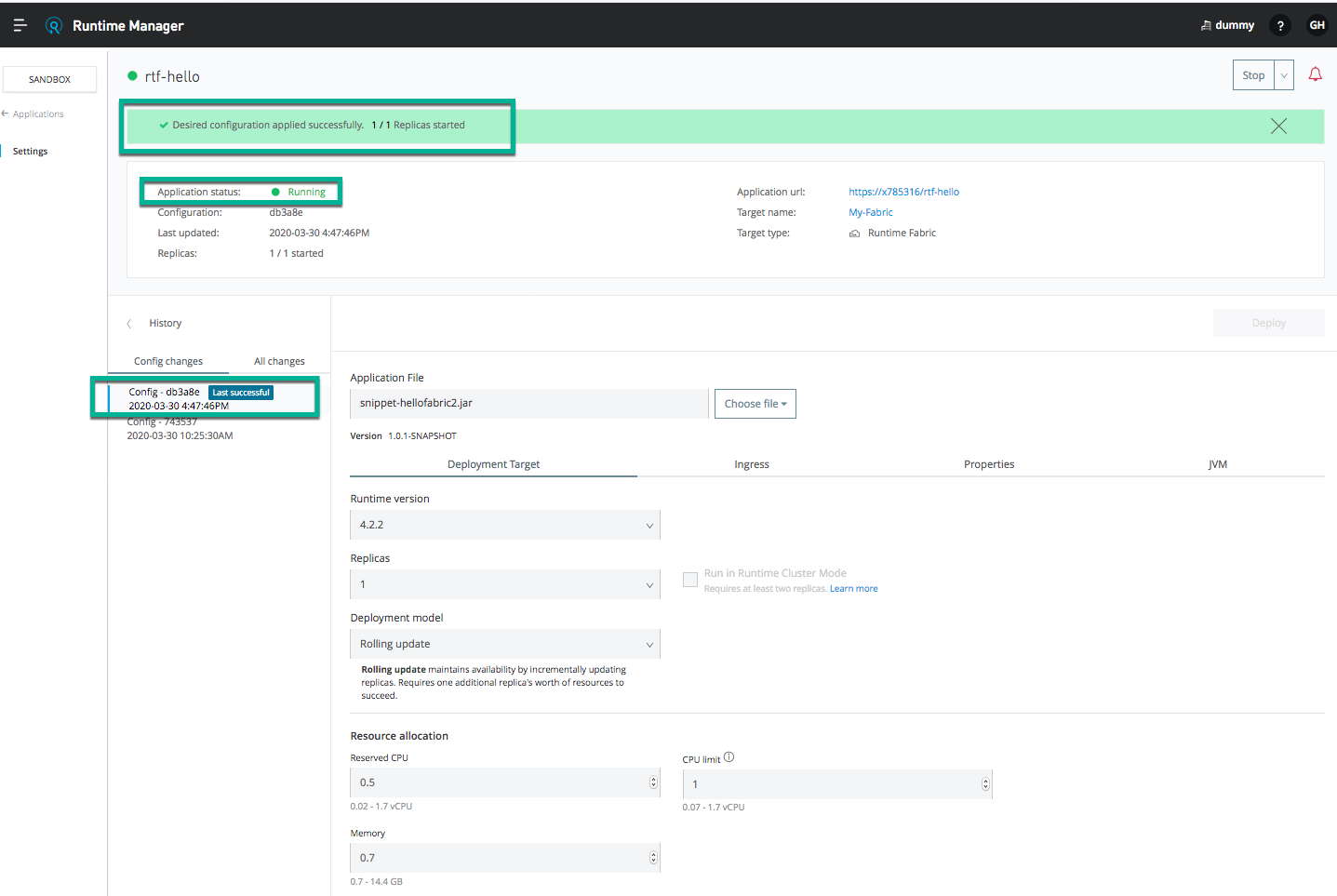
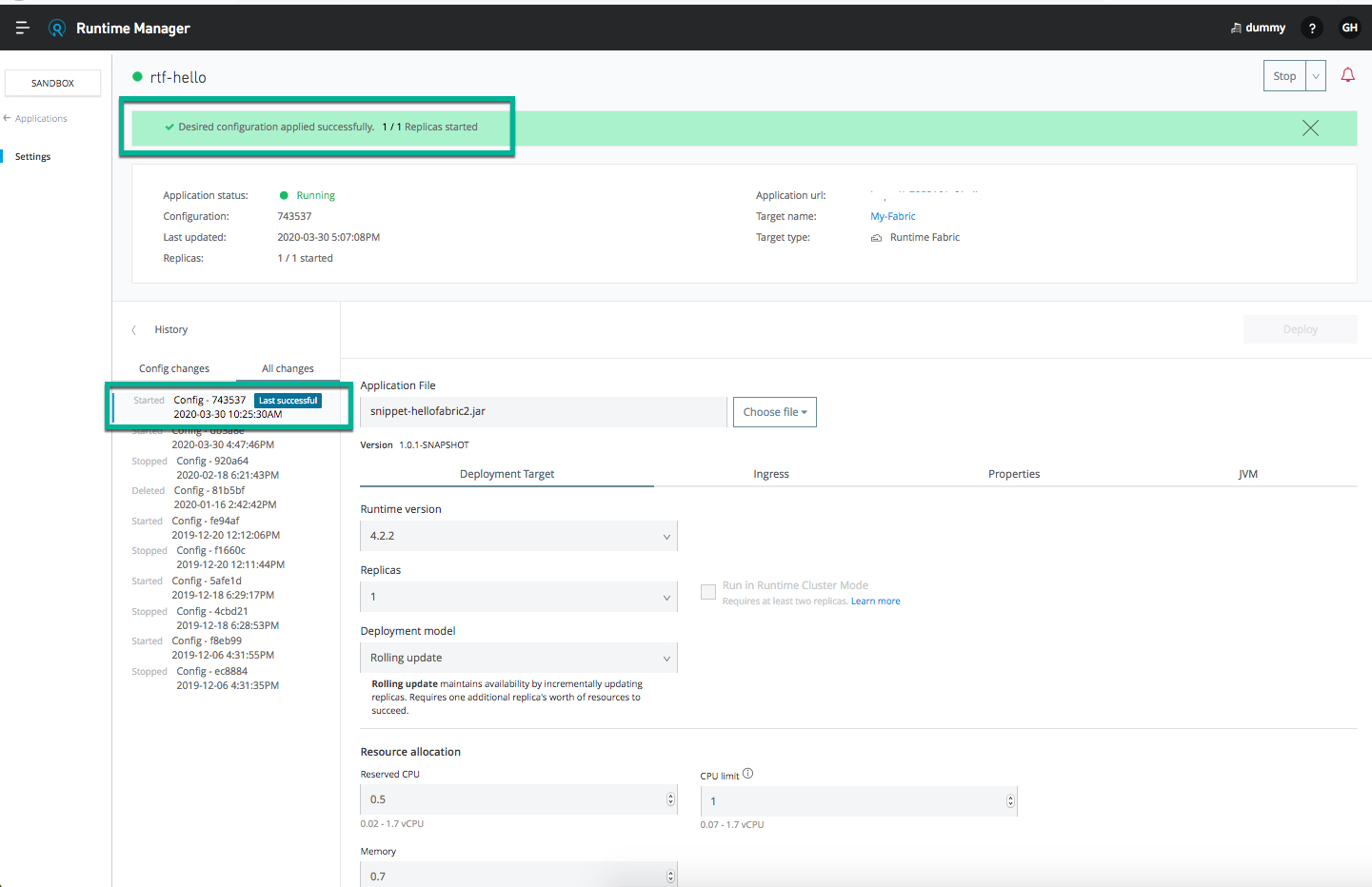
7. Once the deployment is done, you will see the message "Desired configuration applied successfully. X / X Replicas started" message, and you will also see the history of the application updated with the current timestamp with a config number of the application deployment being successful.
Rollback update
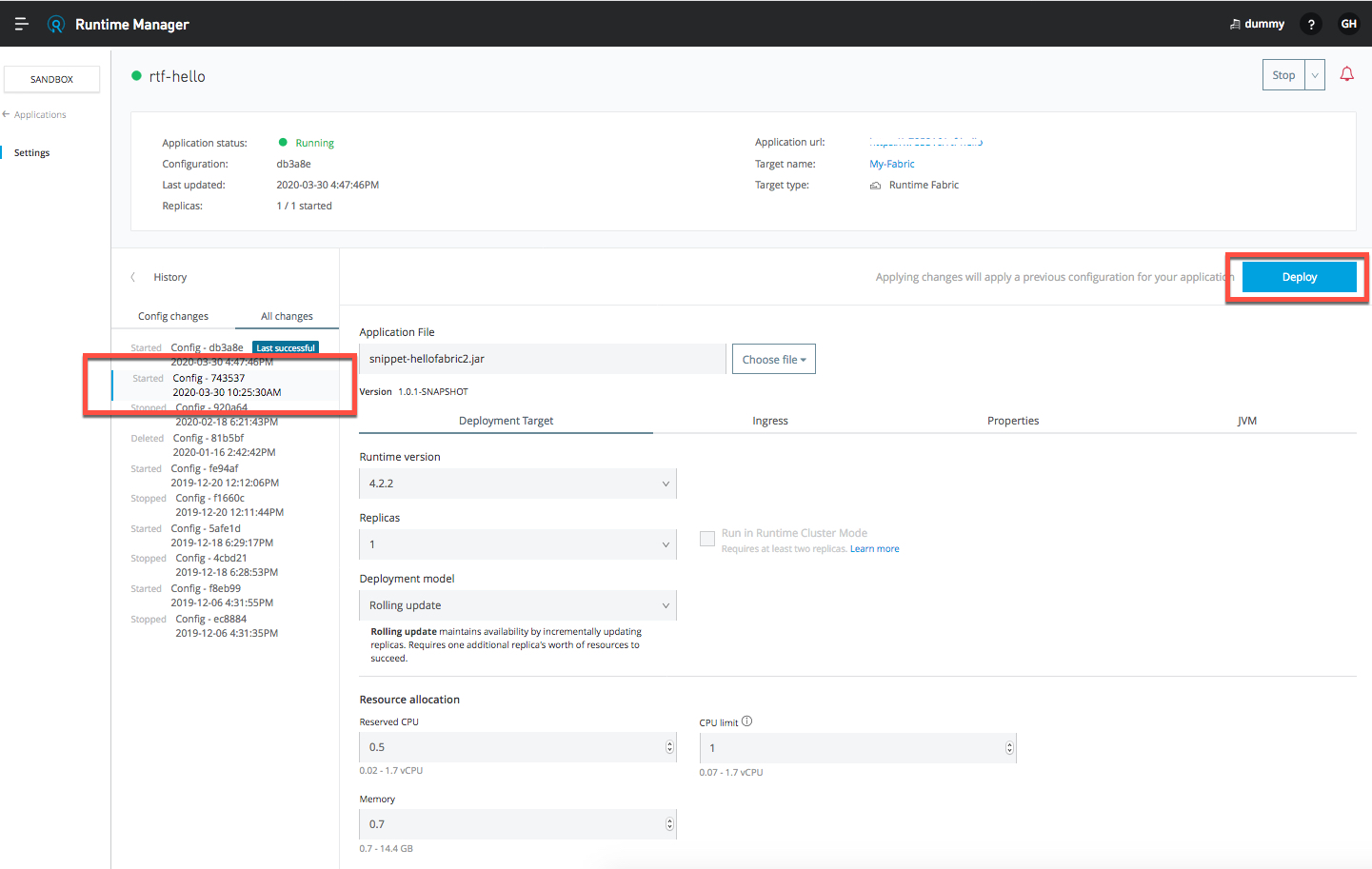
In case an application is having issues running on the latest runtime release a rollback to the previously used version using the below steps.1. From the history of the application changes, select the last successful deployment to which you want to rollback as shown below and click "Deploy". Please note, the history will show the timestamp of all the previous deployments along with application status and a unique configuration number to help you select the right version to roll back.
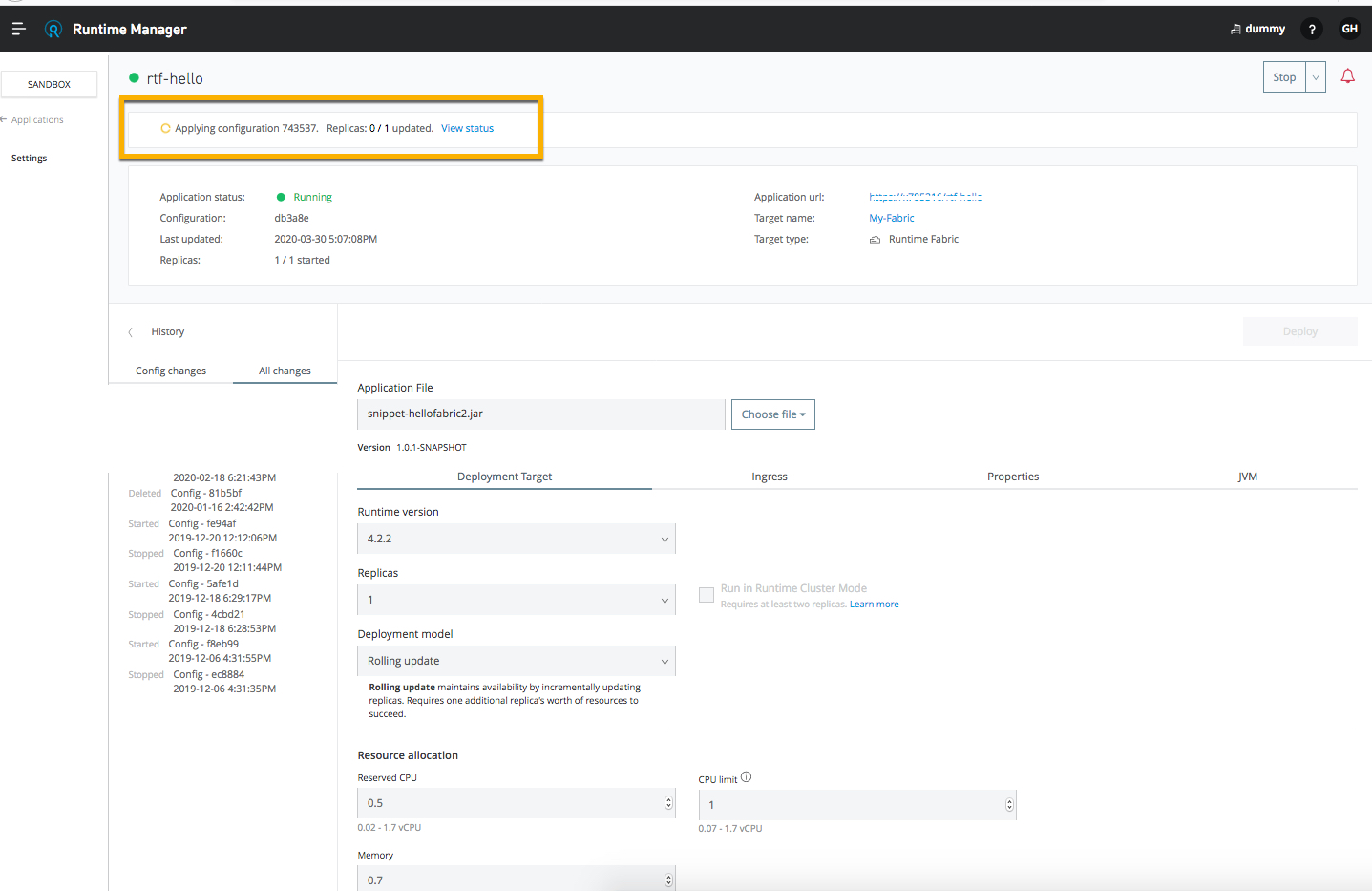
2. During the rollback, you will see that the configuration version you have selected to rollback is marked as "Desired" state in the history tab. Also, you will see the message "Applying configuration <configuration number>" on the screen as shown in the screenshot.
3. Once the rollback is successful, you will see the application is rolled back to the selected configuration number.
Knowledge-artikkelnummer
001117227
Hjalp denne artikkelen med å løse problemet ditt?
La oss få vite det slik at vi kan forbedre!