Valitse organisaatio
Anypoint Studio 7.1.x in Windows shows error "org.mule.tooling.client.startup.ToolingNotAvailableException: Tooling instance is not available"
Julkaisupäivä: Apr 24, 2025
Ratkaisu
SYMPTOM
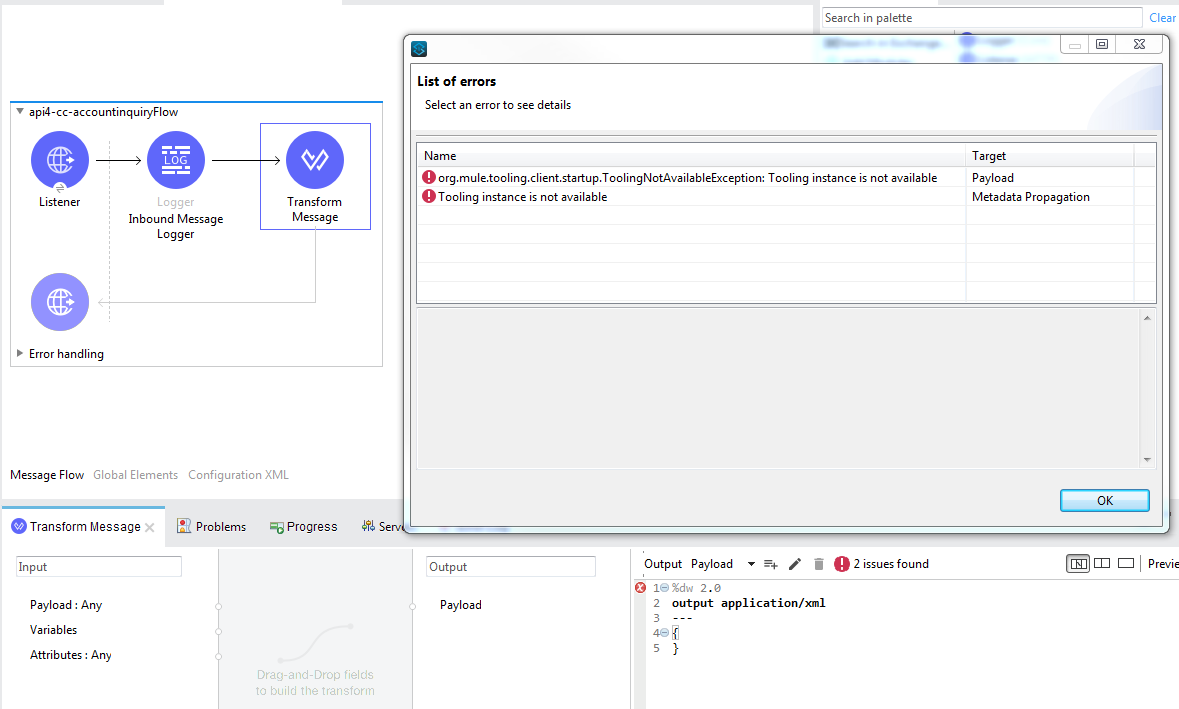
On a Windows environment, a Transform Message component shows an error after trying to resolve metadata propagation in Studio 7.1.x.
The error displayed in the UI looks like the following:
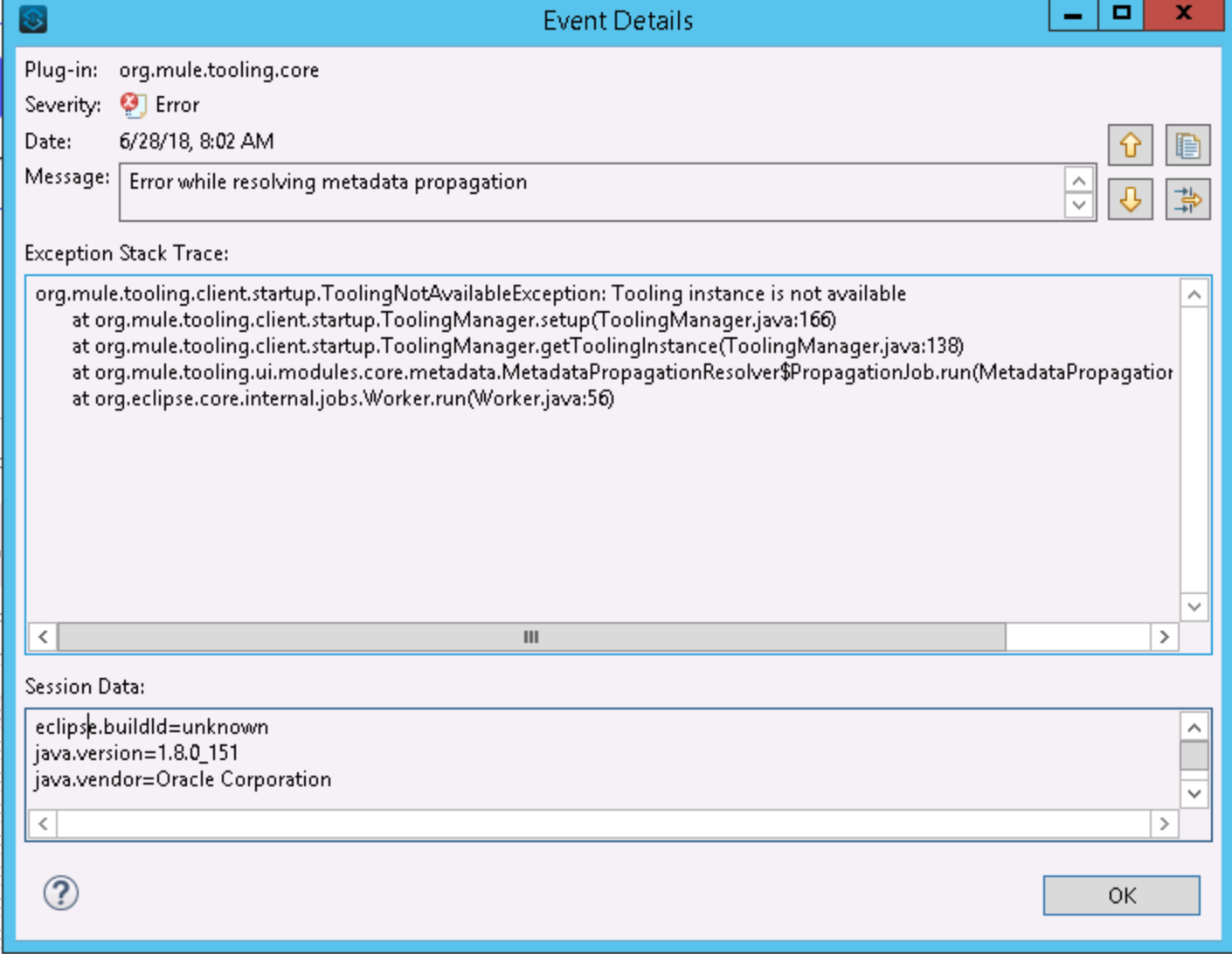
Exception Stack trace on Anypoint Studio error log show an issue on the metadata resolver:
CAUSE
Studio is not able to start the Tooling Instance and is not able to resolve the metadata in 90 seconds. The time out is reflected in Anyponit Studio Error logs:
org.mule.tooling.runtime.controller.MuleControllerException: Timeout while starting mule instance
	at org.mule.tooling.runtime.controller.MuleController.start(MuleController.java:143)
	at org.mule.tooling.client.startup.ToolingManager.setup(ToolingManager.java:305)
	at org.mule.tooling.client.startup.ToolingManager.getToolingInstance(ToolingManager.java:138)
	at org.mule.tooling.ui.modules.core.metadata.MetadataPropagationResolver$PropagationJob.run(MetadataPropagationResolver.java:169)
	at org.eclipse.core.internal.jobs.Worker.run(Worker.java:56)
Caused by: org.awaitility.core.ConditionTimeoutException: Condition with lambda expression in org.mule.tooling.runtime.controller.MuleController was not fulfilled within 90 seconds.
	at org.awaitility.core.ConditionAwaiter.await(ConditionAwaiter.java:104)
	at org.awaitility.core.CallableCondition.await(CallableCondition.java:79)
	at org.awaitility.core.CallableCondition.await(CallableCondition.java:27)
	at org.awaitility.core.ConditionFactory.until(ConditionFactory.java:809)
	at org.awaitility.core.ConditionFactory.until(ConditionFactory.java:785)
	at org.mule.tooling.runtime.controller.MuleController.start(MuleController.java:127)
	... 4 more
The reason is that the PATH environment variable is not correctly configured, or it is not defined, in Windows.
SOLUTION I
Update the PATH and after updating the PATH, restart Anypoint Studio so it uses the new value.
NOTE: even the PATH Variable exists on the System Variables, please make sure that the JDK bin subdirectory is the first item in your PATH environment variable.
SOLUTION II
Editing the anypoint studio .ini, changing the line: -Dorg.mule.tooling.runtime.args=-XX:-UseBiasedLocking by appending ",-Dtools.jar=<path_to_jdk>\lib\tools.jar"
Knowledge-artikkelin numero
001118276
Ratkaisiko tämä artikkeli ongelmasi?
Anna palautetta, jotta voimme kehittyä!
