Välj en organisation
How to Configure Domain Resolution for Internal Networks
Publiceringsdatum: Mar 2, 2024
Lösning
GOAL
Provide CloudHub applications with access to internal resources that are not reachable via the public internet.
PROCEDURE
Disclaimer: This solution provides a suggestion that should be considered in conjunction with your specific use-case and requirements and does not represent a complete solution for all circumstances.
To configure DNS resolution both Server IP and Domain details are required. To configure this, log onto the Anypoint Platform and navigate to Runtime Manager > VPCs > select the VPC > Internal DNS
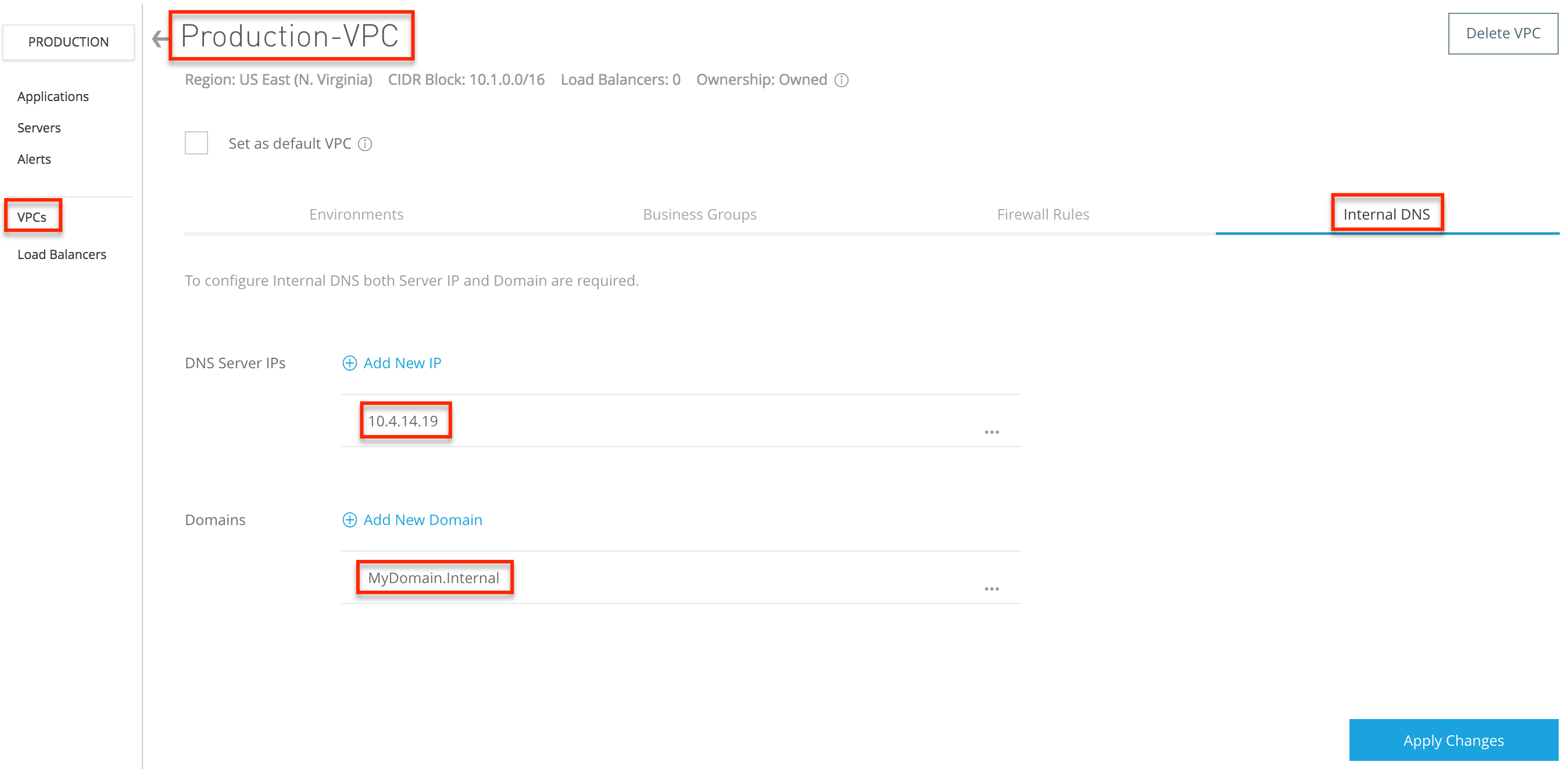
Add the server IP address
Add the IP address of each name server that can reply to DNS queries for the internal domains.
Notes:
- DNS servers are configured on a per VPC basis, so the server(s) IP address must be reachable from the VPC. This means via Direct Connect, VPC Peering, IPsec VPN, or the public internet. If the server itself is not reachable, DNS resolution will not be possible.
- When multiple servers are configured, the intended behaviour is: any DNS server in the list can be queried for the specified special domains at any time, in any order.
- All name servers must present the same DNS records, that is, all servers are expected to have a homogeneous view of the namespace.
- Once a valid response is received, from any of the configured name servers, the request is not be retried. Important: If one of the name servers does not have a record for the domain, it will return the response NXDOMAIN (non-existent domain). This is a valid response from the name server, so the query is not sent to the other servers.
Add the domain
Add each private domain that needs to be accessible from the VPC. The internal DNS server is used for resolution of the domain(s) specified under the Internal DNS tab of the VPC. Everything else will be handled by the external DNS server.
You only need to add the common portion of the domain name, for example: mulesoft.com
Note: The maximum number of characters of all the domains you configure must not exceed 229 characters.
For more information, the Resolve Private Domains in Your Internal Network documentation provides additional details in a step-by-step guide.
Verifying the Configuration
- Using How To Use Network Tools Application, deploy the application to the VPC.
- Select Ping from the dropdown menu > enter the DNS server IP address.
- Select DNS from the dropdown menu > enter the FQDN of a resource in the internal domain.
If you want to force the new settings, say to verify DNS resolution is working as expected, you can restart the application. Using the network tools application for this purpose would avoid the need to start all apps, i.e., you can restart the network tools app and use that to verify the new DNS settings, then wait for the change to be reflected on the other apps.
Knowledge-artikelnummer
001118380
Löste denna artikel ditt problem?
Berätta för oss vad vi kan förbättra!
