Seleccionar una organización
How to find my CloudHub Worker IP Address
Fecha de publicación: Aug 22, 2025
Solución
Problem:
How to identify the IP addresses of my CloudHub Application workers.
CloudHub Application workers have two IP addresses each, one ‘private’ (used within the CloudHub VPC and on private links such as VPN, Direct Connect, Transit Gateways and VPC Peering) and one public (used over the internet).
Solution:
You can see the public IP address of a worker in the Anypoint Runtime Manager UI.
First, select your application:

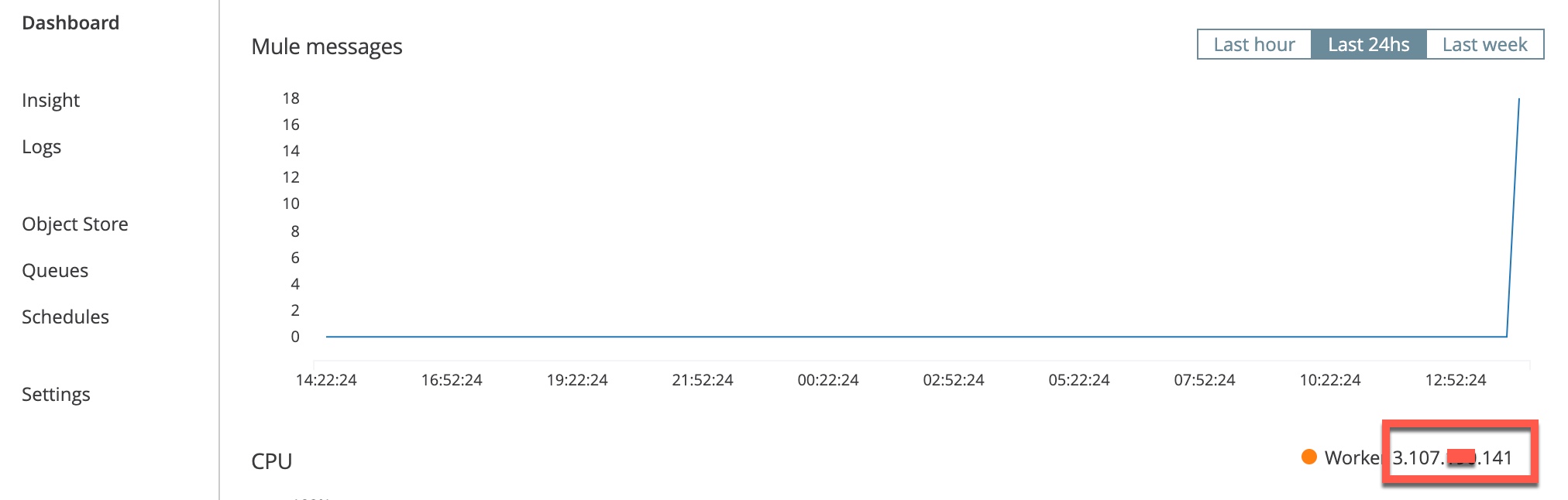
Click on the name of the application. The CloudHub worker's public IP address is displayed in the bottom-right corner of the Mule messages dashboard:
Alternatively, you can obtain the application worker's public (and private) IP addresses by resovling their hostnames.
Firstly, get the application's fully qualified domain name (FQDN) from the Domain displayed in the top-left corner on the Dashboard page. Or, navigate to "Settings" on the left hand panel:
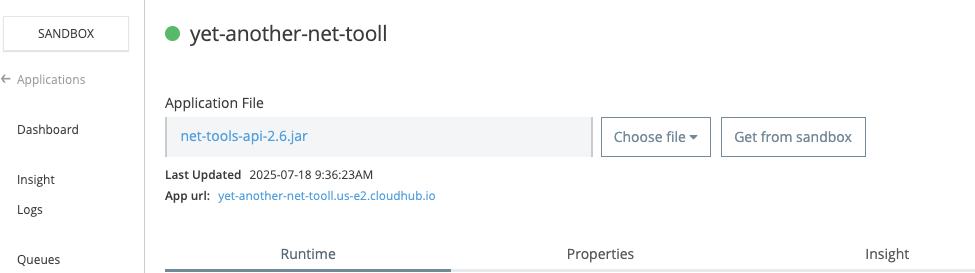
The application’s full qualified domain name can be found in the App url:
In this example:
yet-another-net-tooll.us-e2.cloudhub.io
This FQDN points to the load balancer that sits in front of the CloudHub application workers.
The application workers' public hostname follows the format:mule-worker-<application_name>.<region>.cloudhub.io
In this format:
-
<region>is the abbreviated region code. -
<application_name>is the deployed application’s name.
For example:mule-worker-yet-another-net-tooll.us-e2.cloudhub.io is deplopyed in the us-east-2 region.
You can use DNS lookup tools or ping to see the address(es) of your application’s workers.
The common tools are dig, nslookup, and ping. You use them from the command line on your computer:
dig mule-worker-<application_name>.<region>.cloudhub.io
nslookup mule-worker-<application_name>.<region>.cloudhub.io
ping mule-worker-<application_name>.<region>.cloudhub.io
So for this example, that would be:
dig mule-worker-yet-another-net-tooll.us-e2.cloudhub.io
An application’s private hostname is in the following form:
mule-worker-internal-<application_name>.<region>.cloudhub.io
The region should be abbreviated. For example, "us-e2" should be used for the us-east-2 region:
mule-worker-internal-yet-another-net-tooll.us-e2.cloudhub.io
Again, you can use DNS lookup tools or ping to see the private IP addresses of your application’s workers.
The common tools are dig, nslookup, and ping. You use them from the command line on your computer:
dig mule-worker-internal-<application_name>.<region>.cloudhub.io
nslookup mule-worker-internal-<application_name>.<region>.cloudhub.io
ping mule-worker-internal-<application_name>.<region>.cloudhub.io
So for this example, that would be:
dig mule-worker-internal-yet-another-net-tool.us-e2.cloudhub.io
If the dig command returns only one IP address when you have multiple workers, try the following command instead:
dig mule-worker-internal-<application_name>.<region>.cloudhub.io +short @8.8.8.8
Número del artículo de conocimiento
001118571
¿Resolvió este artículo su problema?
¡Háganos saber cómo podemos mejorar!
