Valitse organisaatio
Module Not Found in Exchange When Added Via Manage Modules Option in MuleSoft Anypoint Studio
Julkaisupäivä: Dec 29, 2025
Kuvaus
When you add a module via 'Manage Dependencies --> Manage Modules' option in Mulesoft Anypoint Studio, the module cannot be located in Exchange. The module is available in Exchange and can be added if you create a new API.
Ratkaisu
When a module cannot be located in Exchange and the module was added via Manage Modules in MuleSoft's Anypoint Studio, perform this workaround:
1. Click on your module in Exchange and then click on Download drop-down button. Verify "As Mule 4 connector" option is enabled.
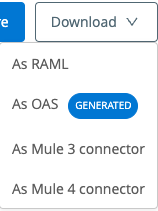
2. If the option is enabled as described in Step 1 then continue from Step 3.
3. Open your Mule application in Anypoint Studio.
4. Click on the Open Exchange icon in the toolbar.

5. Search for your module and click the 'Add to project' button.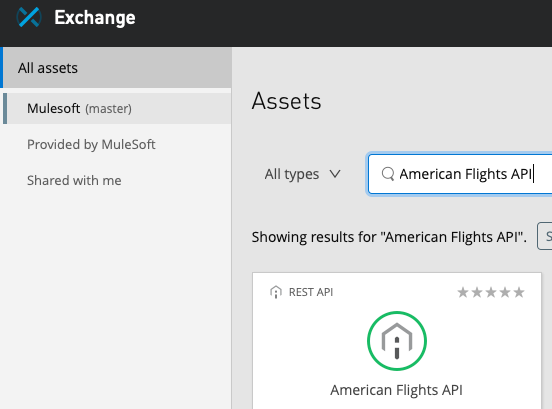

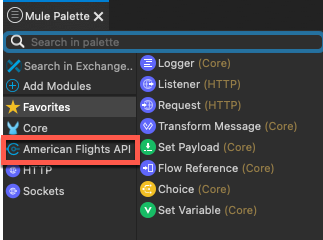
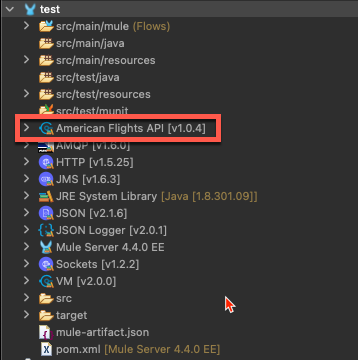
6. You should now see your module added to the Mule Palette and in your project.
Knowledge-artikkelin numero
001119231
Ratkaisiko tämä artikkeli ongelmasi?
Anna palautetta, jotta voimme kehittyä!
