Seleccionar una organización
Not able to access login screen to Anypoint through Anypoint Studio
Fecha de publicación: Dec 19, 2024
Descripción
SYMPTOM
You are not able to access the login screen to Anypoint (E.g. Exchange) via Anypoint Studio; instead a blank screen is displayed.
CAUSE
Anypoint Studio comes bundled with a default browser to display elements of the Anypoint UI. When you try any action which needs you to use the Anypoint Platform UI, Anypoint Studio will render it using a built-in browser. This is why configuring Studio’s Browser Settings is an important step to avoid such exceptions.
Solución
SOLUTION
In Anypoint Studio, the built-in browser is the default. However, if you log in to Anypoint Platform using multi-factor authentication (MFA), you must configure Studio to use your system’s native browser to render the Anypoint Platform UI:
-
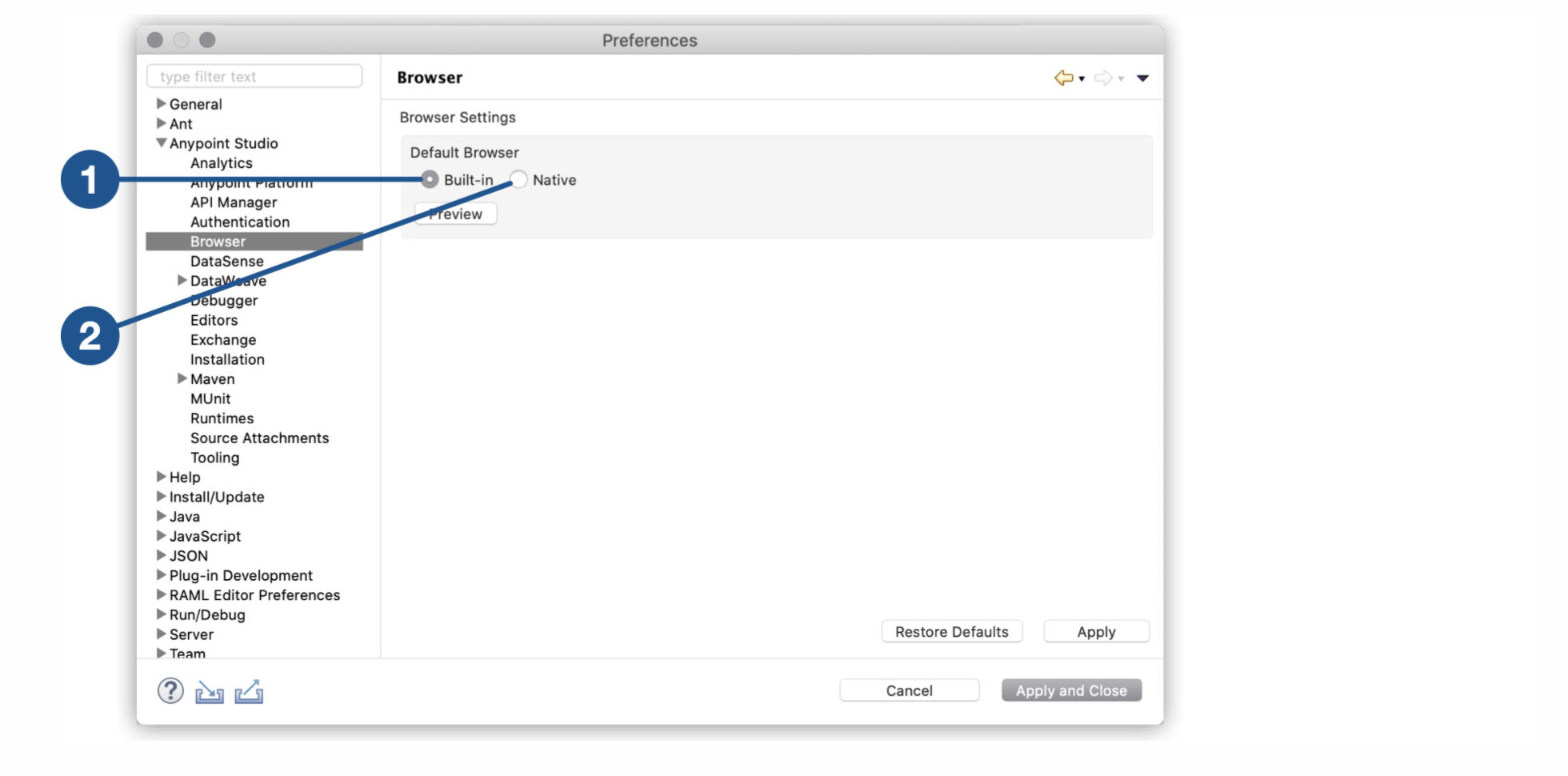
Navigate to Preferences > Anypoint Studio > Browser.
-
Select the type of default browser for Studio:
Note:
- Built-in: Uses the built-in browser.
- Native: Uses the native browser of your operating system
Furthermore reference: Mulesoft Documentation
3. Click Preview to verify the changed configuration.
Additionally, if you use MicroSoft Windows, you must perform this additional configuration.
-
Quit Anypoint Studio if you are running it.
-
Download the latest fixed version of WebView2 from the Microsoft Developer Portal.
-
Extract the
.cabfile with the following command in a Command Prompt (CMD):Extrac32 /E <path_to_CAB> -
Locate your
AnypointStudio.inifile inside your Anypoint Studio’s installation directory. -
Add the following lines to the
AnypointStudio.inifile:-Dorg.eclipse.swt.browser.DefaultType=edge -Dorg.eclipse.swt.browser.EdgeDir=<path-to-extracted-WebView2-dir> # for example: # -Dorg.eclipse.swt.browser.EdgeDir=C:\Users\my-user\Downloads\Microsoft.WebView2.FixedVersionRuntime.9x.x.xx.xx
Número del artículo de conocimiento
001119366
¿Resolvió este artículo su problema?
¡Háganos saber cómo podemos mejorar!
