組織を選択
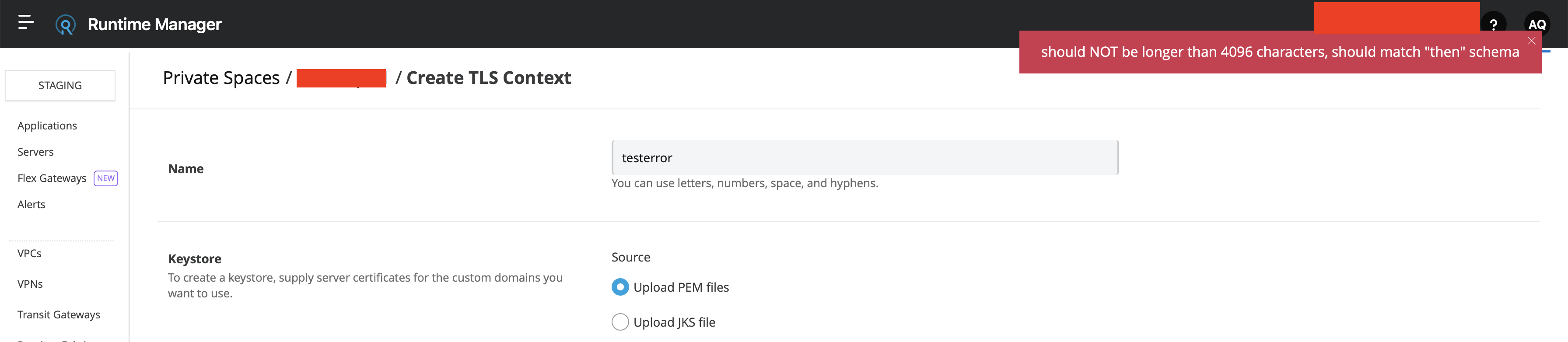
CloudHub 2.0 TLS Context creation fails with "should NOT be longer than 4096 characters, should match "then" schema"
公開日: Jun 7, 2025
解決策
SYMPTOM
- You are trying to create a new or update an existing TLS context in CloudHub 2.0.
- Upon submission of the certificates and private key, the following error message is returned "should NOT be longer than 4096 characters, should match "then" schema"
CAUSE
The size of the public certificate is too long, most likely because it includes one or more intermediate certs and CA certs.
SOLUTION
Upload the server certificate as part of the field "Public Certificate", and the chain of intermediate and CA certs on the field "CA Path Certificate(Optional)"
Please follow the steps below for a detailed step-by-step procedure.
Upload your Leaf or Server Certificate in the Public Certificate Option, and upload the respective Private Key for your Leaf/Server Certificate in the Keystore Settings.

Provide the Key password if you have one, or if you don't have one, you can ignore this (it is recommended to have a Key Password for additional security) and make sure no characters are added into the provided Text Box if the key password is not available.
The Intermediate Certificates and the root certificates (if any are available) must be added to the CA Path Certificate(Optional).

Note: If you have multiple intermediate and root certificates, please create a single PEM file using any Plain text editor and combine the certificates in the order below. After saving the file, upload it to the CA Path Certificate(Optional).
-----BEGIN CERTIFICATE-----
(Intermediate certificate 1 - issuer of your Primary Leaf or Server certificate, which has been uploaded to the Public Certificate)
-----END CERTIFICATE-----
-----BEGIN CERTIFICATE-----
(Intermediate certificate 2 - issuer of the Intermediate certificate 1 )
-----END CERTIFICATE-----
-----BEGIN CERTIFICATE-----
(root certificate  - issuer of the Intermediate certificate 2 )
-----END CERTIFICATE-----
Post addition of the certificates, the page should look like the example below.

After verifying the certificates page, please proceed with adding/updating the TLS Context by clicking the “Create TLS” Option, which will be available at the bottom of the page.
ナレッジ記事番号
001119621
この記事で問題は解決されましたか?
ご意見をお待ちしております。
