Velg en organisasjon
What Information to Collect for MuleSoft RPA Issues
Publiseringsdato: Mar 2, 2024
Løsning
SYMPTOM
When facing any issues or errors with MuleSoft RPA the following list of information and details needs to be provided to Support to assist you further.In the resolution section, it is segregated into 3 parts based on at which application you facing the issue.
- RPA Bot
- RPA Builder
- RPA Recorder
SOLUTION
1. RPA Bot
-
Version of RPA Bot -
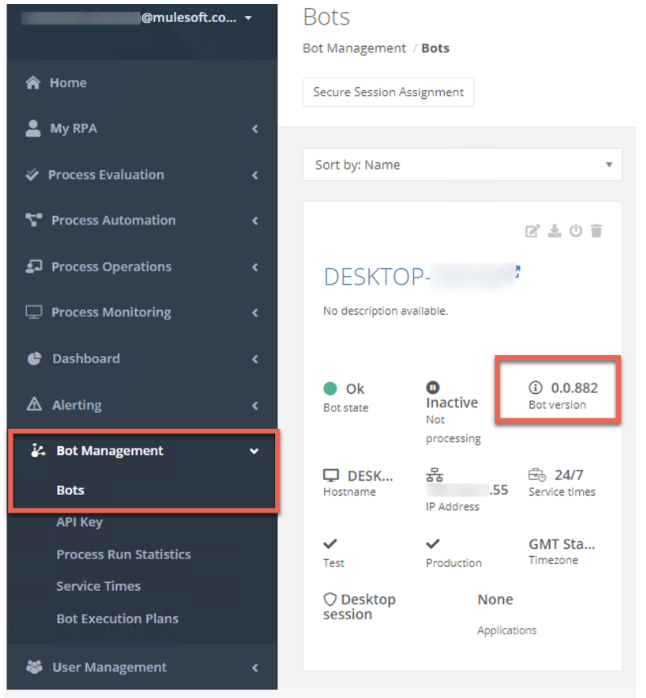
- You can find the version number of the RPA Bot after logging in to RPA Manager and navigation to the Bot menu
- Steps: Navigate to RPA Manager -> Bot Management -> Bots -> Check the particular Bot -> Bot Version
-
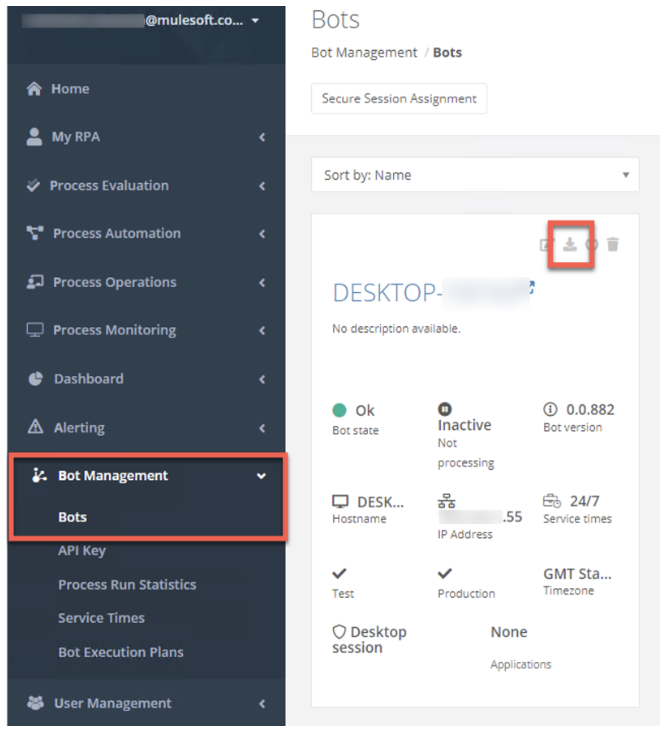
Downloading the Bot's log file from RPA Manager -
- Navigate to RPA Manager -> Bot Management -> Bots -> Check the particular Bot -> Click download (button on top right)
- Attach the downloaded log file to the case
-
Adjusting the Bot's log level
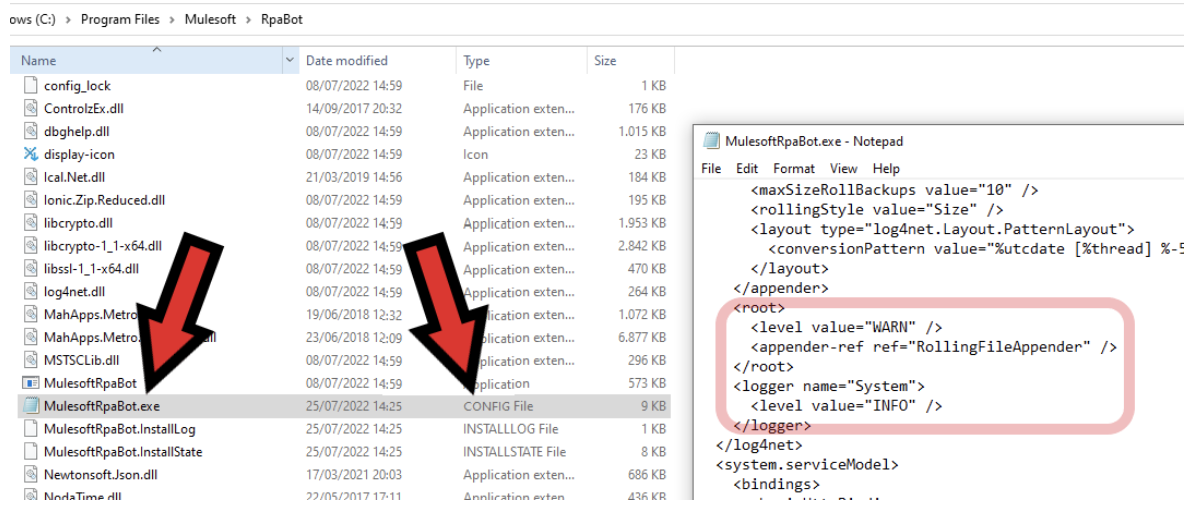
- Navigate to Program files -> Mulesoft -> RpaBot -> MulesoftRPABot.exe.config - Open it in a text editor
- Locate the <root> element within the XML structure and adjust the Log level, e.g. to "DEBUG".
- Restart the Windows Bot Service so the changes are applied.
Note:
- To adjust the log level you need to have access to the system where the bot is running, as this cannot be changed using the RPA Manager
- Using "DEBUG" mode generates large amounts of log data and should only be used during replication of an issue and reverting it back to INFO immediately.
- Make sure the XML structure remains valid and only the value entry has been changed to avoid problems.
-
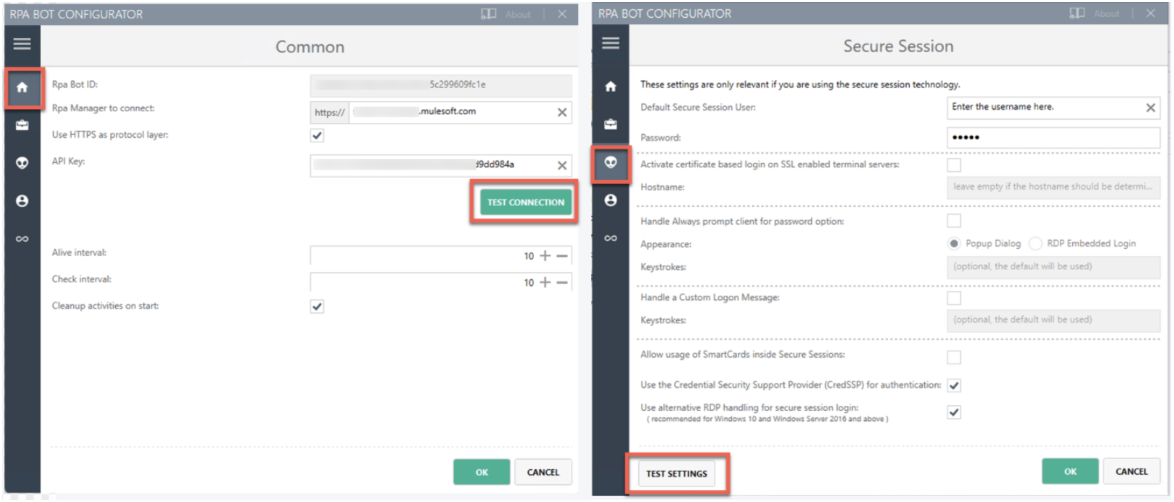
Connection Test from RPA Bot Configurator
- Navigate to Program files -> Mulesoft -> RpaBot -> Open the Bot Configurator executable -> RpaBotConfigurator
- Send Screenshot by doing Test connection from Common and Secure Session
2. RPA Builder
-
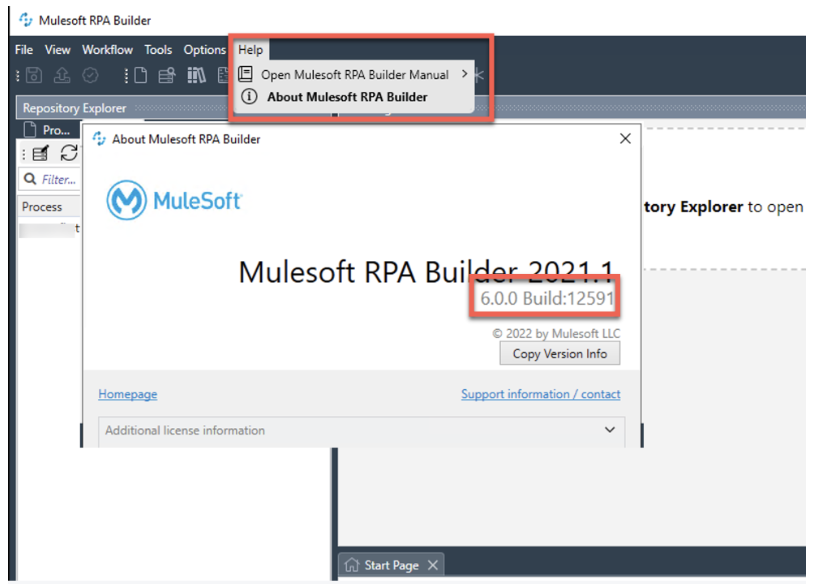
Version of RPA Builder
- Navigate to Mulesoft RPA Builder -> From Menubar -> Help -> About Mulesoft RPA Builder
-
Downloading RPA Builder Log file
- Navigate to Mulesoft RPA Builder -> From Menubar -> Tools -> Open Mulesoft RPA Builder Log
- The log file opens in a separate text editor window -> Download the log file and attach to the case
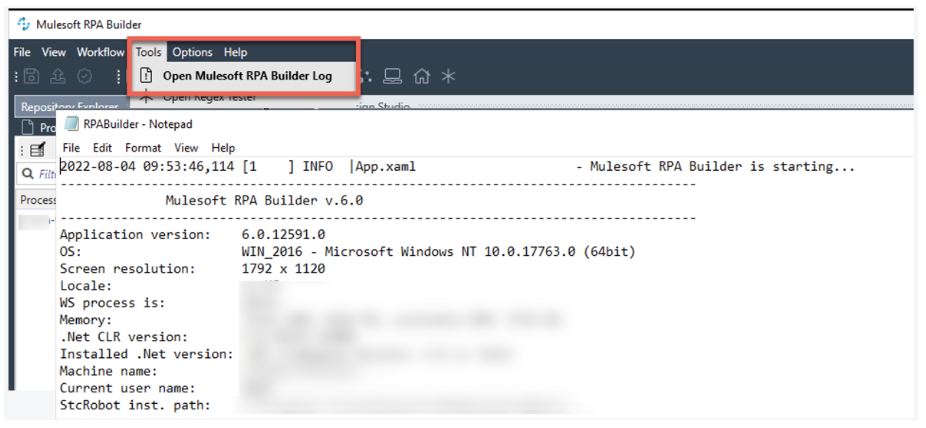
For older log files, Navigate to -> This PC -> Documents -> Mulesoft - RPA
-
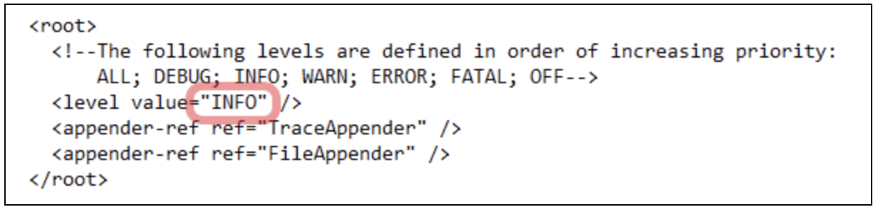
Adjusting the RPA Builder log level
You need to capture a more detailed log while replicating a scenario, in those cases, you need to increase the log level/severity
- Navigate to Program files -> Mulesoft -> RPABuilder -> bin Config -> Open logconf.xml with a text editor.
- Locate the <root> element within the XML structure and adjust the Log level, e.g. to "DEBUG".
- Save the configuration file -> Restart the RPA Builder
Note:
- Using "DEBUG" mode generates large amounts of log data and should only be used during replication of an issue and reverting it back to INFO immediately.
- Make sure the XML structure remains valid and only the value entry has been changed to avoid problems.
-
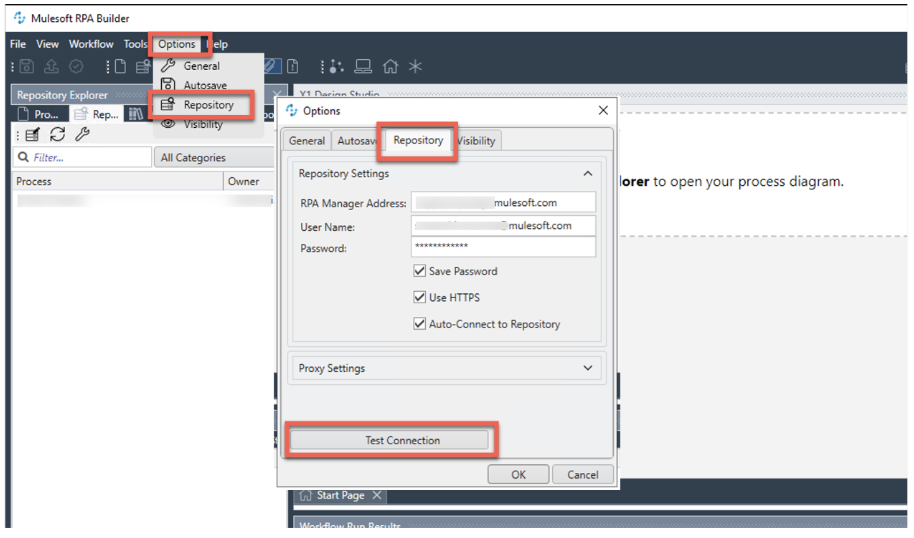
Connection test of RPA Builder
- Navigate to Mulesoft RPA Builder -> From Menubar -> Options -> Repository
- Send Screenshot by doing Test connection from Repository
3. RPA Recorder
-
Version of RPA Recorder
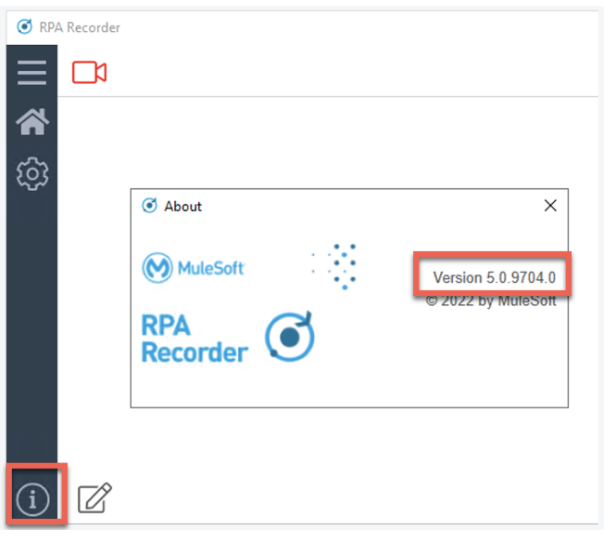
- Navigate to RPA Recorder -> Click "i" symbol (button on bottom left) - About dialog box contains the version.
-
Downloading RPA Recorder Log file
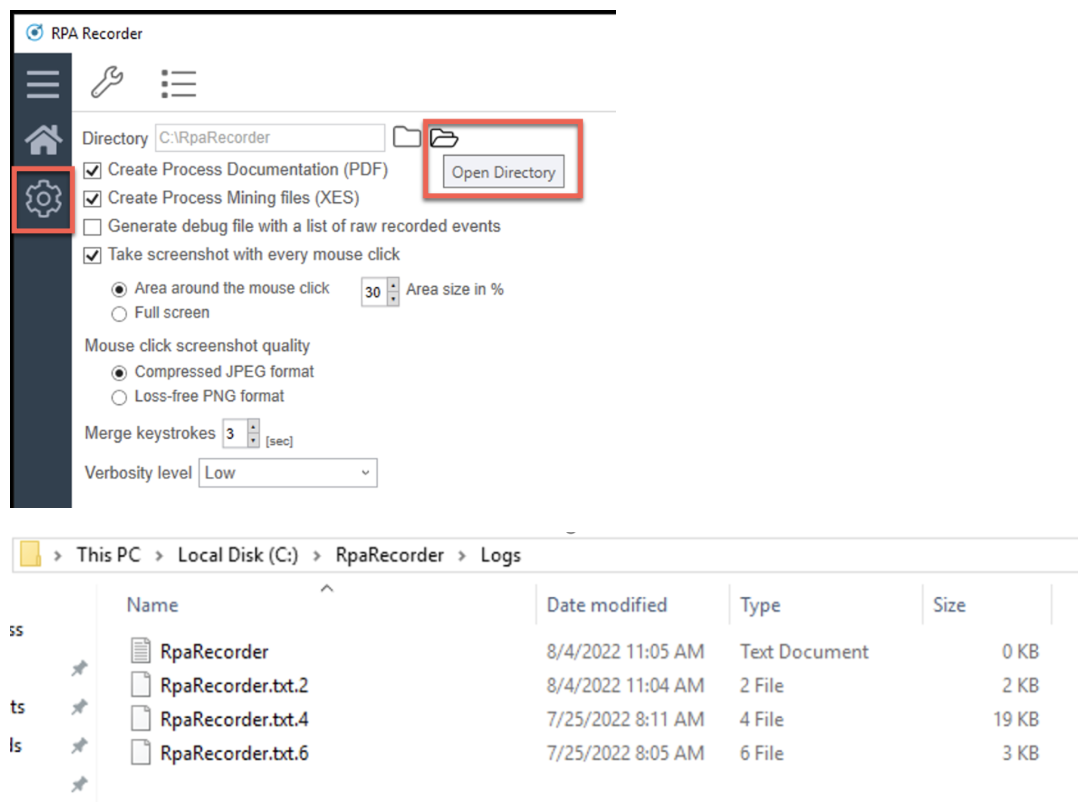
- Navigate to RPA Recorder -> Open settings via gear icon -> Open directory
- The Windows Explorer opens with the Recorder's installation folder -> Open Logs folder -> Open log file based on timestamp
-
Adjusting the RPA Recorder log level
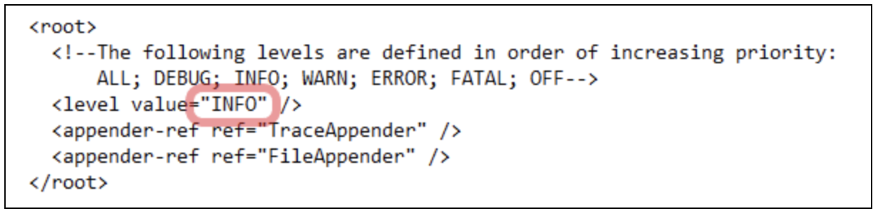
- Navigate to Program Files -> Mulesoft -> RPARecorder -> MuleSoftRpaRecorder.exe.config -> Open it in a text editor
- Locate the <root> element within the XML structure and adjust the Log level.
- Save the configuration file -> Restart the RPA Recorder
Note:
- Using "DEBUG" mode generates large amounts of log data and should only be used during replication of an issue and reverting it back to INFO immediately.
- Make sure the XML structure remains valid and only the value entry has been changed to avoid problems.
-
Collecting logs for Failed Recordings
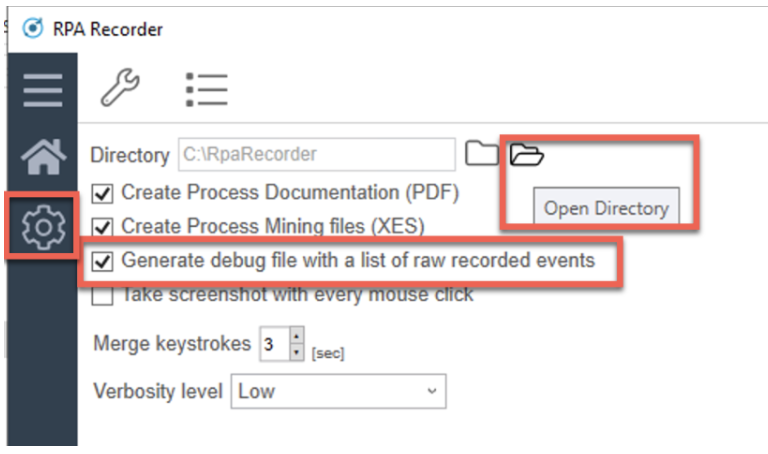
- Navigate to RPA Recorder -> Open settings via gear icon -> Check the option “Generate debug file with a list of raw recorded events”
- Repeat the recording session and reproduce the error
- Locate the recorded session on the local drive via Open Directory. The recorder creates a folder for the current day to store session
Refer to the link for RPA Documentation Page: RPA Overview
Knowledge-artikkelnummer
001119671
Hjalp denne artikkelen med å løse problemet ditt?
La oss få vite det slik at vi kan forbedre!
