Välj en organisation
MuleSoft Secure Storage Error Anypoint Studio
Publiceringsdatum: Feb 25, 2026
Beskrivning
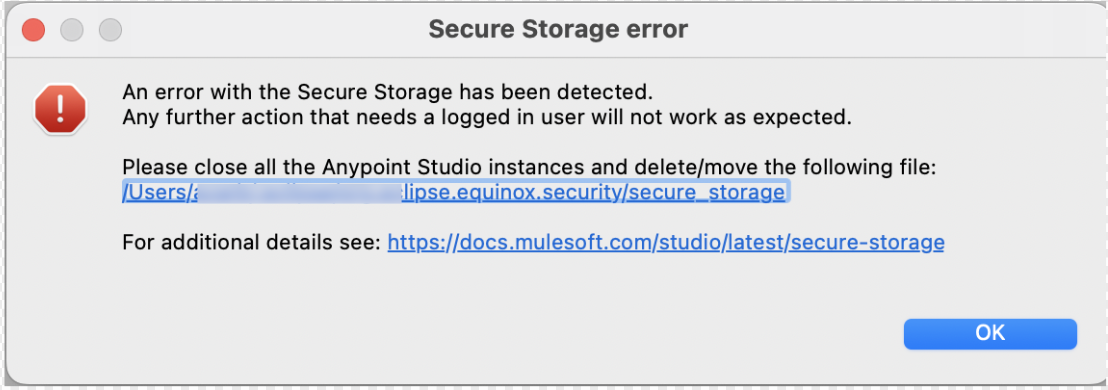
You are trying to deploy an application to MuleSoft Anypoint Exchange and you are getting the popup Secure Storage error or you see that the "Publish to Exchange" option is grayed out.
The error further states:
"An error with the Secure Storage has been dectected."
"Any further action that needs a logged in user will not work as expected."
"Please close all the Anypoint Studio instances and delete/move the following file:"
Lösning
On further examination of the Anypoint Studio Logs, the following can be seen:
!ENTRY org.eclipse.equinox.security 4 0 2022-09-14 23:50:26.186 !MESSAGE Secure storage was unable to retrieve the master password from the OS keyring.
Make sure that this application has access to the OS keyring. If the error persists, the password recovery feature could be used,
or secure storage can be deleted and re-created.
!STACK 0
java.lang.SecurityException: Could not obtain password. Result: -25293
at org.eclipse.equinox.internal.security.osx.OSXProvider.getPassword(Native Method)
................................................
................................................
!ENTRY org.mule.tooling.core 4 100 2022-09-14 23:50:26.186
!MESSAGE Failed to retrieve the authenticated users from Secure Storage
!STACK 0
org.eclipse.equinox.security.storage.StorageException: No password provided.
at org.eclipse.equinox.internal.security.storage.SecurePreferences.get(SecurePreferences.java:269)
................................................
................................................
When an error in MuleSoft Anypoint Studio displays the "An error with the Secure Storage has been dectected", the Eclipse Secure Storage is unable to get the Master Password from the Operating system keyring. This could happen due to corruption of secure storage.
To resolve the error, please follow the below options to resolve the issue:
Option #1 :
Anypoint Studio -> Preferences -> General -> Security -> Secure Storage -> Contents -> Expand the "Default Secure Storage" -> Anypoint Studio -> select Anypoint Platform -> click Delete button to delete it -> then restart the Studio -> Try authenticate again
Option #2
Anypoint Studio -> Preferences -> General -> Security -> Secure Storage -> Password on the right pane -> OS X Keystore Integration -> Recover password -> Once complete restart the Studio and try again
Option #3
Anypoint Studio -> Preferences -> General -> Security -> Secure Storage -> Password on the right pane -> OS X Keystore Integration -> Change password -> Once complete restart the Studio and try again
Refer Keychain Access User Guide for MacOS
Option #4
In case none of the previous options work, then the last step is a clean Anypoint Studio installation since there might be some corruption on the secure storage integration on Studio application.
Ensure you uninstall Anypoint Studio and all its files (you don't need to delete the workspace directory), then download latest Studio version (https://www.mulesoft.com/lp/dl/anypoint-mule-studio) and install it.
Knowledge-artikelnummer
001120004
Löste denna artikel ditt problem?
Berätta för oss vad vi kan förbättra!
