Velg en organisasjon
MuleSoft Anypoint SSO Certificate Expired
Publiseringsdato: Jan 29, 2026
Beskrivelse
You have noticed that the MuleSoft Anypoint SSO signing certificate is expiring soon or has already expired.
Løsning
For the MuleSoft Anypoint SSO signing certificate, the SAML specification states that SAML certificates can be expired. Per section "2.5.1 Key Representation" in this link: https://docs.oasis-open.org/security/saml/Post2.0/sstc-metadata-iop.html.
In the case of an X.509 certificate, there are no requirements as to the content of the certificate apart from the requirement that it contain the appropriate public key. Specifically, the certificate may be expired, not yet valid, carry critical or non-critical extensions or usage flags, and contain any subject or issuer. The use of the certificate structure is merely a matter of notational convenience to communicate a key and has no semantics in this profile apart from that. However, it is RECOMMENDED that certificates be unexpired[1].
If the Anypoint expired certificate is a cause of concern, the following explains the process of providing your own certificate/key pair or having the Anypoint platform generate a self-signed certificate for you to use.
You can now rotate in a new pair of Anypoint keys, but you must complete the prequisites first.
https://docs.mulesoft.com/access-management/managing-users#prerequisites
Step 1:
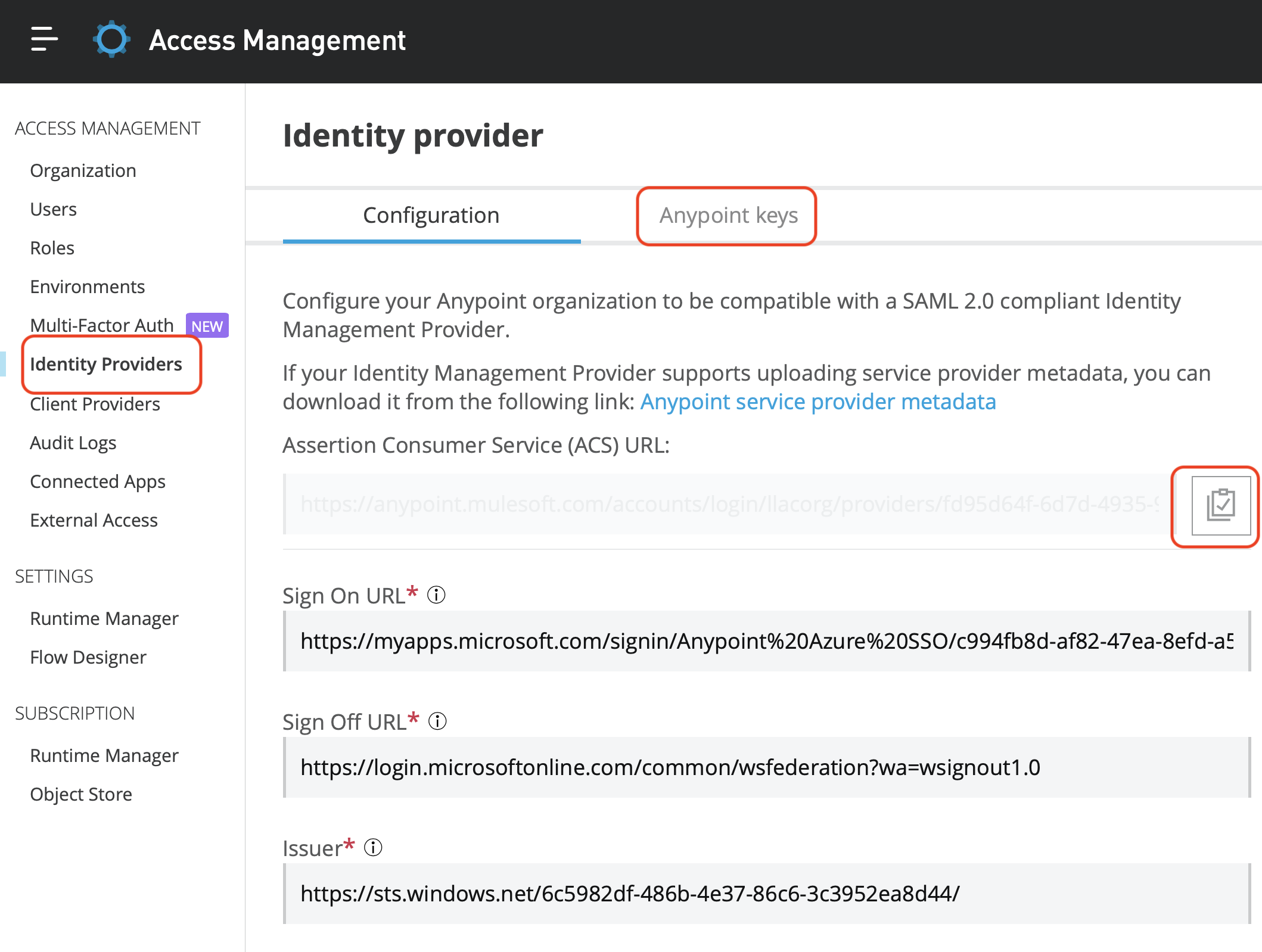
- Access Management - Identity Providers - SAML edit - Copy the new ACS URL
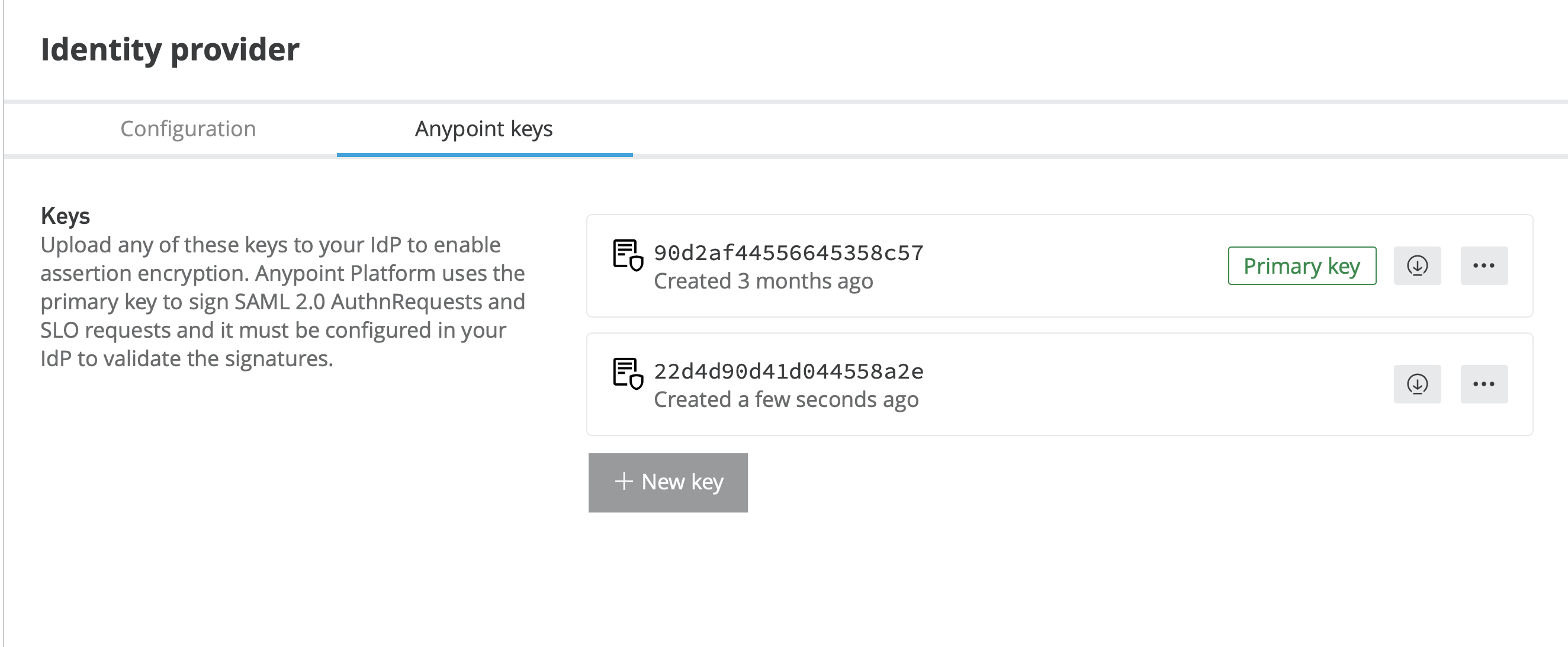
- Anypoint Keys - New Key - Generate (Do NOT set as primary key yet) - download the key
Step 2:
- Replace your IDP Anypoint's current ACS from
https://anypoint.mulesoft.com/accounts/login/receive-id
and paste in your ACS URL
https://anypoint.mulesoft.com/accounts/login/<DOMAIN>/providers/<PROVIDER-ID>/receive-id
- Upload the new certificate key to your IDP.
Step 3:
Set the new key as primary. Test again to make sure you are able to login.
NOTE: In case an Admin who gets locked out and cannot log into AnyPoint portal to rotate the certificate needs alternate method of login.
- Use local user (NON SSO USER)
- Disable SAML verification in your IDP.
- Reach out to Mulesoft customer support with error screen shots if something is still failing.
Flere ressurser
To validate the expiry of the keys, navigate to Access Management > Identity Providers > [Saml config] > Anypoint Keys, download the PEM file, and check its expiry date by using the following command:
$ openssl x509 -enddate -noout -in certificate.pem
Knowledge-artikkelnummer
001120588
Hjalp denne artikkelen med å løse problemet ditt?
La oss få vite det slik at vi kan forbedre!
