Organisation auswählen
How to extract Dead Letter messages from Dead Letter Queue without consuming them
Veröffentlichungsdatum: Feb 28, 2025
Lösung
SUMMARY
This guide shows how to use Anypoint Platform's MQ UI to extract the messages from a DLQ without consuming them so an appropriate processor application/method can be created based on the results or the messages can be manually checked while keeping them for later processing.
OBJECTIVE
The goal is to extract messages from an Anypoint MQ without actually consuming them.
STEPS
- On Anypoint Platform navigate to the MQ interface.
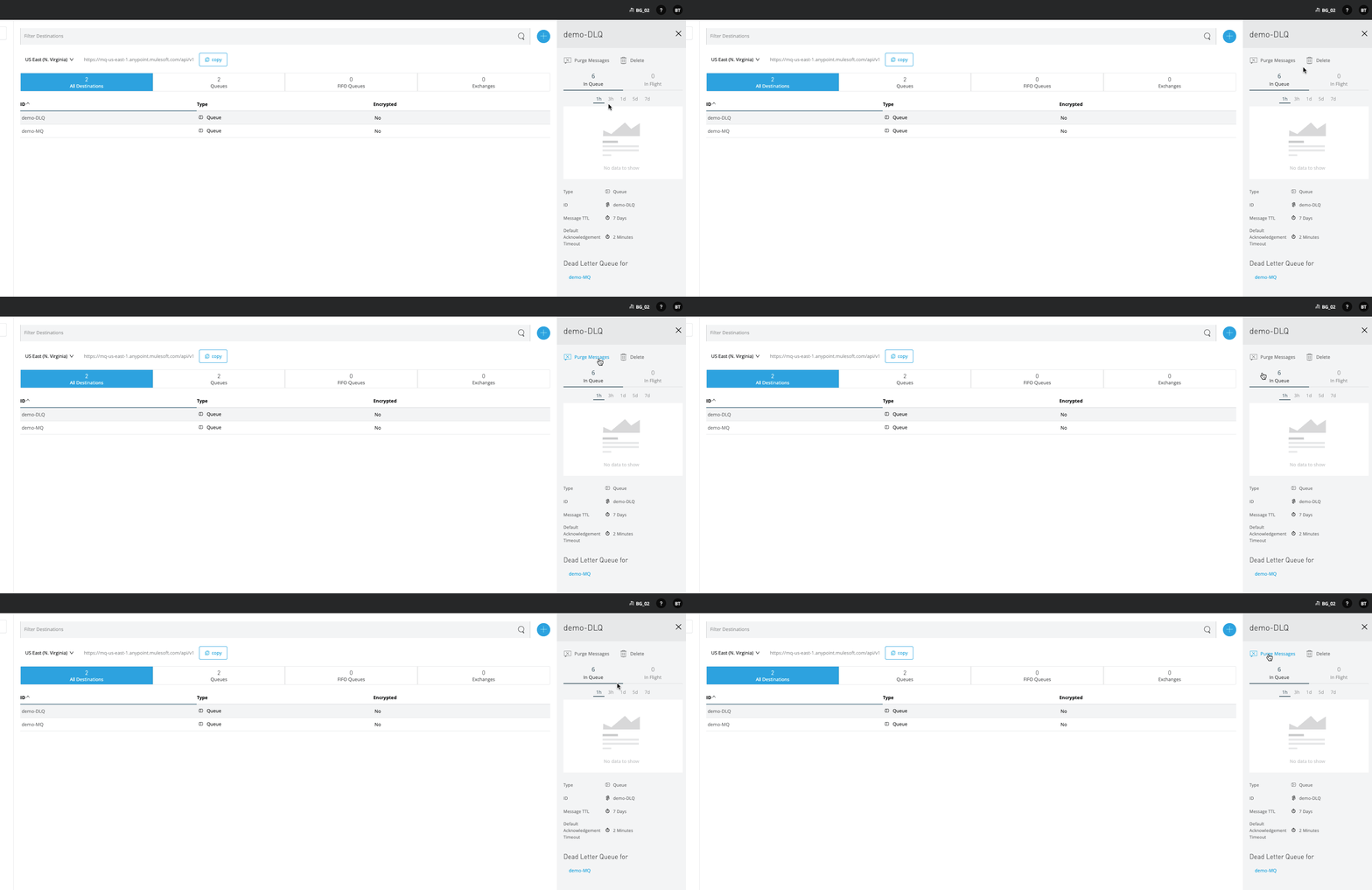
- Check the number of messages in the DLQ
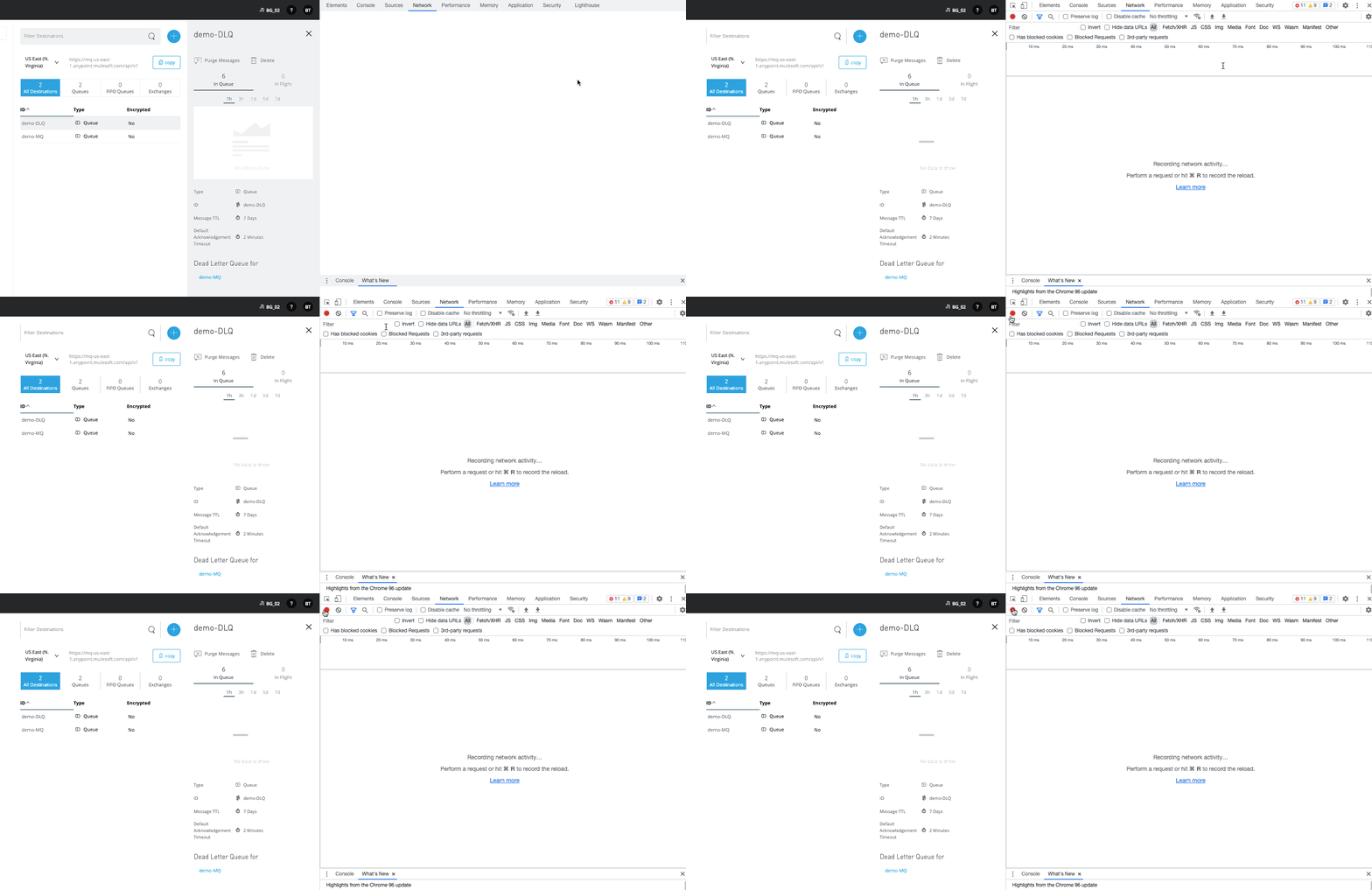
- Open developer mode in your browser and start recording a .har file
- Go to your queue and select Message Browser
- Increase the limits: Retrieve up to X messages where X is higher than the actual number of messages
- Increase the limits: Poll for up to Y seconds where Y is high enough to retrieve all messages, for example, 300 which is 5 minutes
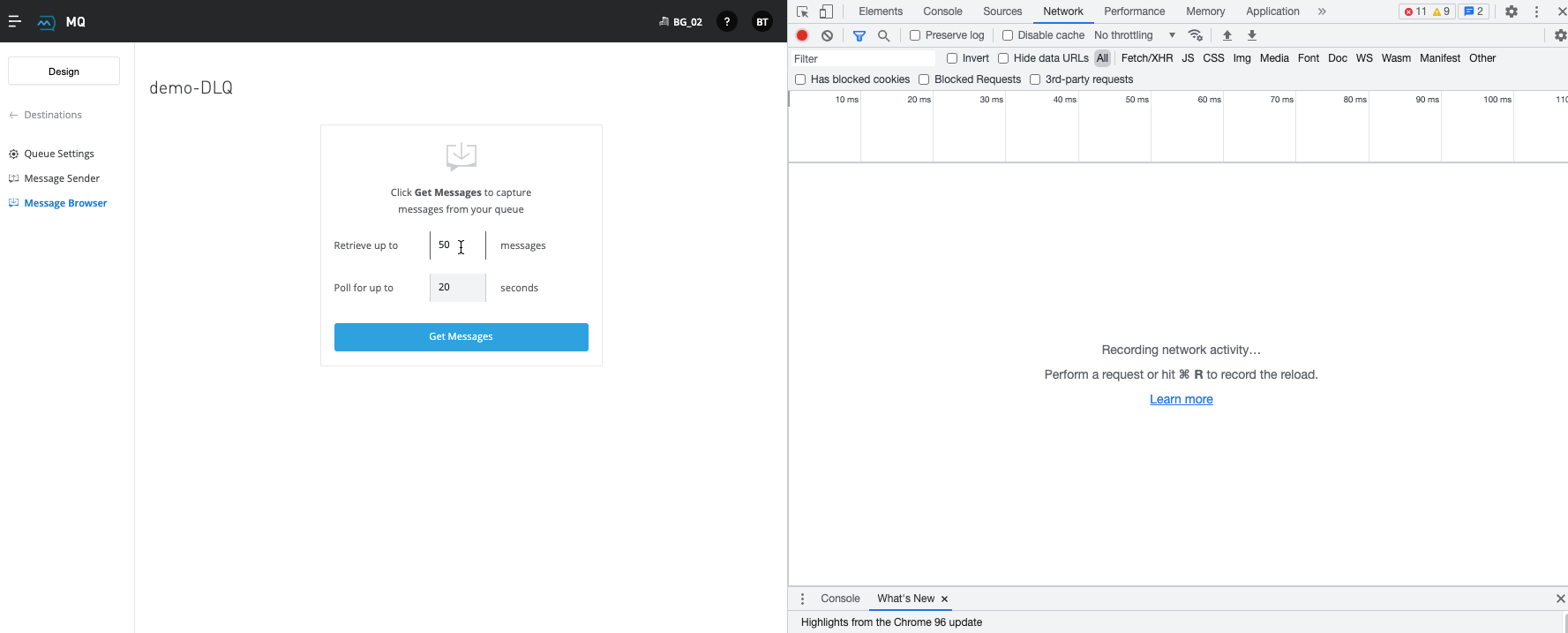
- Filter for "/messages"
- Once your query is finished save it to a .har file and then you can merge the response of all calls on /messages endpoint
UNDERSTANDING THE RESULTS
While you are using the "Message Browser" on your queue the messages will be "In Flight" rather than "In Queue" but eventually they will be returned to the queue and they can be consumed normally.
You might experience that the calls to /messages will return with different numbers of messages but that is by design and that is why you need to increase the polling time to ensure that all messages will be queried.
Nummer des Knowledge-Artikels
001122358
Konnten Sie Ihr Problem mithilfe dieses Artikels lösen?
Geben Sie uns Feedback, damit wir uns verbessern können.
