Выбрать организацию
Case Escalation Request Process
Дата публикации: Mar 2, 2024
Решение
What is the Overview of the Escalation Process?
The following diagram illustrates the escalation process:
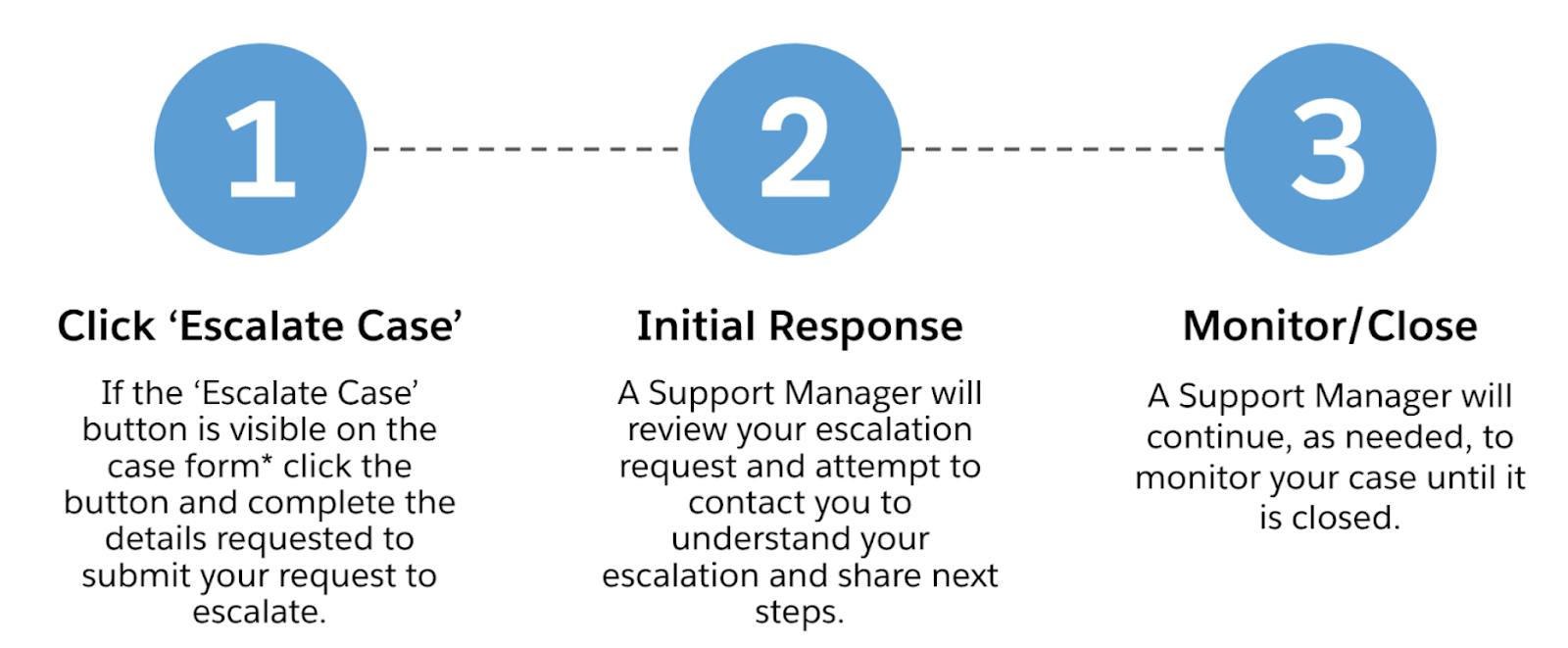
Note: The ‘Escalate Case’ button will appear after a specific amount of time has passed since opening the case. Please refer to the ‘When will the Escalate Case button become visible?’ section below for more information.
What is the difference between a Case Escalation and Case’s Severity Level?
Your case severity level (e.g., S1 or S2) as defined here, helps MuleSoft Support prioritize working on cases appropriately based on impact.
Where your case severity level indicates how MuleSoft prioritizes your case daily, a request to escalate your case is your ability to raise a flag to something you believe requires a response that cannot be handled or resolved via our normal process.
The severity level of your case should always appropriately match your impact as defined here. If the impact on your business has increased, you need only request that your case’s severity level is updated via case comments.
You would only need to escalate if your business impact has significantly changed and you need to contact someone else in addition to the assigned engineer to discuss the case or MuleSoft is not meeting your expectations and you believe this can only be resolved through requesting an escalation to your case.
When to Request an Escalation?
A request to escalate a support case can be submitted if MuleSoft is not meeting your expectations or your circumstances have changed and you now need a prompt update on your case from someone other than the engineer assigned.
Note: You will only have the ability to escalate a case once.
Please use the examples below to understand better when and when not to escalate.
|
An Escalation |
Not an Escalation |
|---|---|
|
The business impact has significantly changed and you need to contact someone else in addition to the assigned engineer to discuss the case. |
You need an update to your support case but nothing else has changed; please request an update in the case comments instead. |
|
The expected quality of service from MuleSoft was missed. |
Requesting an exception to the normal processes; we will be working on your issue, if you need to request an update or share new information, please use the case comments. |
|
The issue significantly inhibits your ability to use the product and there are no clear next steps or progress is significantly slow. |
Trying to request an escalation for an issue that is unrelated to the case from which the escalation is being requested; this can slow down our response, please only escalate the case that is related to your escalation. |
|
You have requested updates several times via the case comments but have not had a response. |
An increase in the business impact but is something that can be managed and tracked with the engineer assigned to the case; however, if needed, please request an increase in the case severity and add more information to the case comments. |
When will the Escalate Case button become visible?
The ‘Escalate Case’ button will become visible as per the criteria shown in the table below and is based both on the time that has passed since the case creation date/time and the case’s severity level.
|
Case Severity Level |
Titanium Customers |
Platinum / Gold Customers |
|---|---|---|
|
S1 |
4 hrs. |
8 hrs. |
|
S2 |
1 day |
2 days |
|
S3 |
3 days |
5 days |
|
S4 |
5 days |
7 days |
1 day = 24 hours.
What are the things to keep in mind when escalating a case?
- A response time cannot be guaranteed, however, the initial response will typically be within 24 hours. Please see also our Product Support and Maintenance Terms, for more detailed information about service levels, support hours, etc.
- At this time it is not possible to reverse an escalation once a case has been escalated and you can only escalate a case once.
- An escalation will not automatically mean your case can be resolved faster, but it will ensure you are connected with a Support Lead to ensure we understand your escalation and align on the next steps for your case.
- A Support Manager will use the contact details as captured in your support case. If you need to provide different contact details, please add them on the ‘Case Escalation Request Form’ or add a case comment to alert the Support Manager.
How to Escalate a Case?
- To request a case escalation, click the ‘Escalate Case’ button on the case form, complete the ‘Case Escalation Request Form’ that appears, and click ‘Submit Escalation’ as illustrated below in images 1 and 2.
Image 1 - Click the ‘Escalate Case’ button on the case form*
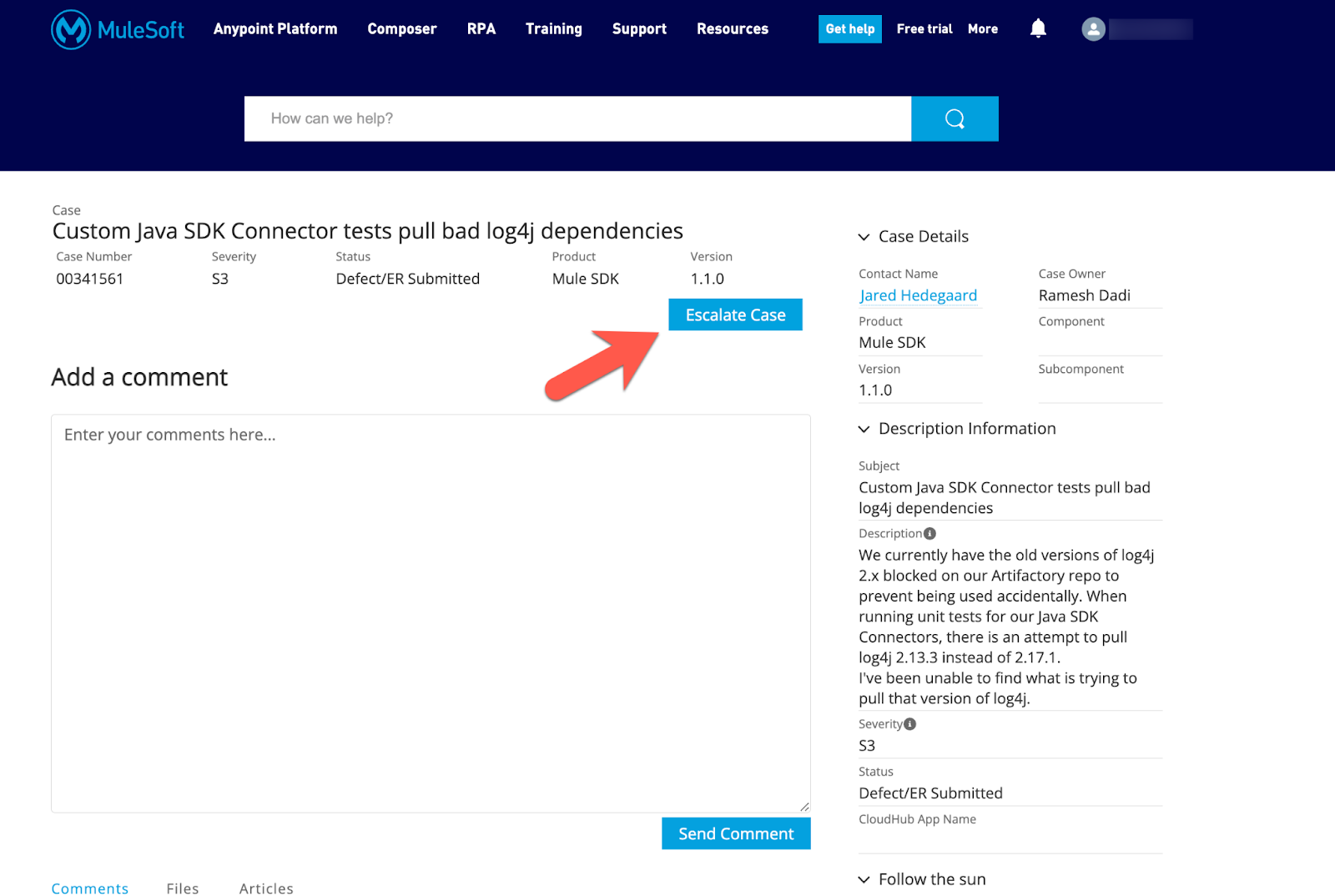
Image 2 - Case Escalation Request Form
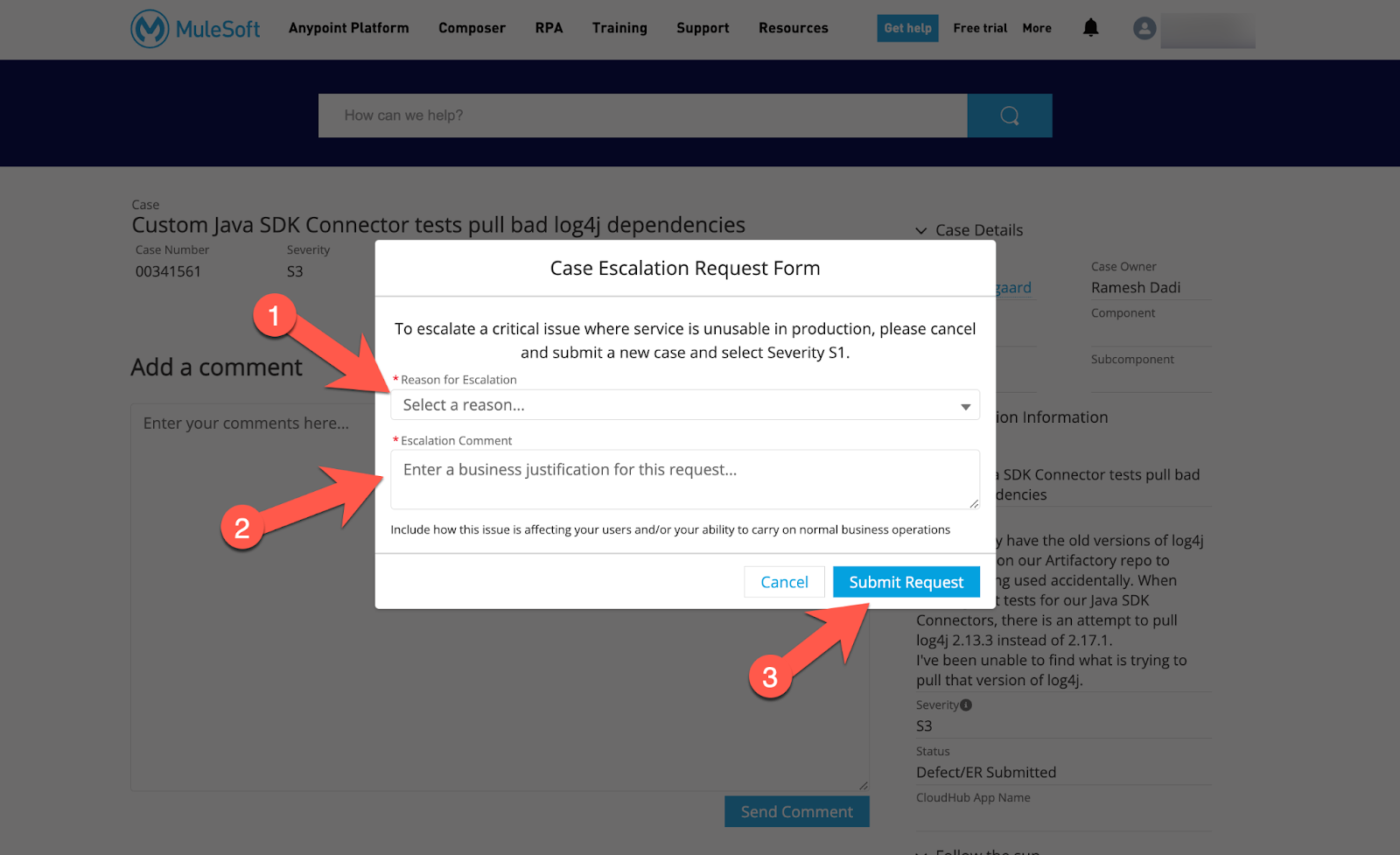
- When completing the ‘Case Escalation Request Form’ please use the following as a guide. This will help a Support Manager better understand your escalation.
- Reason for Escalation - select from the dropdown options the reason that best matches why you are escalating the case.
- Lack of Support Communications/Response - e.g., you have requested updates several times via the case comments but have not had a response.
- Business Impact Increase/Approaching Deadline - e.g., the business impact has significantly changed and you need to contact someone else in addition to the assigned engineer to discuss the case.
- Management Escalation Request - e.g., MuleSoft has not met your expectations in terms of quality of service.
- Escalation Comments - please add details of your need to escalate, providing an insight into changes to your business impact and/or where you believe MuleSoft has not been able to meet your expectations. Please also include a change in contact details (if different from the original case creator) as well as your current working hours in order for us to expedite your escalation request.
- Submit Request - will submit your request to a Support Manager who will follow up as soon as possible.
Номер статьи базы знаний
001122881
Эта статья решила вашу проблему?
Оставьте свой отзыв, чтобы мы могли стать лучше!
