Seleccionar una organización
Mule Apps Step by step instructions on creating client / server apps with self-signed mutual TLS
Fecha de publicación: Mar 31, 2026
Solución
GOAL
With Mule apps, you have a client and a server app and you want to directly hit via the other app. But, you need specific instructions on how to set up the self-signed SSL certificate and mutual TLS.
PROCEDURE
We can provide a sample of how to generate a working pair of trust store and key stores for both client and server side. Please note that you must change the passwords accordingly as this example uses the default password.
- Generate the key. Please ensure you change CN to the direct path of your server app.
keytool -genkey -alias serveralias -dname "CN=mule-worker-r-test.usg-w1.gov.cloudhub.io, OU=Mulesoft, O=Mulesoft, L=SF, S=CA, C=US" -keyalg RSA -keypass changeit -storepass changeit -keystore srv.kst
- Next, export the key to the srv.crt file:
keytool -export -alias serveralias -storepass changeit -file srv.crt -keystore srv.kst
- Generate the client key:
keytool -genkey -alias clientalias -dname "CN=clientcname, OU=Mulesoft, O=Mulesoft, L=Oakland, S=CA, C=US" -keyalg RSA -keypass changeit -storepass changeit -keystore ct.kst
- This will convert it from P12 to PKCS12 format:
keytool -genkey -alias clientalias -dname "CN=clientcname, OU=Mulesoft, O=Mulesoft, L=Oakland, S=CA, C=US" -keyalg RSA -storetype PKCS12 -keypass changeit -storepass changeit -keystore ct.p12
- Next, export the key to the ct.crt file:
keytool -export -alias clientalias -storepass changeit -file ct.crt -keystore ct.p12 -storetype PKCS12
- Import the srv.crt file to the client trust store:
keytool -import -alias serveralias -keystore ct.kst -file srv.crt --storepass changeit
Password = changeit
(Answer yes to the question prompt)
(Answer yes to the question prompt)
- Import the ct.crt file to the server trust store
keytool -import -alias clientalias -keystore srv.kst -file ct.crt --storepass changeit
Password = changeit
(Answer yes to the question prompt)
(Answer yes to the question prompt)
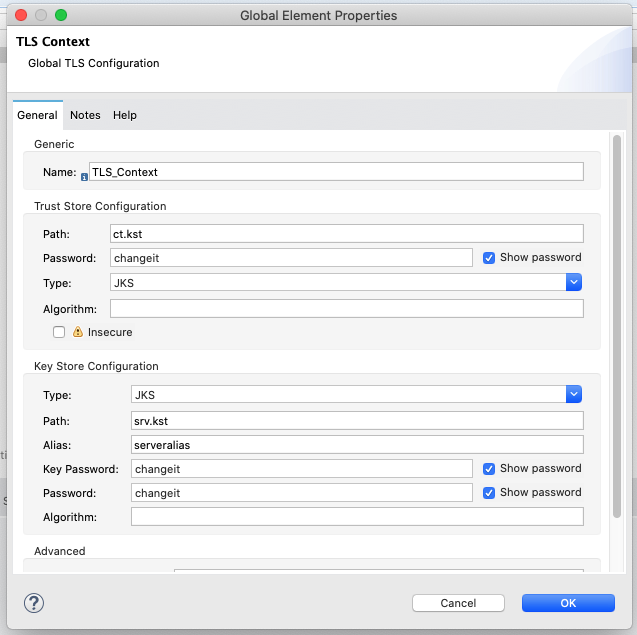
- In Listener TLS context of server app, use path to srv.kst as the keystore path, JKS as the type and "serveralias" as the alias.
In Listener TLS context of server app, use password as "changeit" for keystore password.
In Listener TLS context of server app, use password as "changeit" for key password.
In Listener TLS context of server app, use srv.kst as the truststore path.
In Listener TLS context of server app, use password as "changeit" for truststore password.
Here is a picture of how TLS context should look in Studio:
In Listener TLS context of server app, use password as "changeit" for key password.
In Listener TLS context of server app, use srv.kst as the truststore path.
In Listener TLS context of server app, use password as "changeit" for truststore password.
Here is a picture of how TLS context should look in Studio:
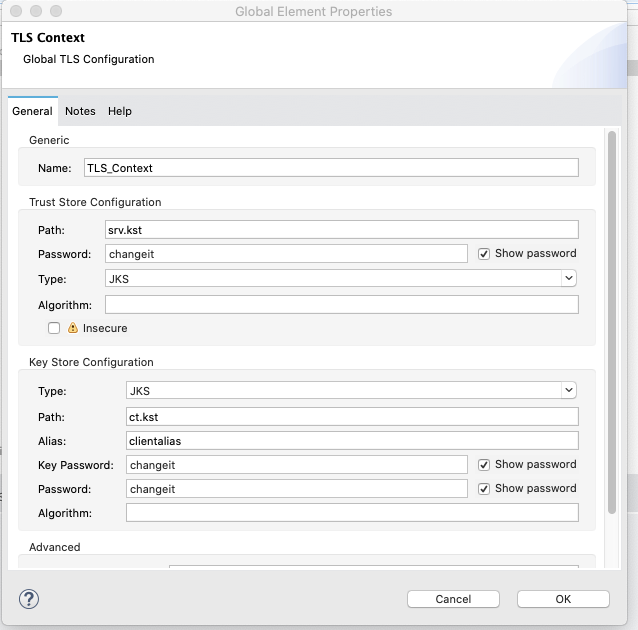
- In HTTP requester TLS context of client app, use path to ct.kst as the keystore path, type as JKS, and use "clientalias" as the alias.
In HTTP requester TLS context of client app, along with using password as "changeit" for keystore password and also the key password.
Then, for trust store, use srv.kst with JKS type.
Password is also "changeit" for the truststore.
Here is how the TLS context should look like for the client app:
Sample apps:
The main difference of sample app is that it uses "localhost" as the path and in the certificates to allow both apps to exist on same Mule runtime as a POC to get started.
listener.jar
1. Download both above apps.
2. Deploy both of them to your local Mule 4.3.0 runtime.
3. To trigger the requests, run:
curl http://localhost:8081
4. You should see the response:
hello%
Recursos adicionales
Número del artículo de conocimiento
001123570
¿Resolvió este artículo su problema?
¡Háganos saber cómo podemos mejorar!
