Valitse organisaatio
How to Automatically Deactivate Accounts Having Inactive Opportunities Using Salesforce Flow
Julkaisupäivä: Aug 18, 2026
Kuvaus
An organization is looking for an automated solution to automatically mark an Account record as inactive if the latest related Opportunity record's Close Date has passed more than 6 months.
Ratkaisu
This solution uses a Scheduled-Triggered Flow to check each Account's most recent Opportunity daily, and automatically marks the Account inactive if that Opportunity's Close Date is more than 6 months in the past.
Note:
- This scenario assumes there is a custom checkbox field Is Active (API Name: `Is_Active__c`) on the Account object to denote whether the Account record is active or not.
- Make sure the Default Workflow User is set in the org for scheduled flows. See Set the Default Workflow User to learn how.
As this automation needs to run daily at a set time, we'll use a Scheduled-Triggered Flow. Follow the steps below to build it.
Create the Scheduled Flow
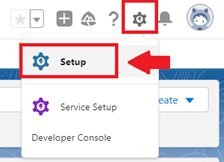
Step 1: Log in to your Salesforce account. Click the Gear Icon in the top right corner and select Setup.
Step 2: From the Quick Find box, search for Flows and select the New Flow button.

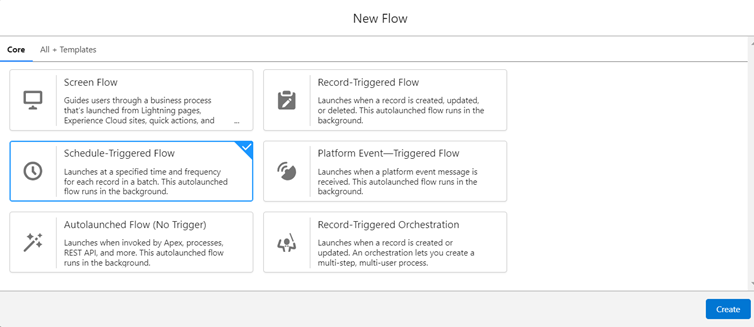
Step 3: Select Schedule-Triggered Flow and click Create.
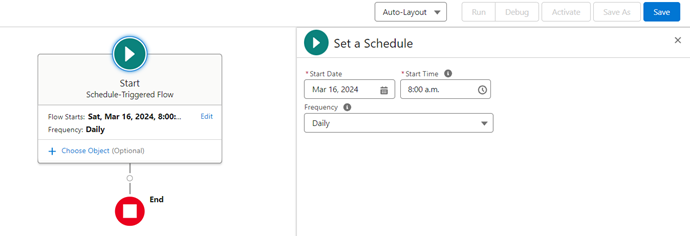
Step 4: In the Flow canvas, set up the schedule by entering the Start Date, Start Time, and Frequency (set to Daily). Set the Start Date to today if you want the automation to begin immediately, or a future date otherwise. Set the Start Time based on your requirement.
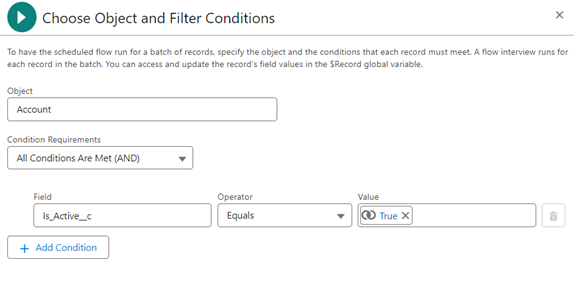
Specify the object and conditions each record must meet to run the scheduled Flow:
| Object | Account |
| Condition Requirements | All Conditions Are Met (AND) |
| Logic | Is_Active__c Equals {!$GlobalConstant.True} |
Retrieve the Related Opportunity
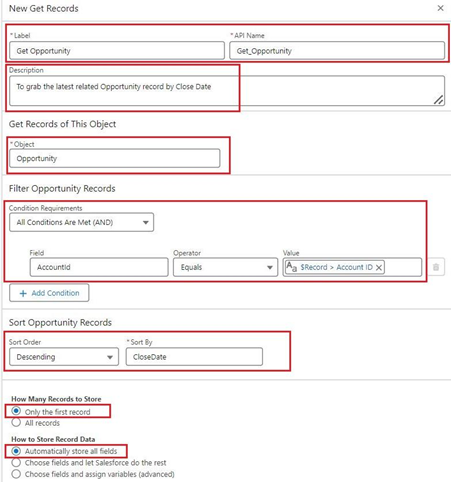
Step 5: Add a Get Records Element from the Interaction section under the + icon. Configure it as follows:
| Label | Get Opportunity (provide any suitable name) |
| Description | Provide any suitable description (optional, but a best practice) |
| Object | Opportunity |
| Condition Requirements | All Conditions Are Met (AND) |
| Logic | AccountId Equals {!$Record.Id} |
| Sort Order | Descending |
| Sort By | CloseDate |
| How Many Records to Store | Only the first record |
| How to Store Record Data | Automatically store all fields |
Calculate Months Since Close Date
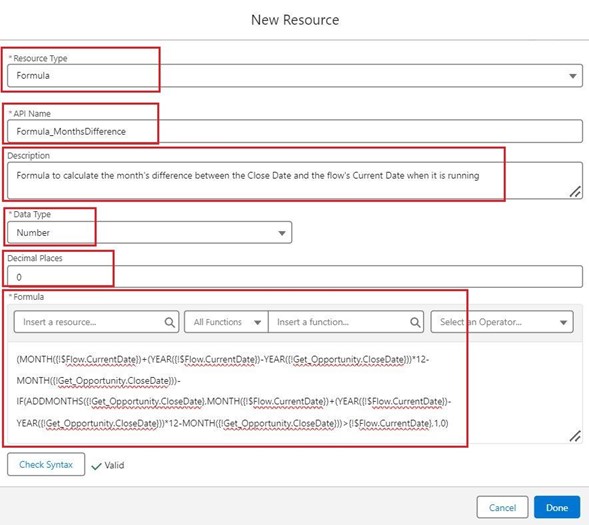
Step 6: Create a new Formula Resource to calculate the number of months between the Opportunity's Close Date and the Flow's current run date.
| Resource Type | Formula |
| API Name | Formula_MonthsDifference (provide any suitable API name) |
| Description | Provide a suitable description (optional, but a best practice) |
| Date Type | Number |
| Decimal Places | 0 |
Formula:
(MONTH({!$Flow.CurrentDate})+(YEAR({!$Flow.CurrentDate})-YEAR({!Get_Opportunity.CloseDate}))*12-MONTH({!Get_Opportunity.CloseDate}))-
IF(ADDMONTHS({!Get_Opportunity.CloseDate},MONTH({!$Flow.CurrentDate})+(YEAR({!$Flow.CurrentDate})-YEAR({!Get_Opportunity.CloseDate}))*12-MONTH({!Get_Opportunity.CloseDate}))>{!$Flow.CurrentDate},1,0)
This formula calculates the number of full months between the Opportunity's Close Date and today's date, subtracting one if the current day of the month falls before the Close Date's day of the month — so it only counts complete elapsed months rather than rounding up.
Check the Criteria and Update the Account
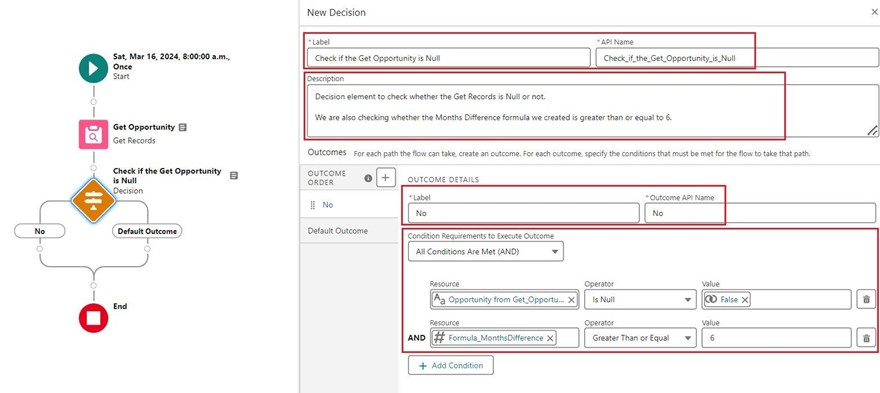
Step 7: Reference this formula in a Decision Element that checks whether Get Opportunity returned a record and whether the latest Opportunity's Close Date has exceeded 6 months.
| Label | Check if the Get Opportunity is Null (provide any suitable name) |
| Description | Provide any suitable description (optional, but a best practice) |
| Outcome Label | No |
| Condition Requirements | All Conditions Are Met (AND) |
| Logic | {!Get_Opportunity.Id} Is Null {!$GlobalConstant.False} AND {!Formula_MonthsDifference} Greater Than or Equal 6 |
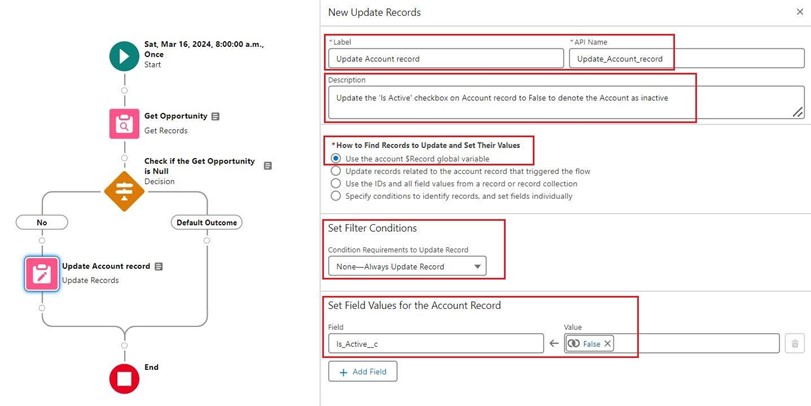
Step 8: Under the branch where an Opportunity was found and the 6-month criteria is met, add an Update Records Element to set the Account's Is Active checkbox to False.
| Label | Update Account record (provide any suitable name) |
| Description | Provide any suitable description (optional, but a best practice) |
| How to Find Records to Update and Set Their Values | Use the account $Record global variable |
| Condition Requirements | None - Always Update Record |
| Set Field Values for the Account Record | Is_Active__c = False |
Save and Activate the Flow
Step 9: In the upper right of the Flow canvas, click Save and give the Flow a suitable Label and Description.
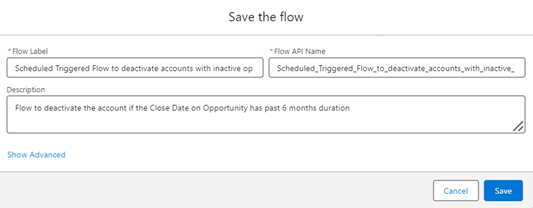
Step 10: Click the Activate button next to Save to activate the Flow.
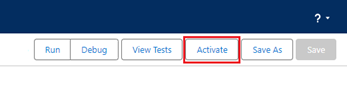
FAQ:
Can I adapt this Flow to check something other than 6 months?
Yes — just change the "Greater Than or Equal" value in the Decision element's condition to whatever number of months fits your requirement.
Why does the Get Records element sort by Close Date descending and return only one record?
This ensures the Flow always evaluates the Account's most recent Opportunity, rather than an older one, when deciding whether the Account should be marked inactive.
_____________________________________________
Written by: Ajaypreet Singh Saini | Forum Ambassador
Ajaypreet Singh Saini is working as a Salesforce Implementation Specialist at Grantbook. Prior to Grantbook, Ajaypreet served as a Salesforce Administrator for 2 years working on Sales Cloud where he was responsible for configuring and administrating complex processes and maintaining security of Salesforce Instance.
Submissions reflect only the opinions of the user who made available the Submission and not the opinions of Salesforce, regardless of whether the user is affiliated with Salesforce, and may contain or constitute products, services, information, data, content and other materials made available by or on behalf of third parties ("Third Party Materials). Salesforce neither controls nor endorses, nor is Salesforce responsible for, any Third Party Materials, including their accuracy, validity, timeliness, completeness, reliability, integrity, quality, legality, usefulness or safety, or any applicable intellectual property rights. Any Submissions made available through any message board or forum in response to posted questions, or that otherwise purports to answer any questions, including any questions about Salesforce or Programs, are made available for your general knowledge only and should never be relied upon as answers to your specific questions (even if an answer is marked as a “best” answer or with any similar qualifications). You should always contact Salesforce support for answers to your specific questions. Salesforce has no control over Submissions, and is not responsible for any use or misuse (including any distribution) by any third party of Submissions.
If you have questions, tap into the wisdom of our entire Trailblazer Community here: https://trailhead.salesforce.com/trailblazer-community/feed
Lisäresurssit
Knowledge-artikkelin numero
001328491
Ratkaisiko tämä artikkeli ongelmasi?
Anna palautetta, jotta voimme kehittyä!
