Velg en organisasjon
Changing Tableau Cloud Display Name
Publiseringsdato: Feb 17, 2025
Oppgave
Trinn
Changing a display name for Tableau Cloud is possible if the authentication method for your username is Tableau ID.
1. Navigate https://www.tableau.com and select 'Login to tableau.com'
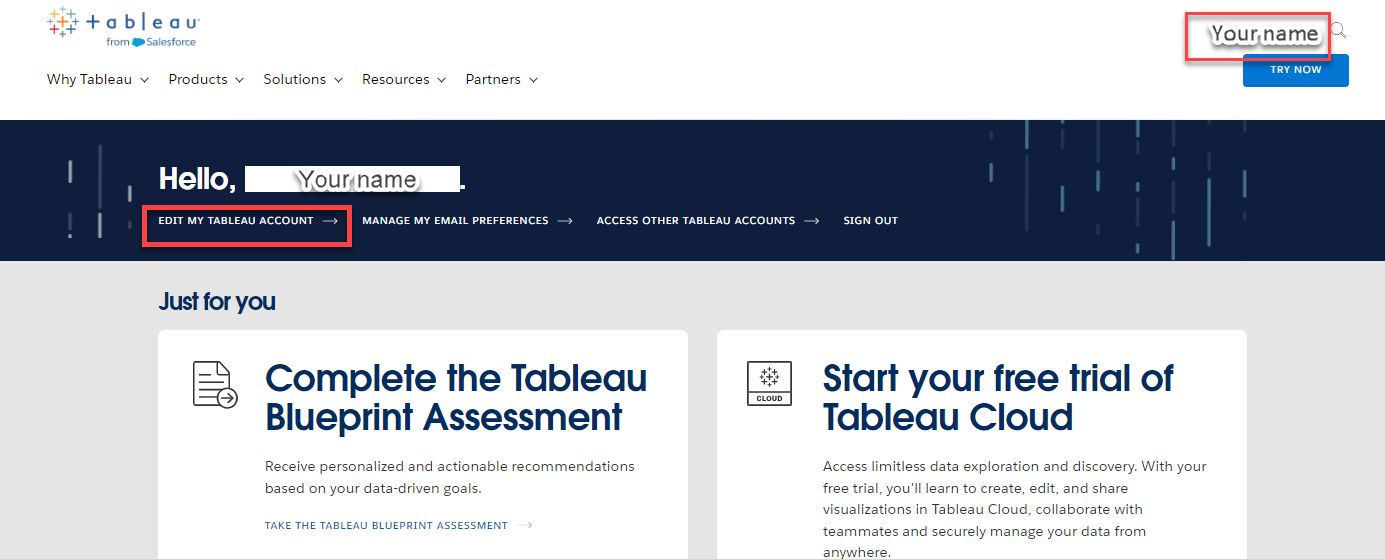
2. At the top of the page, select your name
3. Click 'EDIT MY TABLEAU ACCOUNT'
4. In the User Profile, make the desired changes to First and Last name.
5. Click Update at the bottom of the page.
2. At the top of the page, select your name
3. Click 'EDIT MY TABLEAU ACCOUNT'
4. In the User Profile, make the desired changes to First and Last name.
5. Click Update at the bottom of the page.
6. Open a 2nd tap and login to https://online.tableau.com.
If you are currently logged into your Tableau Cloud site, you will need to log out and log back in for the changes to take effect.
If you are currently logged into your Tableau Cloud site, you will need to log out and log back in for the changes to take effect.
If your authentication method is set as SAML, this change should be made by Identity Provider administrator as this First and Last name information come from IdP. Please reach out to the IdP administrator to make this change request.
Note: Administrator cannot change the Display name of the other users. Please ask the user to change the name with their own account.
Flere ressurser
Changing Tableau Cloud Email or User Name
The following information can also be changed from the Edit Account section:
- First name
- Last name
- Job Title
- Organization
- Phone
- Country
- State
- Industry
- Department and Job Role
Knowledge-artikkelnummer
001456511
Hjalp denne artikkelen med å løse problemet ditt?
La oss få vite det slik at vi kan forbedre!
