Выбрать организацию
How to Remove or Clear All Existing Server Sign-ins Connections On Tableau Desktop Manually
Дата публикации: Jun 11, 2025
Задача
How to clear Saved Server Sign-ins on Tableau Desktop manually.
Действия
On Windows:
1. Open Registry Editor on Windows, and navigate to the path Computer\HKEY_CURRENT_USER\Software\Tableau\{Tableau version}
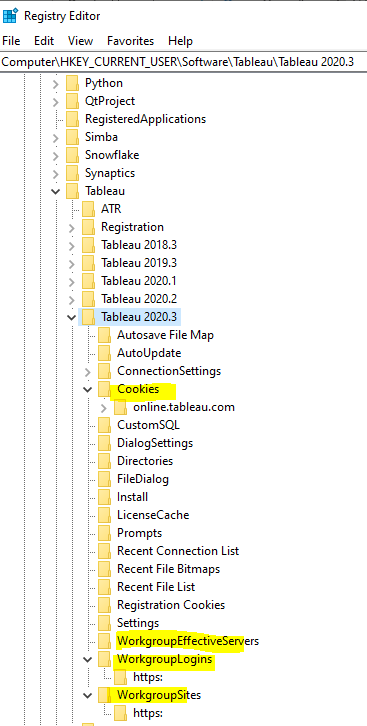
2. Delete the following folders:
Computer\HKEY_CURRENT_USER\Software\Tableau\{Tableau version}\Cookies
Computer\HKEY_CURRENT_USER\Software\Tableau\{Tableau version}\WorkgroupLogins
Computer\HKEY_CURRENT_USER\Software\Tableau\{Tableau version}\WorkgroupSites
Computer\HKEY_CURRENT_USER\Software\Tableau{Tableau version}\WorkgroupEffectiveServers
See screenshot:
On Mac:
- On Tableau Desktop, Click Server > Sign out clears your sign-in credentials for the current connection.
- To remove all of your existing server connections, click Help > Settings and performance > Clear saved server sign-ins.
Дополнительные ресурсы
1. Click Server > Sign out clears your sign-in credentials for the current connection. To remove all of your existing server connections, click Help > Settings and performance > Clear saved server sign-ins.
2. In certain scenario when Tableau Server is configured as Server SAML and Site SAML, the option 'Clear saved server sign-ins' doesn't remove all of your existing server connections. under this situation, the above steps could be used to clear Saved Server Sign-ins manually.
Номер статьи базы знаний
001456818
Эта статья решила вашу проблему?
Оставьте свой отзыв, чтобы мы могли стать лучше!
