Valitse organisaatio
How to Save the Proxy Setting in When Connecting to Snowflake
Julkaisupäivä: Feb 27, 2025
Tehtävä
When connecting to Snowflake, how to save the proxy setting for next time.
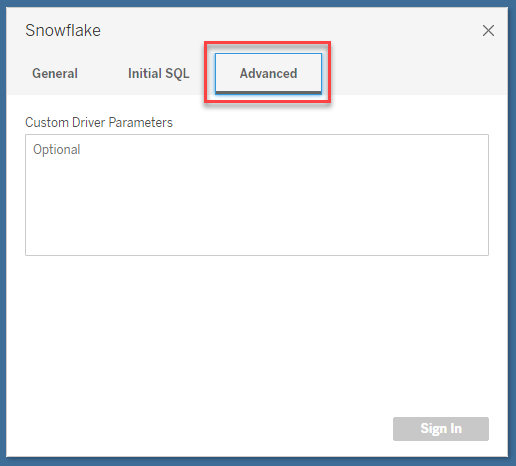
The login information in the "General" tab is be saved for next time, but the proxy setting in the "Advanced" tab is lost the next time when you connect. 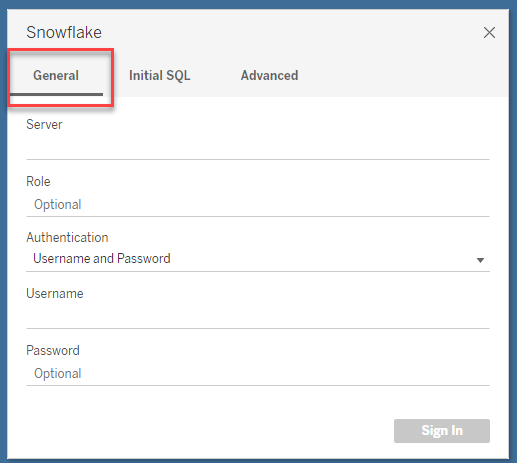
Vaiheet
The steps are as follows:
1. Close Tableau Desktop, create a text file with the following contents and rename the file to "snowflake.tdc". (The part in bold needs to be changed).
Note 1: The "version" is the version of the Snowflake driver installed on your device.
Note 2: The "value" is the proxy setting you need to add.
========
<?xml version='1.0' encoding='utf-8' ?>
<connection-customization class='snowflake' enabled='true' version='2.22.5'>
<vendor name='snowflake' />
<driver name='snowflake' />
<customizations>
<customization name='odbc-connect-string-extras' value='proxy=http://proxy.cat.com:80'/>
</customizations>
</connection-customization>
========
2. Move "snowflake.tdc" to "C:\Users\<UserName>\Documents\My Tableau Repository\Data Source"
3. Open Tableau Desktop and connect to Snowflake (you do not need to enter proxy information in the Advanced tab).
Please check the online help for details:
[Snowflake -- Use a proxy for Snowflake]
Lisäresurssit
Knowledge-artikkelin numero
001456819
Ratkaisiko tämä artikkeli ongelmasi?
Anna palautetta, jotta voimme kehittyä!
