Выбрать организацию
How To Add Trend Line with String Dimension
Дата публикации: Feb 25, 2026
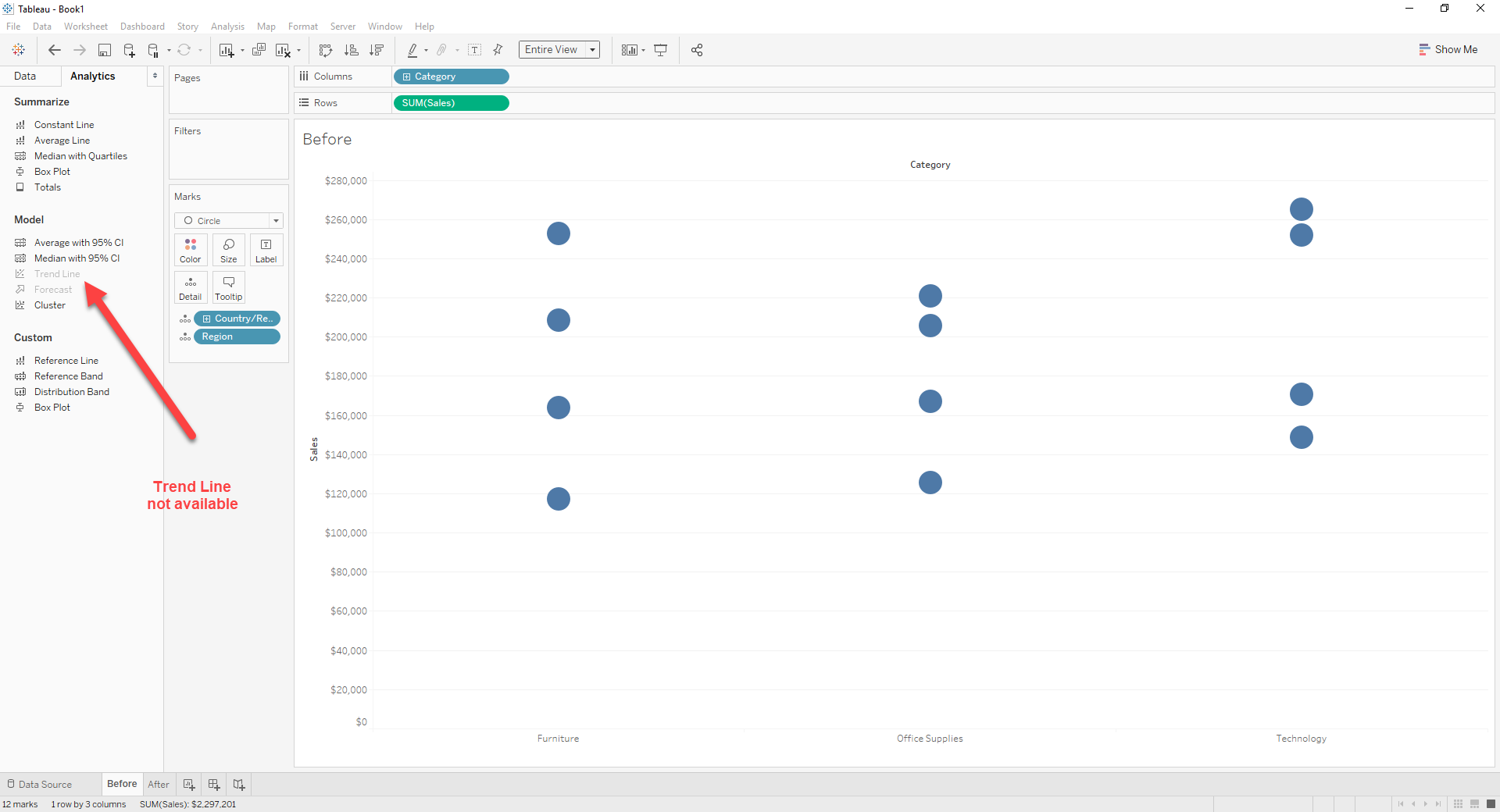
Задача
How To Add Trend Line with String Dimension
Before
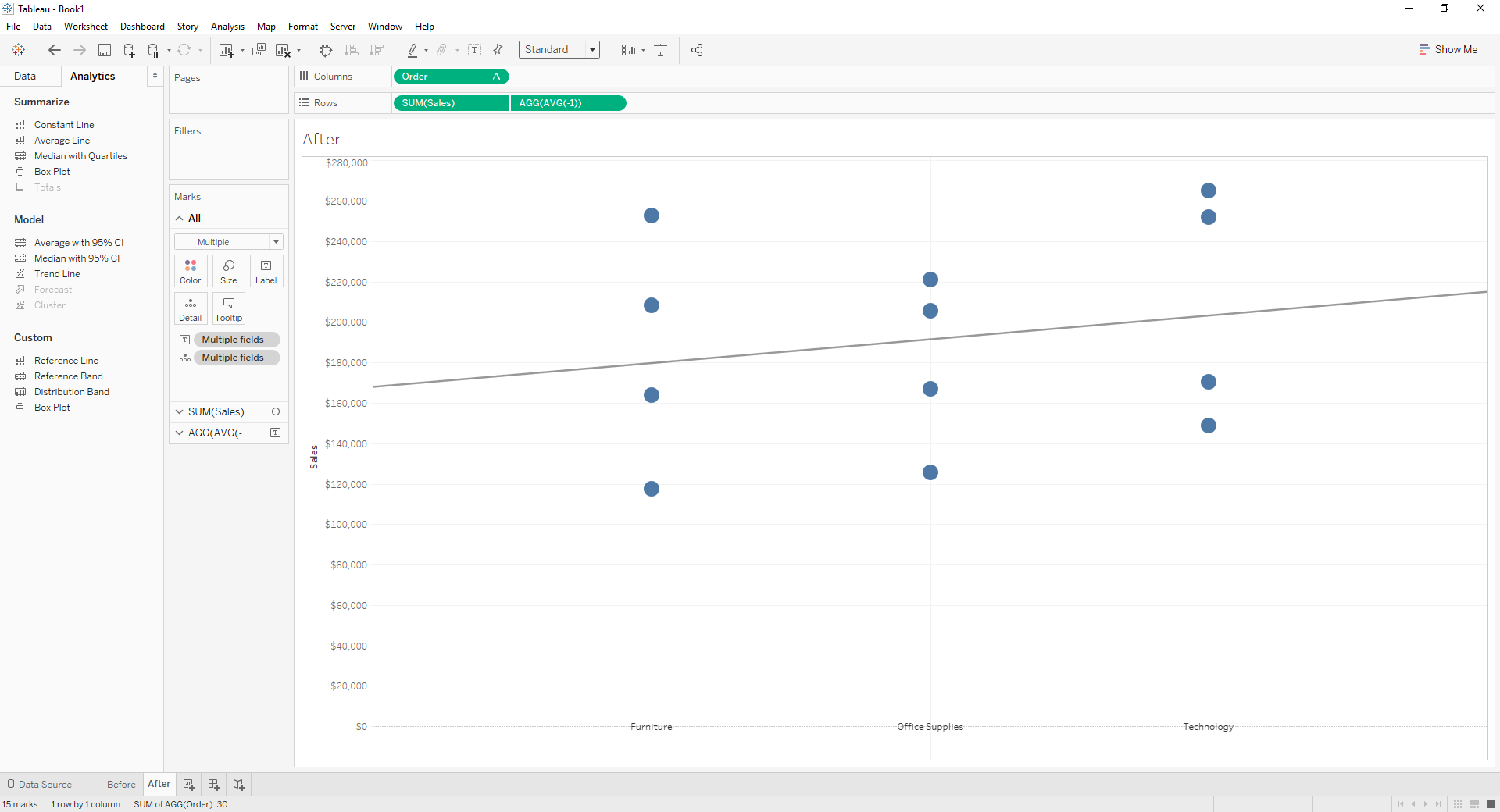
After
Действия
ex: sort by Data source order
RANK(ATTR([Category]),'asc')
2. Drag [Category] from [Columns] to [Detail]
3. Drag [Order] to [Columns]
4. Right click on [Order] -> [Compute Using] -> [Category]
5. Create calculation field [Label]
AVG(-1)
6. Drag [Label] to [Rows]
7. Remove all fields in [Label] Marks card
8. Drag [Category] to [Label] in [Label] Marks card
9. Change mark type to [Text] in [Label] Marks card
10. Right click on [Label] in [Rows] -> [Dual Axis]
11. Right click on [Label] axis -> [Synchronize Axis]
12. Right click on [Label] axis -> [Show header] to hide header13. Remove [Measure Names] from Marks card
14. Adjust [Size] of [Sales]
15. Right click on [Order] axis -> [Show header] to hide header
16. Drag [Trend Line] from [Analytics] to SUM([Sales])
Номер статьи базы знаний
001456882
Эта статья решила вашу проблему?
Оставьте свой отзыв, чтобы мы могли стать лучше!
