Выбрать организацию
How To Create Horizontal Parameter Selection With Radio Buttons
Дата публикации: Feb 24, 2026
Задача
Horizontal parameter selection with radio buttons.
Действия
Note: The example steps below is using the Superstore sample data source file in Tableau Desktop. [Category] is a dimension used in the sample data source. Please refer to the attached sample workbook downloadable from the link at the bottom of this article.
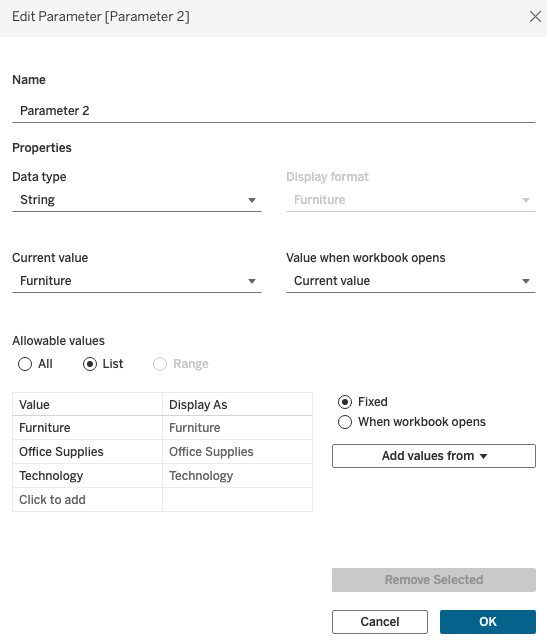
1. Create a parameter
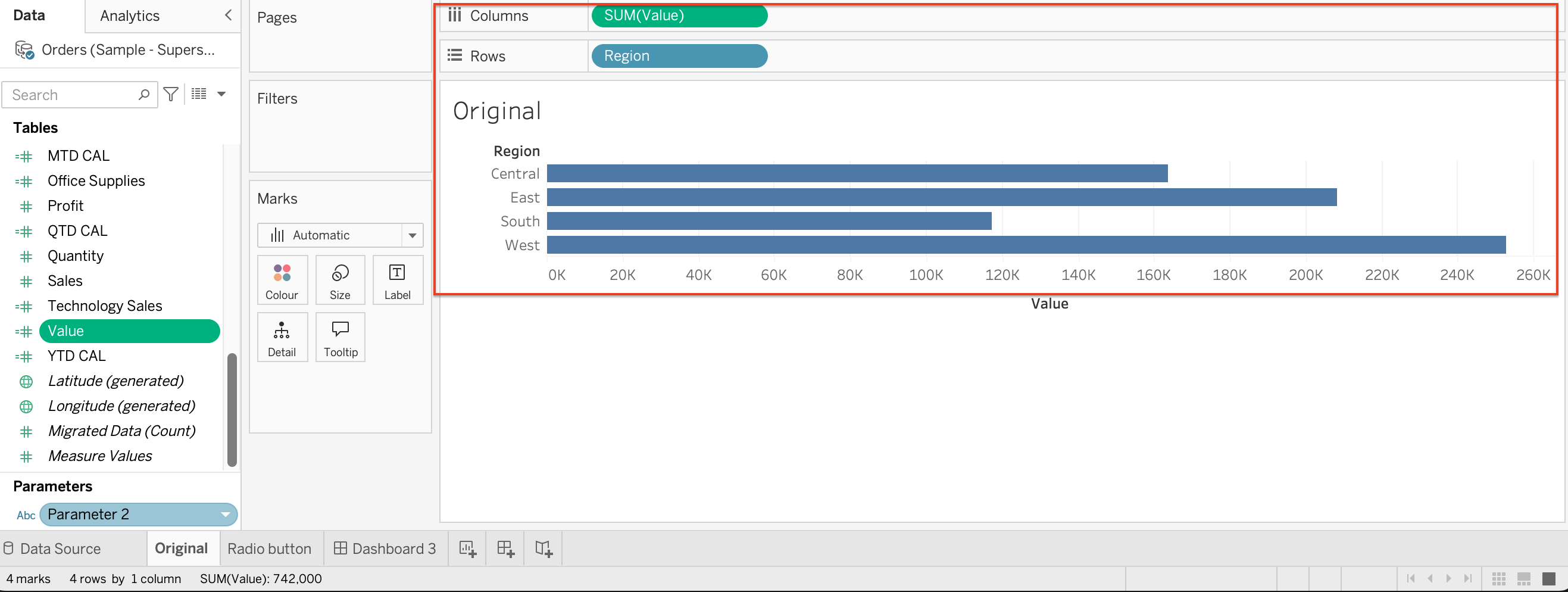
2. Create measure for sales value for different categories like below
Furniture Sales:
IF [Category]="Furniture" then [Sales] end
Office Supplies Sales
IF [Category]="Office Supplies" then [Sales] end
Technology Sales
IF [Category]="Technology" then [Sales] end
Value:
CASE [Parameter 2] when "Furniture" then [Furniture sales] when "Office Supplies" then [Office Supplies] when "Technology" then [Technology Sales] end
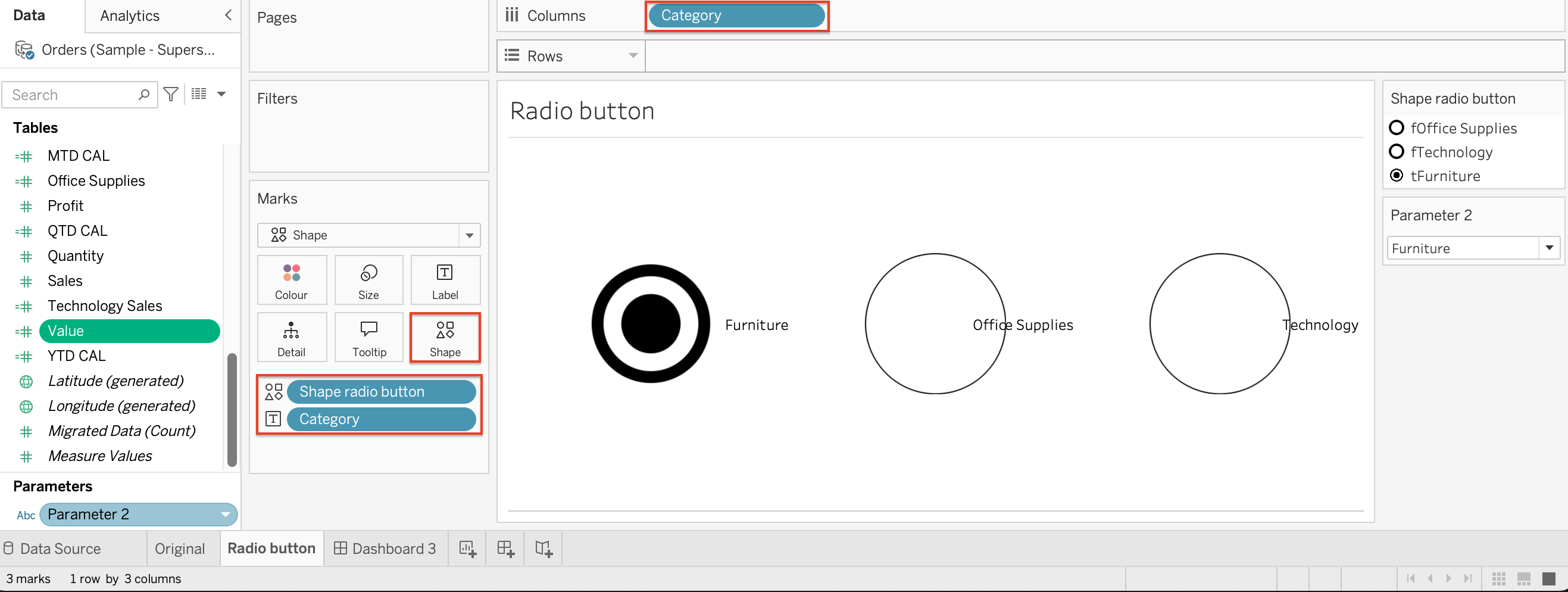
3. Now for horizontal radio button options for category, place category on columns, uncheck header
Shape radio button
STR([Parameter 2]=[Category])+[Category]
Category on Text, Shape radio button on shape and view as entire view
4. This will give true [Parameter 2]=[Category] on the selection so Shape radio button will give t+CategoryName as result
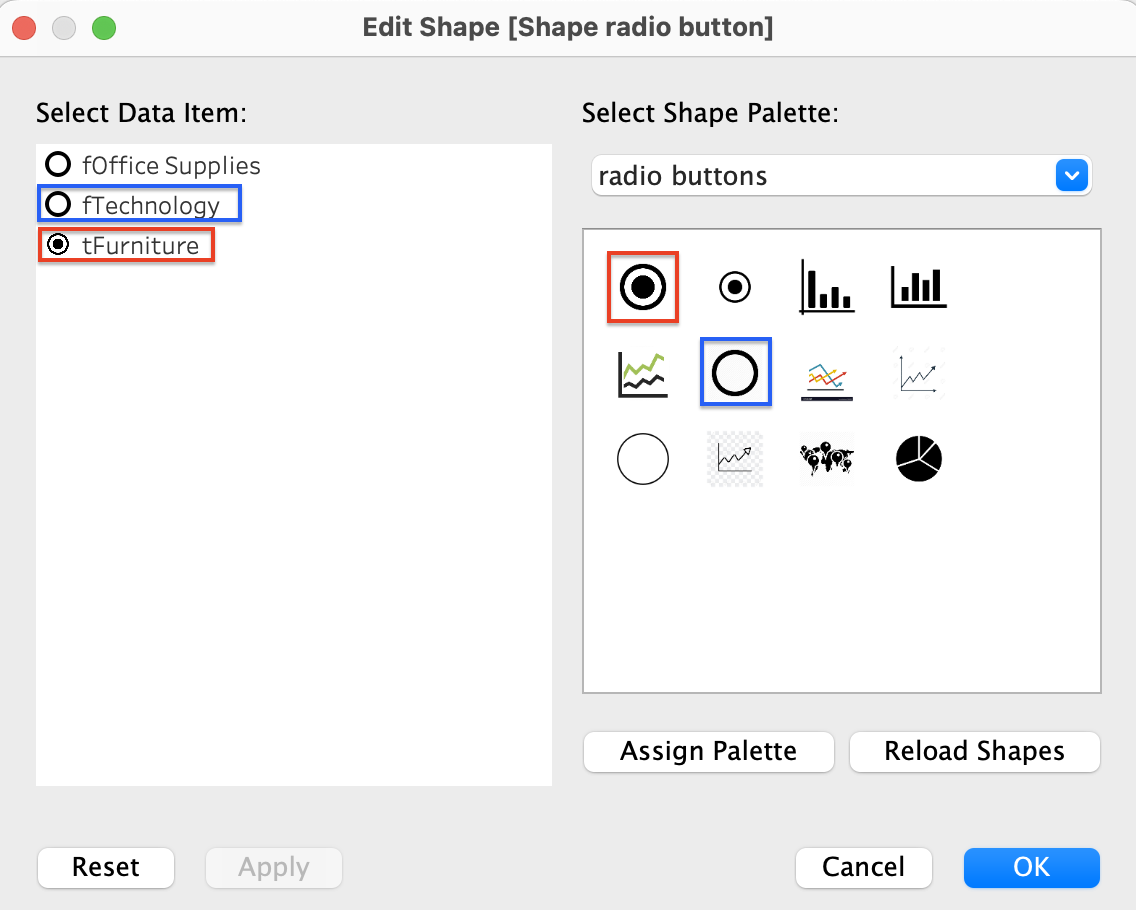
Create a custom pallet for radio button selected shape and unselected
Click on Shape -> assign radio button selected to the ones that start with t and category name and unselected to f and category name.
5. Click show parameter toggle between values and repeat the allocation process like above for the shapes
Add the sheets to dashboard
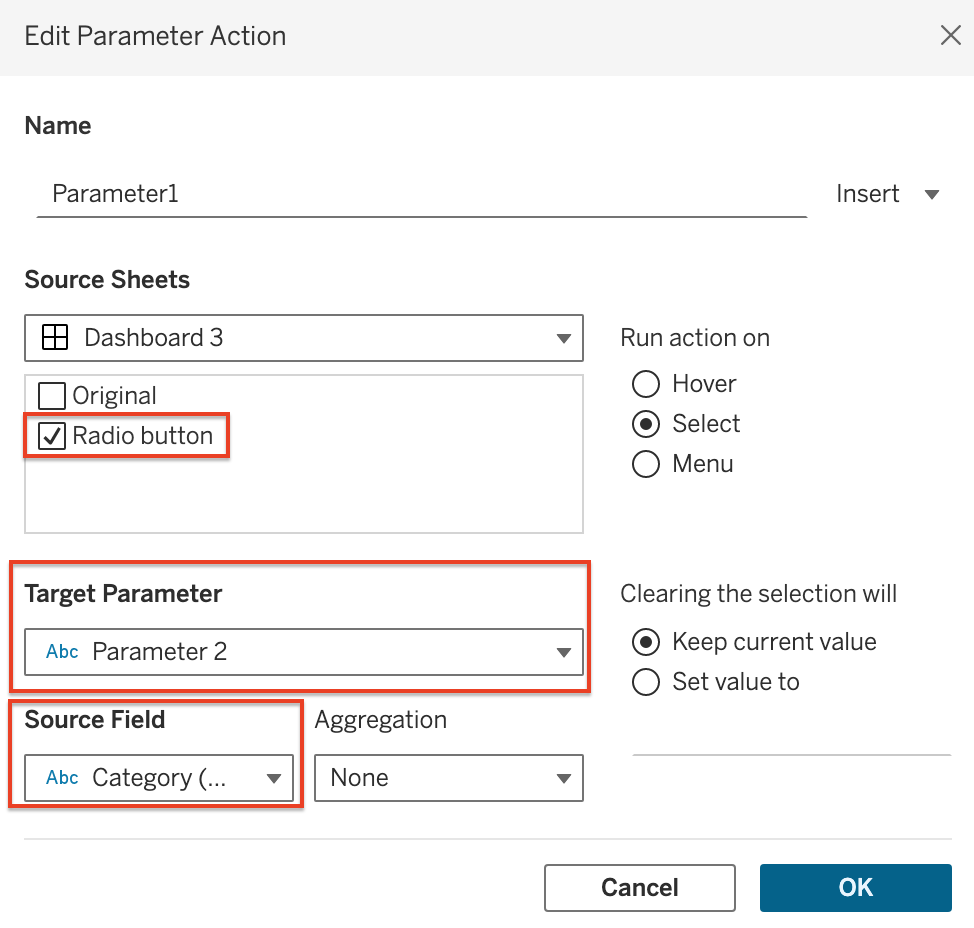
6. Click on Dashboard -> actions _> change parameter values
Source Field = Category (Orders (Sample - Superstore))
Номер статьи базы знаний
001456966
Эта статья решила вашу проблему?
Оставьте свой отзыв, чтобы мы могли стать лучше!
