Sélectionner une organisation
Showing Maps with Missing Data
Date de publication: Feb 23, 2025
Tâche
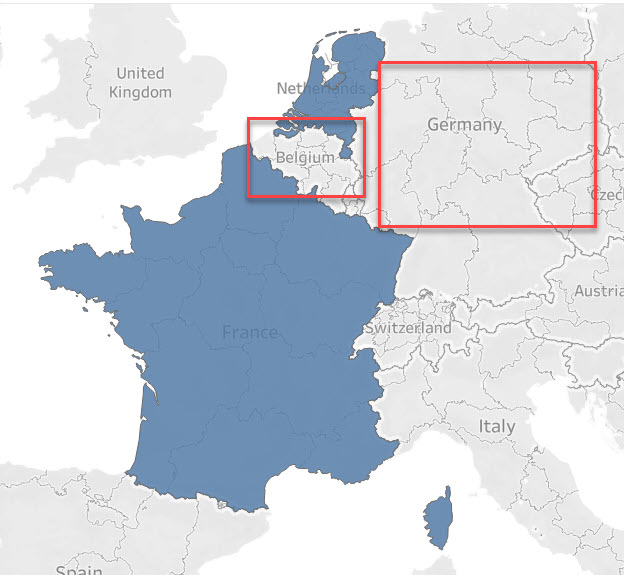
In the following example, the Countries Belgium and Germany disappear from the view because there is no line with data of these Countries in the data set.
| Country | Data |
| Netherlands | 1 |
| France | 1 |
Étapes
- In this example, ensure your data source contains a sheet all required countries and Zero (0) values assigned to them
- For this example, we're adding the data source again a new data source
- Join both sheets from the data pane using the Country field
- Build the map view, add the Value from Sheet 2 to Color
- Drag the Country field from Sheet 1 to Details
Note: the video has no sound. To view the video in higher quality, click the YouTube icon below to watch it on YouTube directly.
Ressources supplémentaires
Numéro d’article de la base de connaissances
001456985
Cet article a-t-il résolu votre problème ?
Dites-nous ce que nous pouvons améliorer !
