Vælg en organisation
Managing Tableau Product Keys in the Tableau Customer Portal for Administrators
Udgivelsesdato: Aug 17, 2026
Opgave
If you are an administrator of Tableau Software, this article will answer some general questions on how to view licenses, see the configuration (flags) set for your licenses, and understand what actions can be performed on licenses in the Tableau Customer Portal.
Individual Creator Purchases, please see the article on How to Find My Desktop Key in the Tableau Customer Portal.
Please note that current Creator license purchases do not result in a Tableau Desktop product key being delivered in the Tableau Customer Portal. All new purchases for a Creator user will require the end user to sign in to a server to activate and use Tableau Desktop or Tableau Prep Builder. A new Creator user purchase will either be part of a Tableau Server or Tableau Cloud bundle.
Tableau Server Deployment:
Tableau Server is sold on a per-Deployment basis. When you purchase subscription licenses for Tableau Server, you are purchasing the right to use those licenses in a single specified "Deployment". The Customer Portal is set up to align to this model, allowing you to manage your Deployment(s) and identify the associated license key(s).
A Deployment is the collection of a) your Production Environment, and b) its supporting Non-Production Environments. All Tableau Server licensing includes the right to leverage one (1) Production Environment and up to two (2) Non-Production Environments within your Deployment as defined in the Salesforce agreement and supporting Documentation.
Tableau Cloud:
If you purchased a Tableau Cloud site, please reference this link on how to manage users with Tableau Cloud and activate by signing in to a server with Login-base License Management. With Tableau Server and Tableau Cloud Creator purchases, LBLM will be the default activation method and no product keys will be issued for Tableau Desktop or Tableau Prep Builder.
If you recently purchased a Creator license, information on finding the email containing your activation link is available in this article on Tableau Cloud Getting Started. Another great option to get started with your Tableau Cloud site is to attend one of our Live webinar
Students and Teachers:
Students and teachers using the Academic license will not have access to the Tableau Customer Portal and this information will not be applicable. Please visit the Student FAQ for license assistance including where to find downloads.
Before Opening a Support Ticket
If there is a need to contact Tableau Technical Support, please review the KB article on Support Portal Experience Enhancements for Tableau Customers. If there is a question on the Tableau Customer Portal, or to move licenses to different tenant/deployment in the Tableau Customer Portal, or any questions about your licenses listed in the Portal, please contact your Tableau Account Team.
Trin
Please review the content below as it may contain the information needed to resolve your issue.

If additional assistance is needed with Customer Portal issues, please reach out to your Tableau Account Representative or customerservice@tableau.com for the best possible support.
Information below will help Tableau Administrators to perform the following:
- View all deployments
- View all license keys for a deployment
- View all product keys
- Identify license details for Tableau Server
- Assign a product key
- Edit a product key
- Change the owner of a product key - revoke license
- Find the key for offline activation
- Add tracking information to a product key
- View product key history and reports
View all deployments
- Go to the Tableau Customer Portal and sign in with your Tableau username and password.
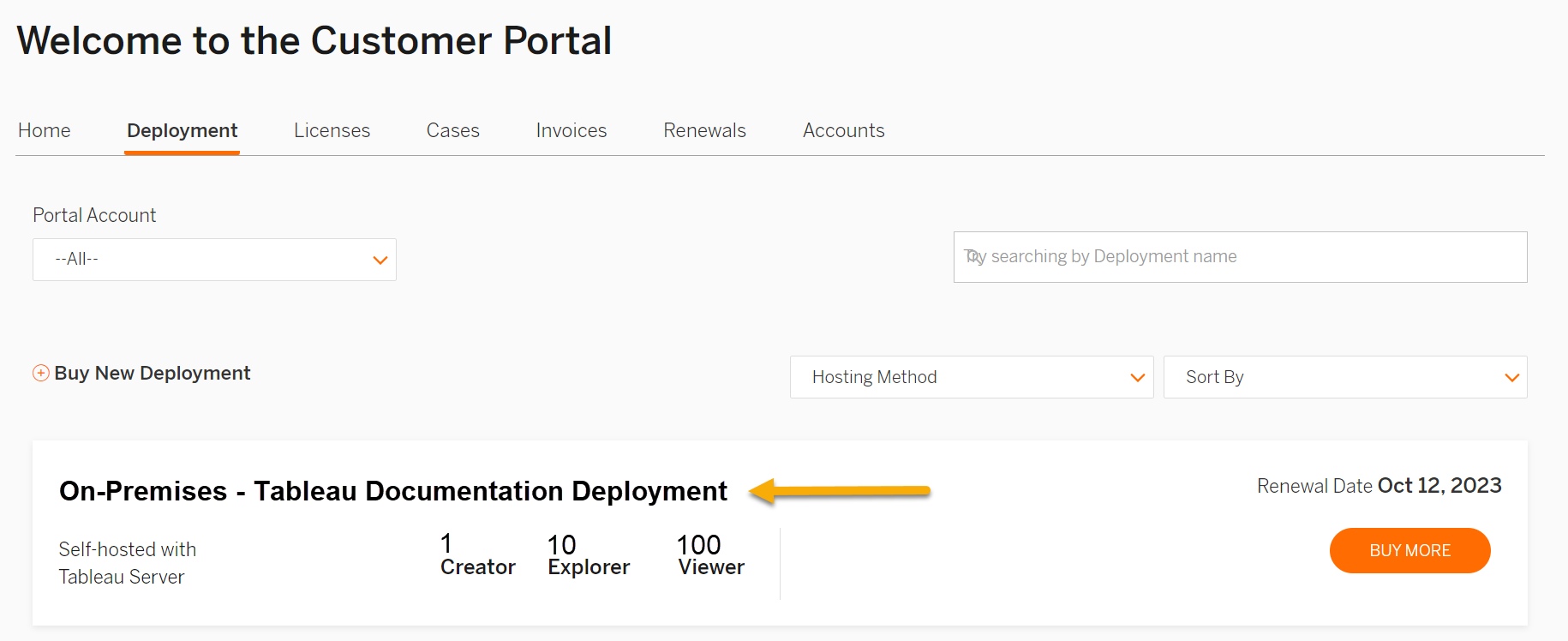
- On the Customer Portal home page, click on Deployment and to see the deployments at your organization.
View all license keys for deployment
1. Go to the Tableau Customer Portal and sign in with your Tableau username and password.
2. On the Customer Portal home page, click on Deployment and identify the record that corresponds to your Tableau Server Deployment. Select the Deployment name to view the licensing details of your deployment.
This page should include the licenses(s) to be used together in a single Deployment of Tableau Server. If your Deployment doesn't align to your business needs, please work with your dedicated account team to request re-alignment (merge) of Deployments and/or to purchase additional licensing to the corresponding Deployment.
3. Within the Deployment Detail view, navigate to the Deployment Assets to identify your Tableau product key(s) to be used in this single Deployment.

View all product keys
Note: This option to view all the product keys for your organization isn't the suggested management option for viewing, maintaining, or accessing your Tableau licenses. This view will have no information on the Deployment assigned. See View Deployment(s) for the best customer experience.
1. Go to the Tableau Customer Portal and sign in with your Tableau username and password.
2. On the Customer Portal home page, click on Licenses.
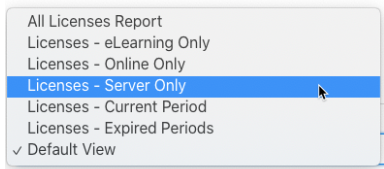
3. You can view all keys, keys for a specific product, or view keys based on the current subscription terms. Once this view is open, if the Default View was selected, click on the table headers to sort your data.
The license (product key) can be assigned to a specific user, which will be reflected in the "User Name" and "Assigned Email" fields. The "Registered Email" column is the email of the person who last activated the product key. This Registered Email can't be changed in the Customer Portal. For more information, please review this Tableau article.
Please note: The product keys listed in your Tableau Portal account can't be removed or changed manually. Tableau Desktop keys no longer used due to a switch to Login-based License Management (sign in to a server), will drop from the Tableau Customer Portal after a period of time.
Identify license details for Tableau Server
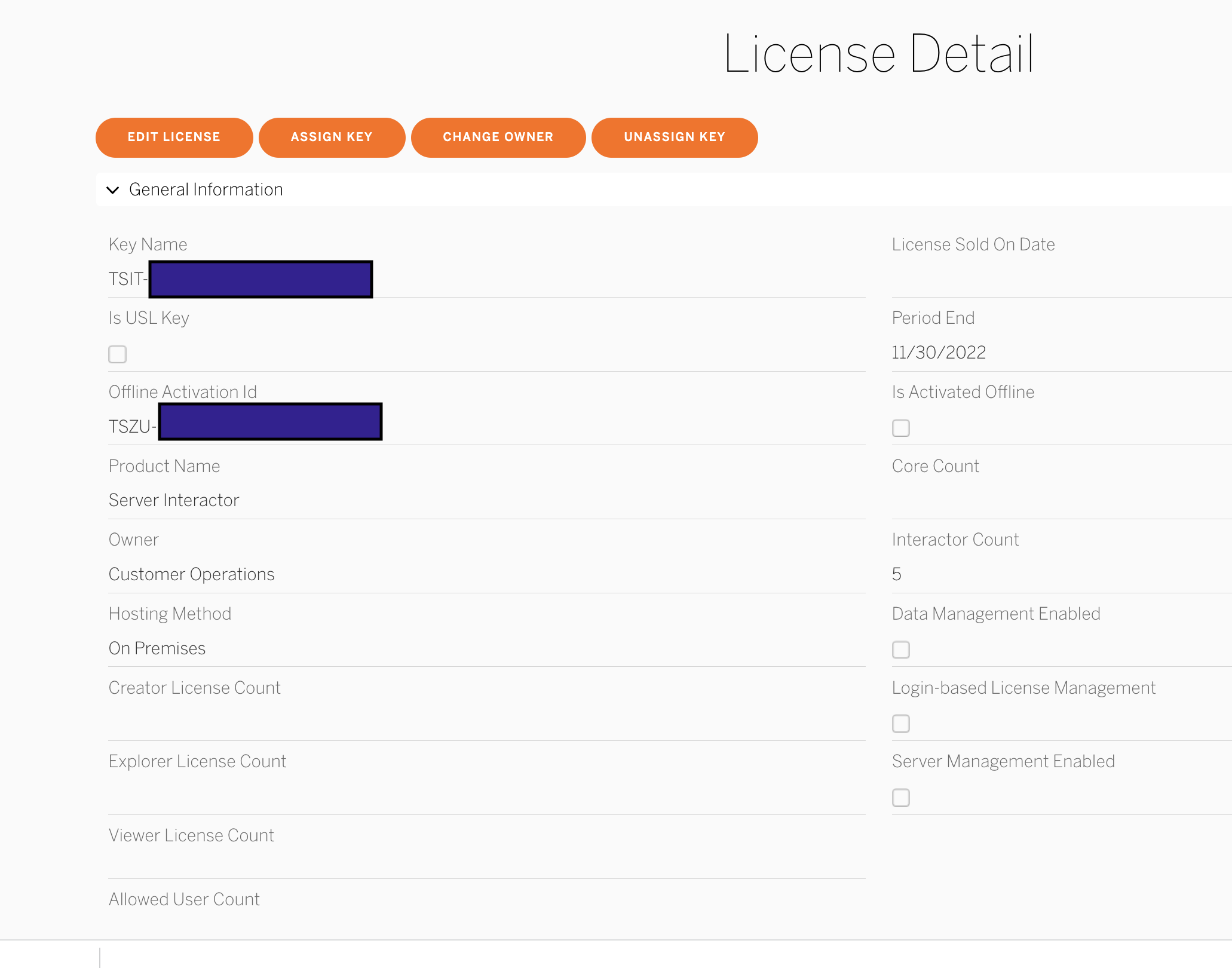
From your Deployment view (See "View all License Keys for a Deployment"), navigate to the Deployment Asset page and identify your Tableau Server product key(s). Select the Server product key to view the License Detail page.
From here you can identify the configuration of your product key, such as:
- Determine if the key is a Core key or a role-based key and how many cores or roles (Creator, Explorer, or Viewer) are assigned
- Understand if you've been assigned an Updatable Subscription License (USL)
- Find when the subscription term or maintenance period ends (Period End)
- Identify what add-ons are enabled, such as Server Advanced Management
Assign a product key
- Go to the Customer Portal and sign in with your Tableau username and password.
- On the Customer Portal home page, select Licenses.
- In the resulting table, select the key you would like to reassign.
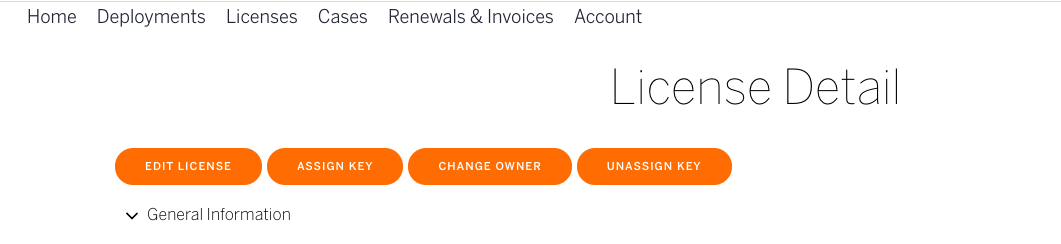
- Click Assign Key to assign the key to a new user.
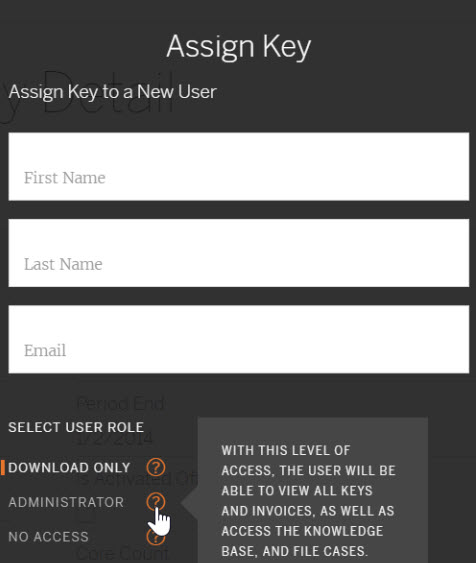
- In the Assign Key dialog box, enter the first name, last name, and email address of the person you'd like to assign the key to, then click Assign Key.
When assigning a key, you'll have the option to give this user portal access, which is highly recommended. Giving Tableau Portal Access will allow the user to quickly identify a key when lost, access the knowledge base, and file Technical Support cases.
Note: If you opt not to give the person portal access, they won't be emailed when the key is assigned to them.
Note: If you opt not to give the person portal access, they won't be emailed when the key is assigned to them.
Edit a product key
- On the Customer Portal homepage, select Licenses.
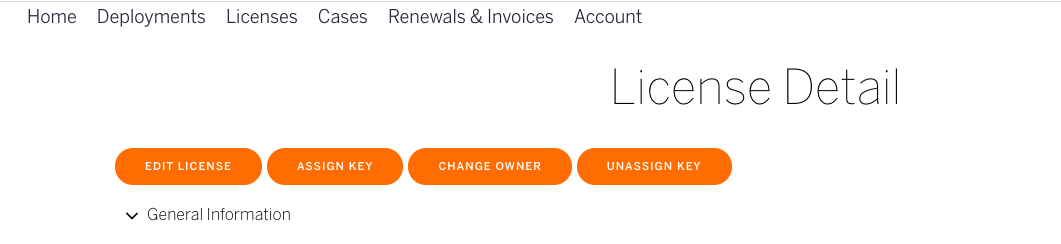
- In the resulting table, click the key you'd like to edit and select Edit License.
- From here you can enter a new User Name and/or enter a new Assigned Email to change who the key is assigned to.
- Click Save.
Note: Only the User Name and Assigned Email may be edited. It isn't possible to remove or edit registration data. The registration data will reflect the most recent registration performed on the key and will be updated by the registration action caused from a new activation.
Change the owner of a product key/Revoke license
- On the Customer Portal home page, click Licenses.
- Select the Product Key you wish to update and click Edit.
- Select Change Owner, and reassign owner from the pre-populated drop-down.
- Click Save.
There's no method to force revocation of a product key. The Tableau Customer Portal will reflect who's assigned to use the product key and the last person to register the key. Using LBLM (activation by logging in to a server) will remove the need to assign and revoke product keys.
Note: This process is different from Assigning the Key, which is a function that triggers a notification to the assignee.
Find the key for offline activation
- From the Deployment Detail view, navigate to the Deployment Assets page and identify your product key. Select the specific license (product key) to open the License Detail page.
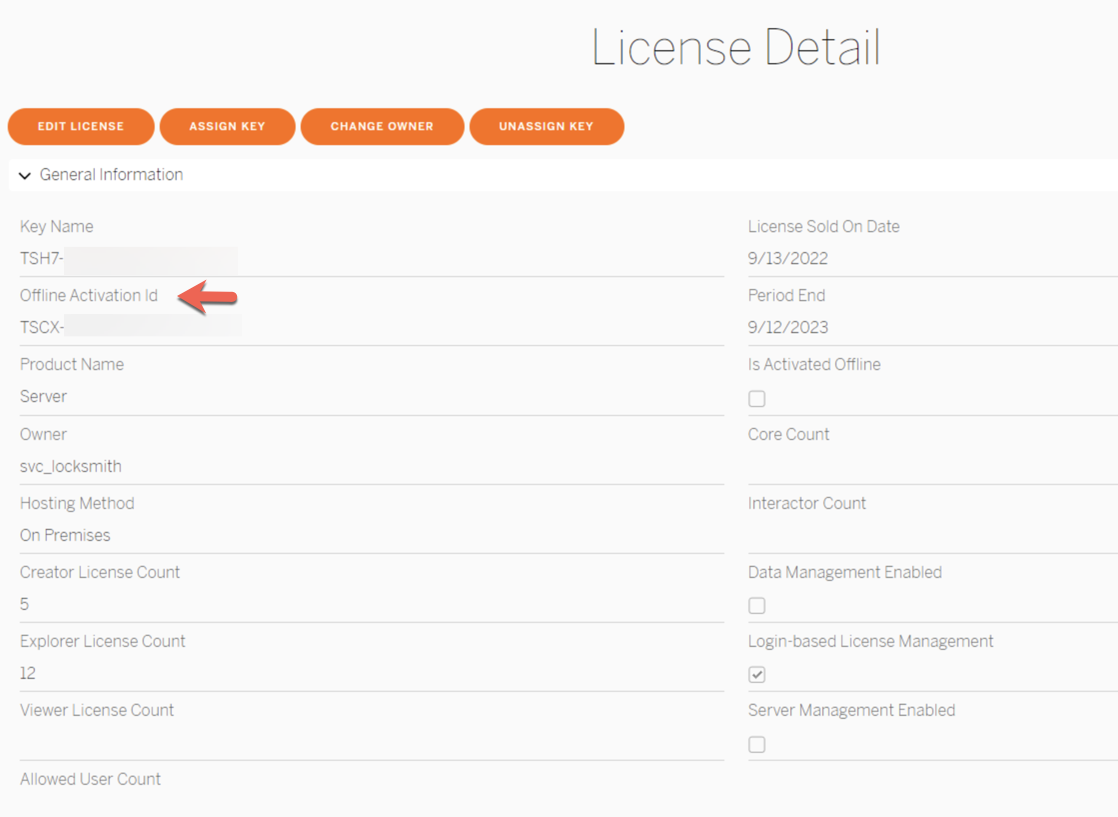
- From the License Detail page, find the "Offline Activation Id". This will be the key that should be activated in a disconnected environment.
Add tracking information to a product key
- From the Licenses page, select the product key you want to add information to.
- From the License Detail page, select Edit License.
- Complete all or some of the fields in the Customer Information area, then click Save.
Note: Tableau doesn't use this customer information. It's purely a way for you to add information to a product key to help you monitor and manage the keys.
View product key history and reports
The options in the Tableau Customer Portal to view activation summaries or registration history are no longer available. To check Tableau Creator usages, please use the prebuilt Administrative views available for Tableau Server or Tableau Cloud, specifically "Login-based License Usage".
Yderligere ressourcer
Live Webinars
For more information in video format, check out the Tableau Webinars. Enter "license" in the search box to see live webinars on Getting Started with License Administration.Trouble Activating?
If you are having trouble activating a Tableau product using a product key, please review the top common issue articles and if none of these can resolve your issue, please open a ticket with Tableau Support:- Invalid Product Key Error Occurs During Software Activation
- Error "The specified product key was not found" Activating Tableau Server
- How to Reset a Current Site Admin Account for Tableau Cloud
Note - For Tableau Server Administrators: It is not possible to remove the Tableau Server Administrator from the highest Creator role in order to use that seat for another user. The Tableau Server Administrator must always use the highest role designated on the Tableau Server.
Tableau Online Help - Understanding License Models and Product Keys
Download Tableau products
Vidensartikelnummer
001457996
Løste denne artikel dit problem?
Giv os besked, så vi kan forbedre os!
