Select An Org
Manage Users in the Tableau Customer Portal
Publish Date: Mar 25, 2026
Task
How to manage users in the Tableau Customer Portal and do I need to manage users in the Tableau Customer Portal?
Please note that students and teachers using the Academic license do not have access to the Tableau Customer Portal and this information is not applicable. Please visit the Student FAQ for license assistance, including where to find downloads.
For information for the Security Point of Contact and the Technical Point of Contact, see the Additional Resources section below.
Steps
Please review the content below as it may contain the information needed to resolve your issue.

If additional assistance is needed with Customer Portal issues, please reach out to Tableau Customer Service at https://id.tableau.com/help for the best possible support.
-
New Customer Purchasing a Creator for Individual or Personal Use - Tableau Cloud
-
Adding Users to Create and Manage Support Cases in the Salesforce Help Portal
-
Using Login-based License Management
-
Legacy Desktop or Prep product keys in use for on-premise deployments
-
How to Add a User and Set Permissions
-
Edit a User's Permissions
-
Remove a User
New Customer Purchasing a Creator for Individual or Personal Use - Tableau Cloud
If you are a new customer that recently purchased a Tableau Creator, you have been assigned a Tableau Cloud site which is used to activate the Tableau Desktop or Prep software. Please review the end-to-end steps to identify the Tableau Cloud activation email and get you started. For more information, see Tableau Cloud Getting Started and Unable to Access Site After Purchase.
As a Tableau Cloud customer, you are given a Tableau Customer Portal account in order to view your invoice, add additional purchases, and activate Tableau Desktop or Tableau Prep Builder using the Login-base License Management option. If eLearning was purchased, the code or key appear under the Licenses tab of the Tableau Customer Portal.
Adding Users to Create/Manage Support Cases in the Salesforce Help Portal
For on-premise deployments, it is necessary to add users to the Tableau Customer Portal account related to an active deployment to create cases in the Salesforce Help portal. Tableau Cloud customers do not need to add users to the Tableau Customer Portal in order to create a Support case in Salesforce Help. See How to add a user and set permissions for detailed steps, and Additional Resources for information on setting permissions for a “Support Only” user.
Using Login-Based License Management
If you are using Login-based License Management, there is no need to view or assign Desktop or Prep product keys to individual users. Assign users the Creator role on Tableau Server or Tableau Cloud and review the pre-built Administrative views on Login-based License Management to manage activations and use of Tableau Desktop or Prep.
Legacy Desktop or Prep Product Keys in Use for On-Premise Deployments
If your organization is using legacy product keys to activate Tableau Desktop or Tableau Prep Builder, you continue to manage licenses via the Tableau Customer Portal in order to assign product keys to specific users. Adding users as described below, allows these individuals based on permissions granted, to create and manage support cases on the Salesforce Help portal, view invoices and manage accounts. For more information on managing licenses in the Tableau Customer Portal, please review this article.
Note: In order to manage users in the Tableau Customer Portal, you must be assigned the Administrator role.
How to Add a User and Set Permissions
- Go to the Tableau Customer Portal and sign in with your Tableau username and password.
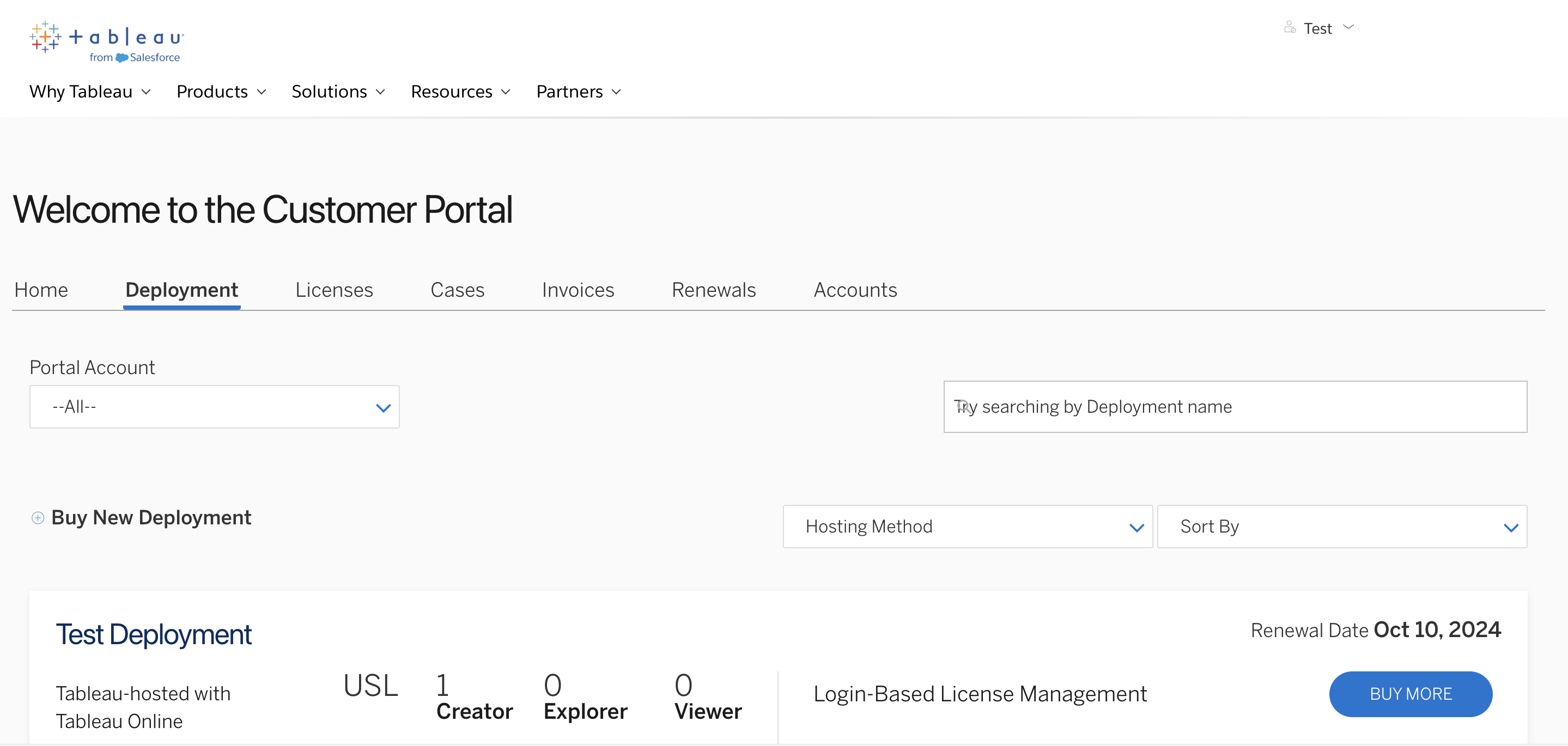
- On the Customer Portal home page, click Deployments and select a specific deployment the user should be added to.
Note: If you are an administrator for multiple accounts, select the account you want to manage.
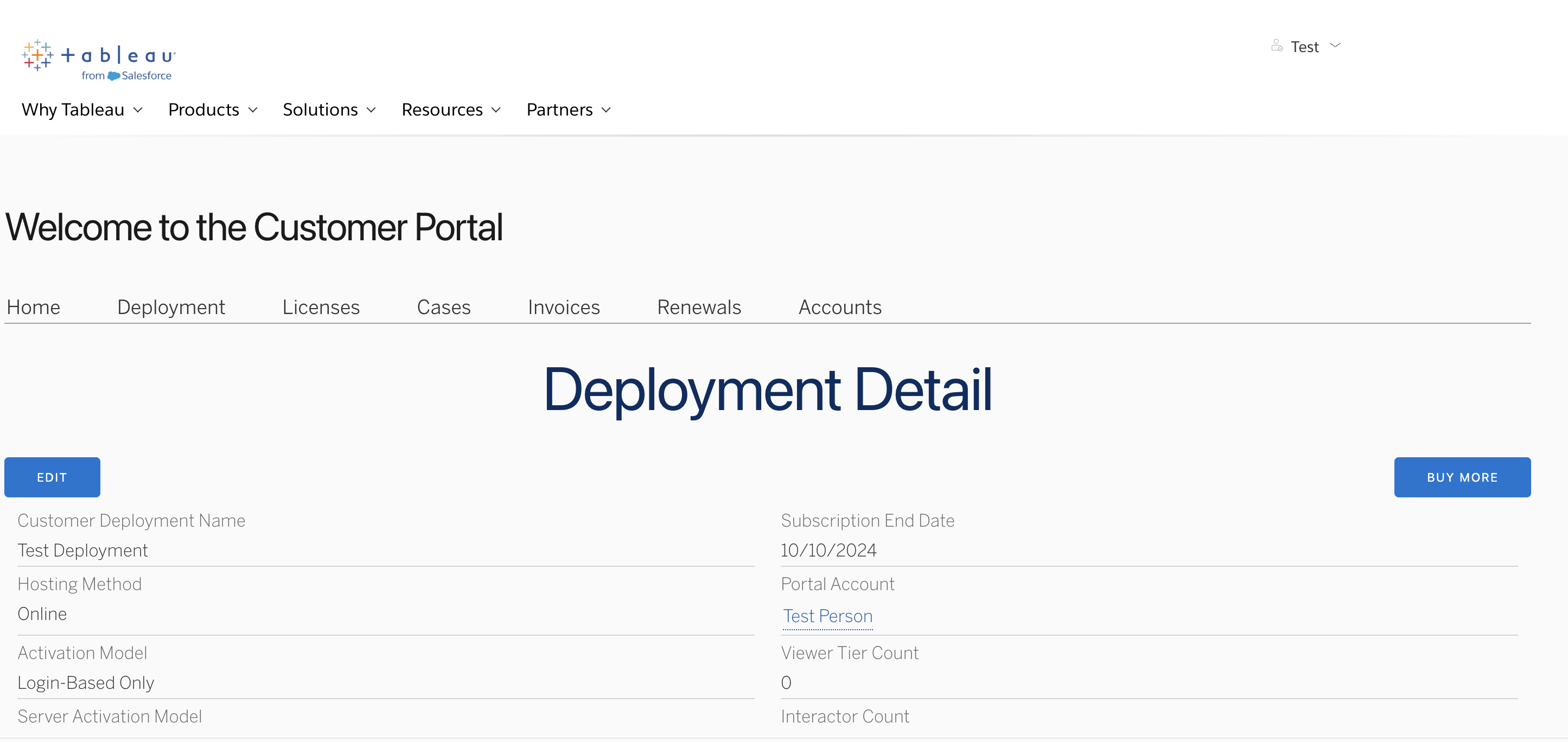
- Under Deployment Detail, select Portal Account.
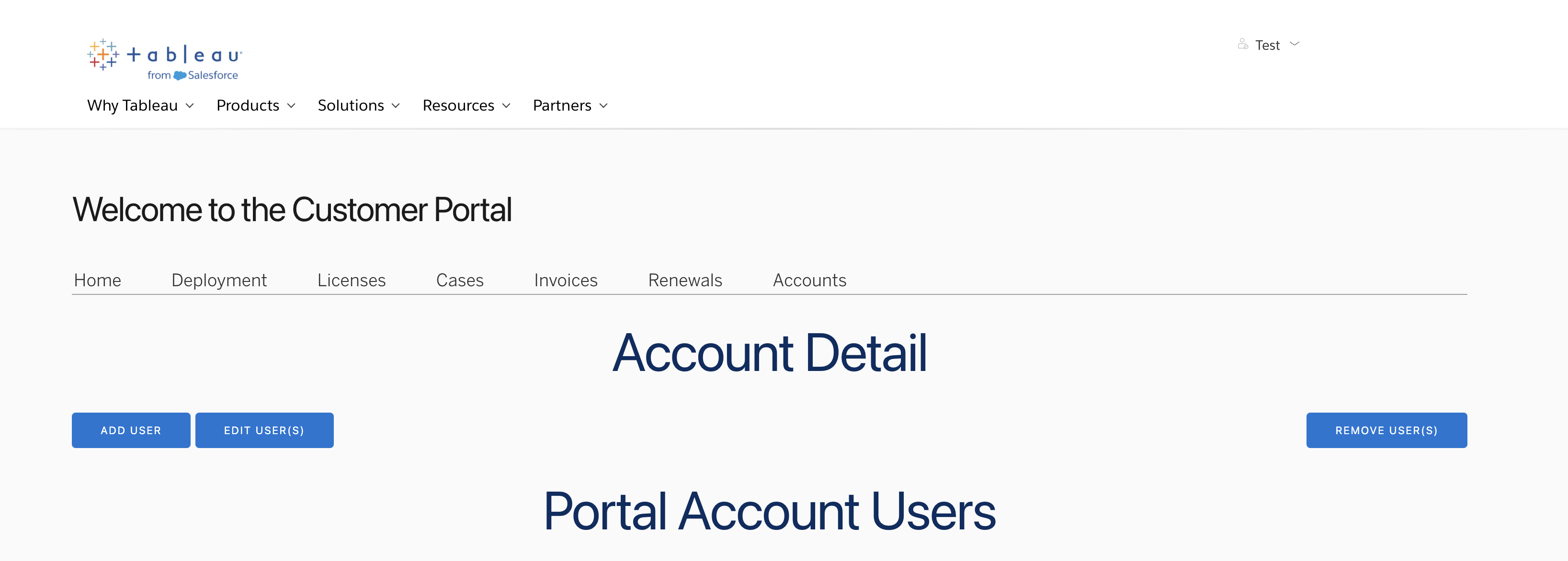
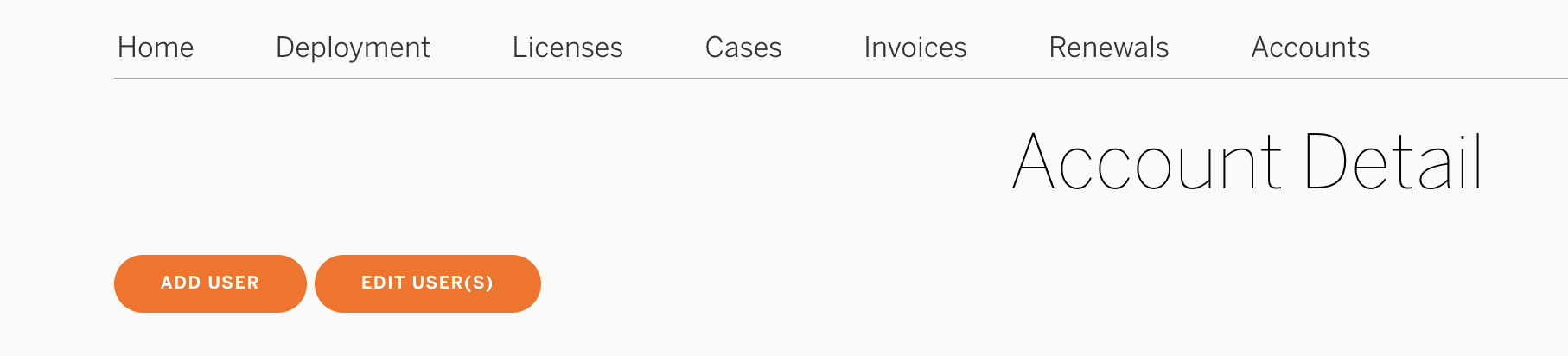
- From the Account Detail page, click Add User.
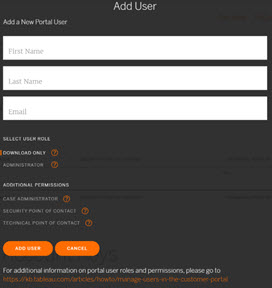
- Type the user's first name, last name, and email address.
- Select the role and permissions you want to assign to the user. For role and permission descriptions, see the Additional Information section of this article or hover over the "?" next to each permission.
- When you are finished, click Add User.
Edit a User's Permission
Please note: It is not possible to edit the user's email address but only their permissions. A user needs to be removed and then re-added to change the email.
- From the Account Detail page, select the Portal Account User(s) whose role you want to change.
- Click the "Edit User(s)" button.
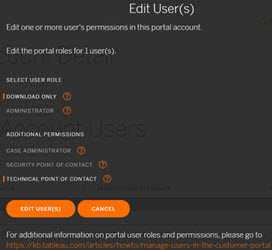
- Adjust the user's permissions as desired, then click "Edit User(s)".
Remove a User
- From the Account Detail page, select the Portal Account User(s) who you want to remove.
- Click the "Remove User(s)" button on the right side of the page.
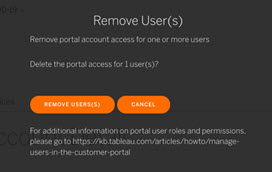
3. Confirm that the users selected should be removed from the Tableau Customer Portal.
Additional Resources
Getting Started with the Tableau Customer Portal
Visit this link to contact Customer Service Help.
Partners Submitting a Technical Support Case for Tableau Products
Portal Permissions
Your Tableau Customer Portal user role and permissions define what you can see, and the tasks you can perform in the portal. If the Tableau Customer Portal Administrator has left the company or you are not sure who the Tableau Customer Portal Administrator is, please contact your Tableau Account Team for assistance.
Portal Administrator
A Portal Administrator has access to:
- Log in
- Manage all keys
- View all invoices
- Access the renewal pages linked from Tableau's automated renewal notifications
- Download products
- Create cases
To create a Portal Administrator, create the user with the Administrator role.
Group Manager
A Group Manager has access to:
- Log in
- Manage specific keys
- Download products
- Create cases
To create a Group Manager, create the user with the Download Only role, then make them the owner of the specified keys.
Individual
An Individual user has access to:
- Log in
- View specific keys (not needed with LBLM)
- Download products
- Create cases
To create an Individual user, create the user with the Download Only role, then assign the key(s) to them by email address.
Support Only
A Support Only user has access to:
- Log in
- Download products
- Create cases
To create a Support Only user, create the user with the Download Only role, then do not assign any keys to them.
Security Point of Contact & Technical Point of Contact for Tableau
The Security Point of Contact permission for Tableau should be assigned to the individual(s) that assess the scope and impact of security issues for your company. Ensuring a Security Point of Contact is assigned for your portal account allows Tableau to contact the correct audience for critical or important security issues with Tableau products when they arise. Security disclosures may also be found on Tableau's Security Bulletins page or Salesforce's Security Advisories page.
The Technical Point of Contact permission for Tableau should be assigned to the individual(s) responsible for managing your company's installation or deployment of Tableau products. Ensuring a Technical Point of Contact is assigned for your portal account allows Tableau to contact the correct audience for critical or important functionality issues with Tableau products when they arise.
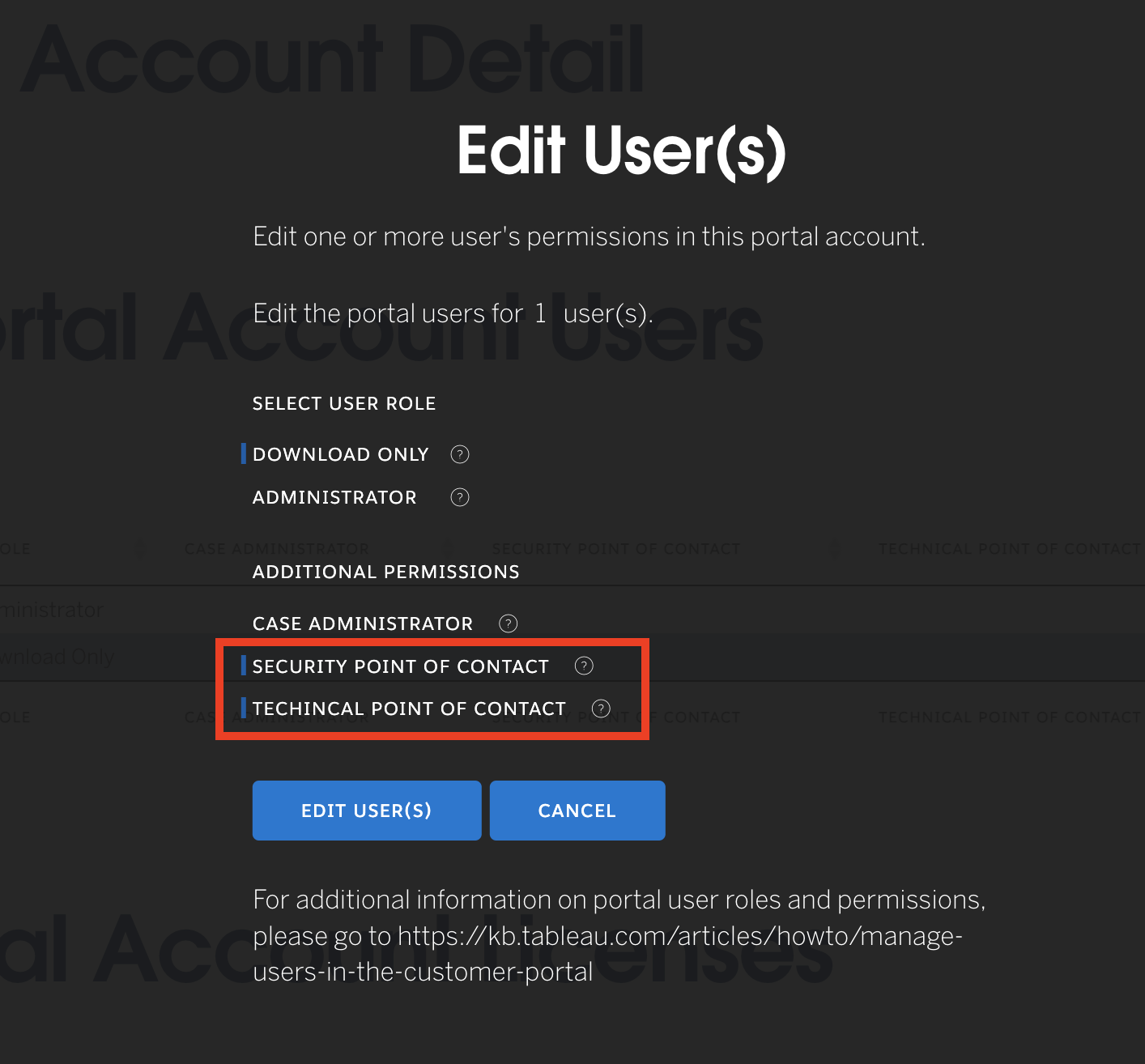
To assign a User as a Security or Technical Point of Contact for Tableau in the Tableau Customer Portal, follow the steps to Add or Edit a User and click on the desired 'Additional Permissions' option(s) for the user. See screenshot below showing both Security and Technical Point of Contact permissions selected:
Knowledge Article Number
001457998
Did this article solve your issue?
Let us know so we can improve!
