Vælg en organisation
Sorting Segments Within Stacked Bars by Value
Udgivelsesdato: Feb 24, 2026
Opgave
For example, chart A is a regular stacked bar chart, and chart B is sorted by values within the stacked bar.
| Chart A | Chart B |
|---|---|
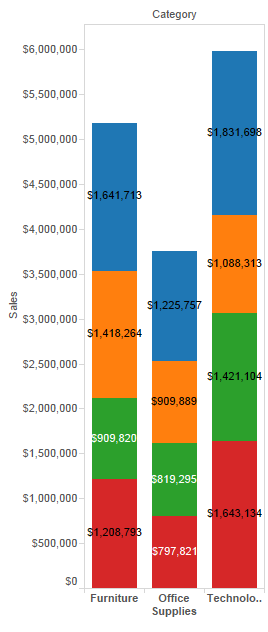 | 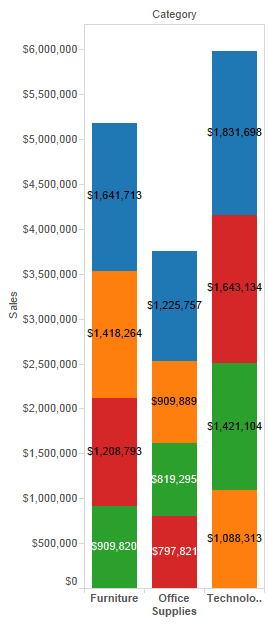 |
Trin
Step 1: Create the View
- In Tableau Desktop, connect to Superstore sample data.
- Drag Category to Columns.
- Drag Sales to Rows.
- Drag Region to Color.
- Drag Sales to Label.
Step 2: Sort the Bar Segments
- On Color, right-click Region, and then select Attribute.
- In the Dimensions pane, hold down the CTRL key, click Category, and then click Region.
- With the dimensions highlighted, right-click Region, and then select Create > Combined Field.
- Drag Category & Region (Combined) from Dimensions to Detail.
- On Detail, right-click Category & Region (Combined), and then select Sort.
- In the Sort dialog box, do the following, and then click OK:
- For Sort Order, select Descending.
- For Field, select Sales.
- For Aggregation, select Sum.
To view these steps in action, see the video below:
Yderligere ressourcer
Vidensartikelnummer
001458243
Løste denne artikel dit problem?
Giv os besked, så vi kan forbedre os!
