Valitse organisaatio
Displaying Repeated Row Labels for Each Row in a View
Julkaisupäivä: Mar 31, 2026
Tehtävä
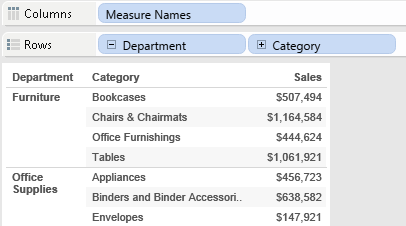
For example, view with grouped row headers:
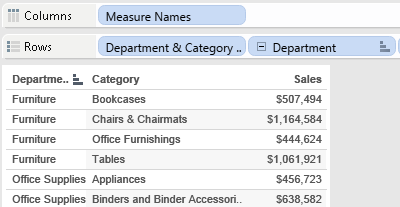
View with repeating row headers:
Vaiheet
Both of the options below start from the "Original" worksheet in the packaged workbook found in the Attachments section of this article. Directions for creating the "Original" worksheet are included in the workbook.
Option 1: Use INDEX()
- Select Analysis > Create Calculated Field...
- In the Calculated Field dialog box that opens, do the following, and then click OK:
- Name the calculated field. In this example, the calculated field is named "Row Number"
- In the formula field, create a calculation similar to the following:
INDEX()
- Right-click [Row Number] in the data pane and select Convert to Discrete
- Drag [Row Number] to the first position on the Rows shelf
- Optional: right-click [Row Number] on the Rows shelf and uncheck Show Header
Note: the video has no sound. To view the video in higher quality, click the YouTube icon below to watch it on YouTube directly.
Option 2 - Use Combined Field / Calculation
Combine the fields
- Drag the Category and Sub-Category dimensions to the Rows shelf.
- Double-click Sales in the Measures pane.
- Ctrl-click Category and Sub-Category in Dimensions, right-click the highlighted fields, and then select Create > Combined Field.
- Drag the combined Category & Sub-Category field to the far left on Rows.
- Right-click Category & Sub-Category on Rows, and then clear Show Header.
Use Combined Calculation
- Select Analysis > Create Calculated field...
- In the Calculated Field dialog box that opens, do the following, and then click OK:
- Name the calculated field. In this example, the calculated field is named "Combined"
- In the formula field, create a calculation similar to the following:
[Region]+[Category]+[Sub-Category]
- Drag [Combined] to the far left on the Rows shelf
- Right-click [Combined] on Rows, and then uncheck Show Header
Note: The combined field must produce a unique value for each row in order to repeat the header in every row
The video has no sound. To view the video in higher quality, click the YouTube icon below to watch it on YouTube directly.
Lisäresurssit
Hierarchical headers provides additional information about the relationship of data to the end user. At a glance, the end user can see what values are grouped together. Less text on the screen also improves readability.
Repeated headers tend to be better when the data is exported so that there are no blank values in the export.
Notes:
- Using option 2 will disable the ad-hoc sort option for the first column; However sorting the combined field will allow rows to be individually sorted.
- Fields hidden in the view will still be included when exporting the data.
- To voice your support for the inclusion of this feature in a future product release, add your vote to the following Community Idea: Ability to choose to Repeat or Suppress cell value.
Knowledge-artikkelin numero
001458245
Ratkaisiko tämä artikkeli ongelmasi?
Anna palautetta, jotta voimme kehittyä!
