Sélectionner une organisation
How to Show "Only Relevant Values" In Filter When Using Data Blend
Date de publication: Mar 3, 2025
Tâche
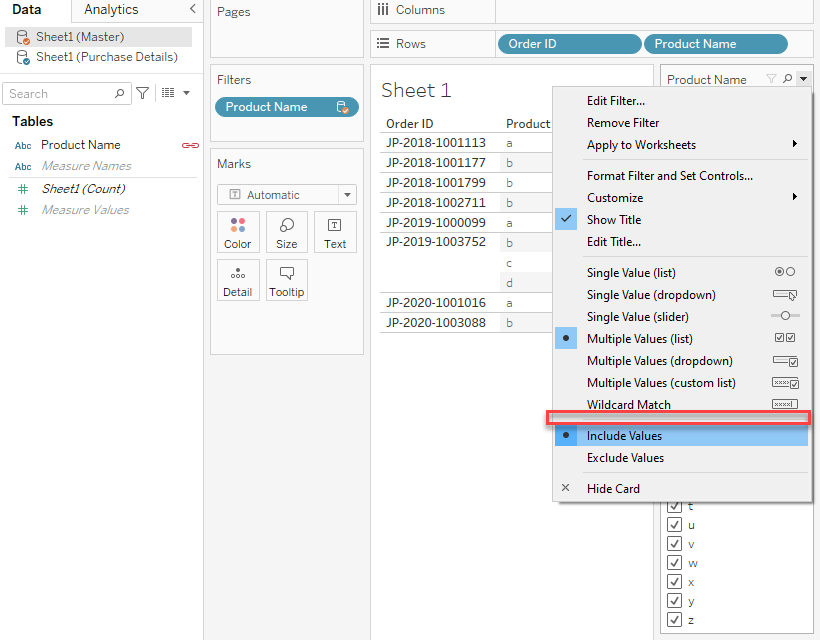
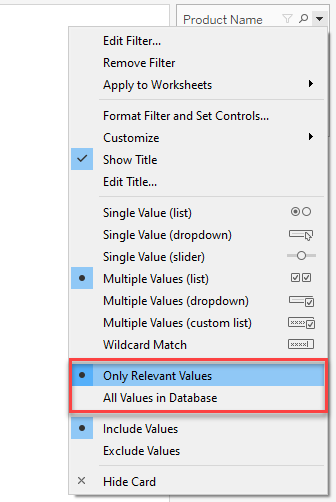
When using Data Blend, and add a field from the Secondary data source, there is no option as "Only relevant values" in the filter.
However, if you use the field from the same data source, the "Only Relevant Values" could be set.
Étapes
Option 1:
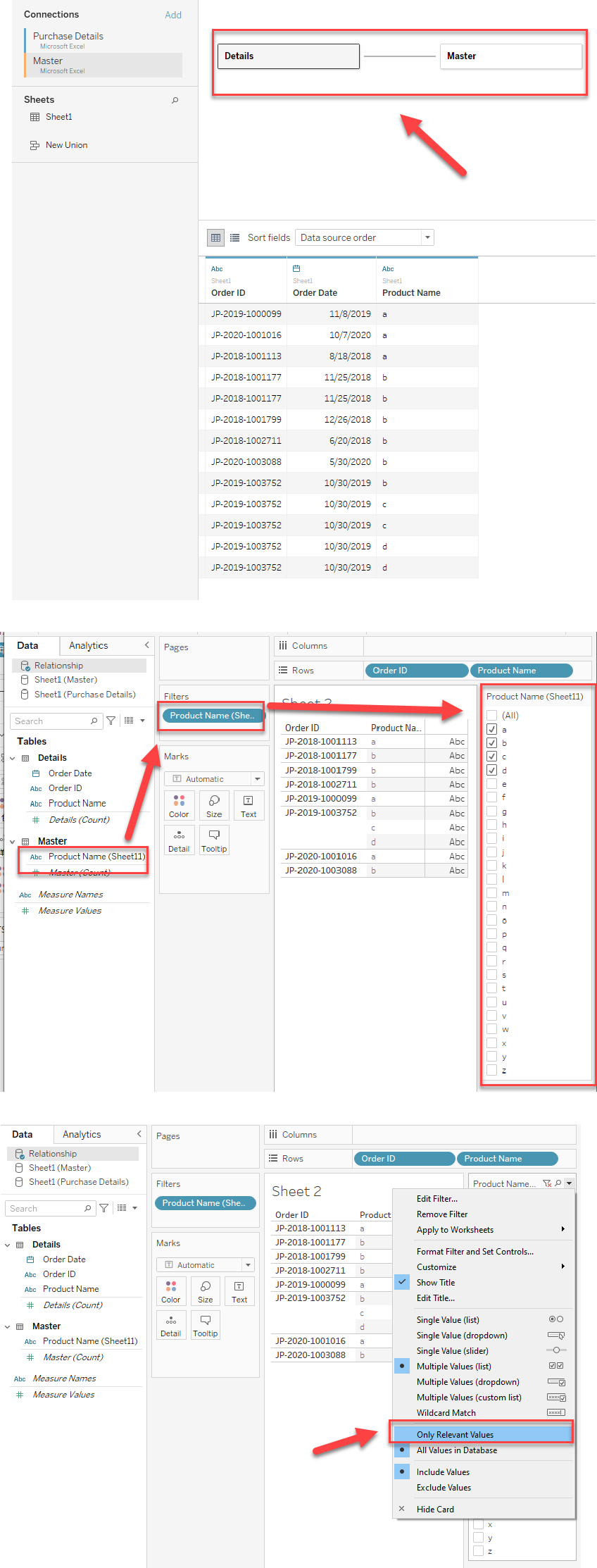
Instead of using Data Blend, please use Relationship to relate the data sources, and the "Only relevant values" option is available to show only existing values.
Please check the attached workbook for details.
Option 2:
Join tables that are in the same data source, instead of blending them.
Ressources supplémentaires
In this situation, please consider setting the relationship of the original data sources and published it to Tableau Server.
The steps are as follows:
- In Tableau Desktop, relate the data sources in a relationship.
- Publish the merged data source to Tableau Server
- Connect to this published data source in Tableau Desktop.
- Add the field to [Filter] and set it to "Only Relevant Values".
Numéro d’article de la base de connaissances
001458358
Cet article a-t-il résolu votre problème ?
Dites-nous ce que nous pouvons améliorer !
