Sélectionner une organisation
How To Use Parameters To Set The Default Values Of Quick Filters
Date de publication: May 21, 2024
Tâche
How to use a Category Parameter to set the default values of Sub-Category filter?
Étapes
The ability to set default values of a quick filter by parameter is currently not built in the product. As a possible workaround use the filter from filter actions. Follow the steps and follow along in the attached package workbook.
Create a worksheet for the filter action
1. Create a new worksheet filter action
2. Add Category to Rows, Sub-Category to Text
3. Create a calculation field Category Filter
[Category]=[Parameters].[Category]
4. Add Category Filter to Filters, select True
Create the filter action on dashboard
1. Create a dashboard solution
2. Add worksheet original to the dashboard
3. Add worksheet filter action to the dashboard
4. Hide the title of worksheet filter action
5. Right click row Category, select Hide field labels for rows
6. Adjust the size of worksheet filter action to hide the text of Sub-Category
7. Select from menu bar Dashboard > Actions
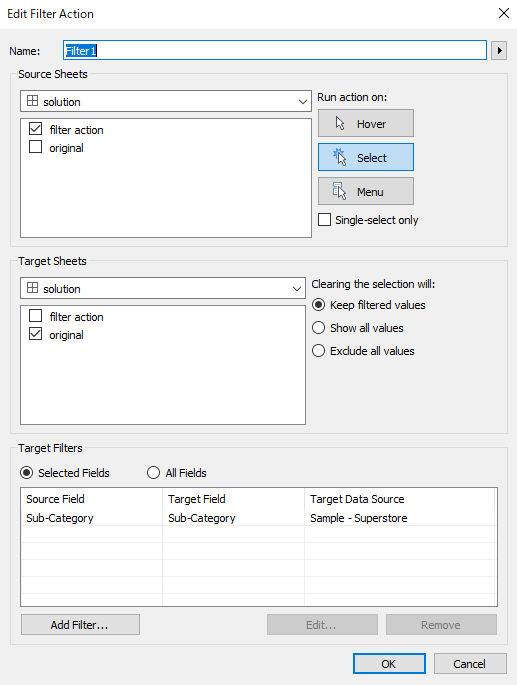
Add Action > Filter...
Create a filter action like the following:
8. Click the category text in worksheet filter action
9. Click More Options from worksheet Original, select Filters > Action (Sub-Category)
10. Confirm default values are set correctly in Filter Action (Sub-Category)
Ressources supplémentaires
Numéro d’article de la base de connaissances
001458373
Cet article a-t-il résolu votre problème ?
Dites-nous ce que nous pouvons améliorer !
