選擇組織
How to Change the Word "(All)" on the Top of the Filter to Other Words
發佈日期: May 17, 2024
工作
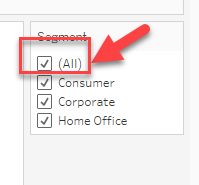
How to change the word "(All)" on the top of the filter to other words.
Please check the image below.
步驟
The ability to change the "(All)" word on the top of the filter to other words, is not currently built into Tableau Desktop.
The workaround described below and available in the sample packaged workbook is using a parameter as a filter.
The steps are as follows:
1. Make a filter like the below image which adds an "All Items" selection.
2. Create a calculation field as a filter.
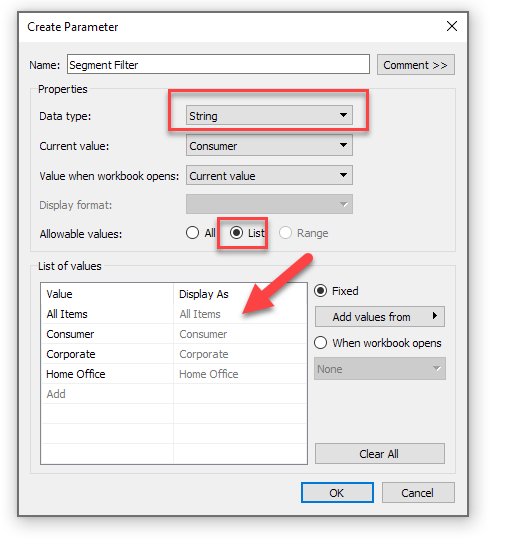
[Segment]=[Segment Filter] OR [Segment Filter]="All Items"
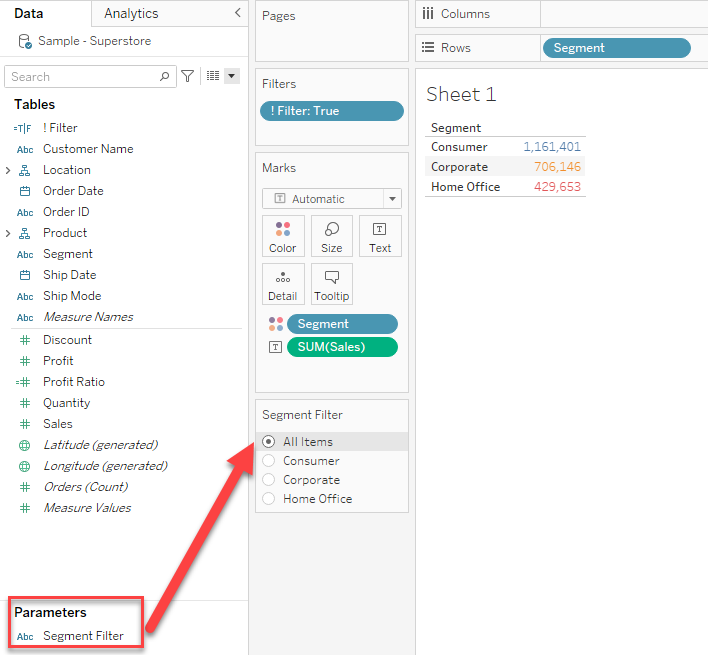
3. Add this calculation to [Filters] shelf and set the "True" value.
4. Right-click the parameter in Step1 and select "Show Parameter".
Now the "(All)" word can be replaced by any word you want like the below image.
Limitation of the above workaround:
Only one value can be selected in a parameter, so if you wish to specify multiple items, you will need to set them up in advance in parameters items and filter formulas.
Example: Add the item "Consumer and Corporate" in the parameter.
知識文章編號
001458476
此文章是否解決您的問題?
請讓我們知道,以便我們改進!
