Select An Org
Change the format of Date&Time to 12 hour or 24 hour
Publish Date: Apr 13, 2024
Task
In Tableau Desktop and Tableau Prep Builder, the date and time may be displayed in 12-hour or 24-hour format, depending on the date format setting og the computer.
For example, the date&time field is stored as 24-hour format in the database: 2022-04-01 13:00:02 but if the date format setting on the computer is 12-hour, Tableau will show 1/4/2022 1:00:02 PM. Vice Versa.
How to make the format of the date&time field in Tableau align with the database?
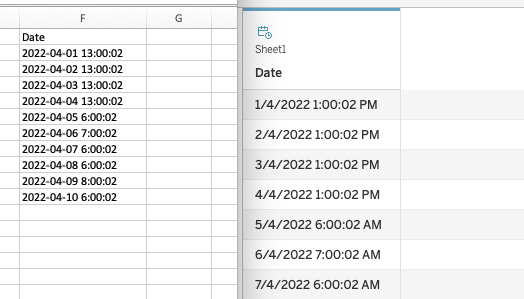
Steps
Mac
1. Go to System Preference > Date & Time > select Language & Region
2. Tick or untick Time format 24-Hour Time
3. Refresh or reopen Tableau Desktop/Prep
Windows
1. Go to Settings > Time and Language > select Region > click Change Data Formats
2. Select Long Time or Short Time.
3. Refresh or reopen Tableau Desktop/Prep
Option 2: Use Custom Date Format
For more information, see Custom Date Formats
Knowledge Article Number
001458485
Did this article solve your issue?
Let us know so we can improve!
