Select An Org
How to Align the Size and Placement of Floating Items on a Tableau Dashboard to be Uniform
Publish Date: Feb 25, 2026
Task
Before:
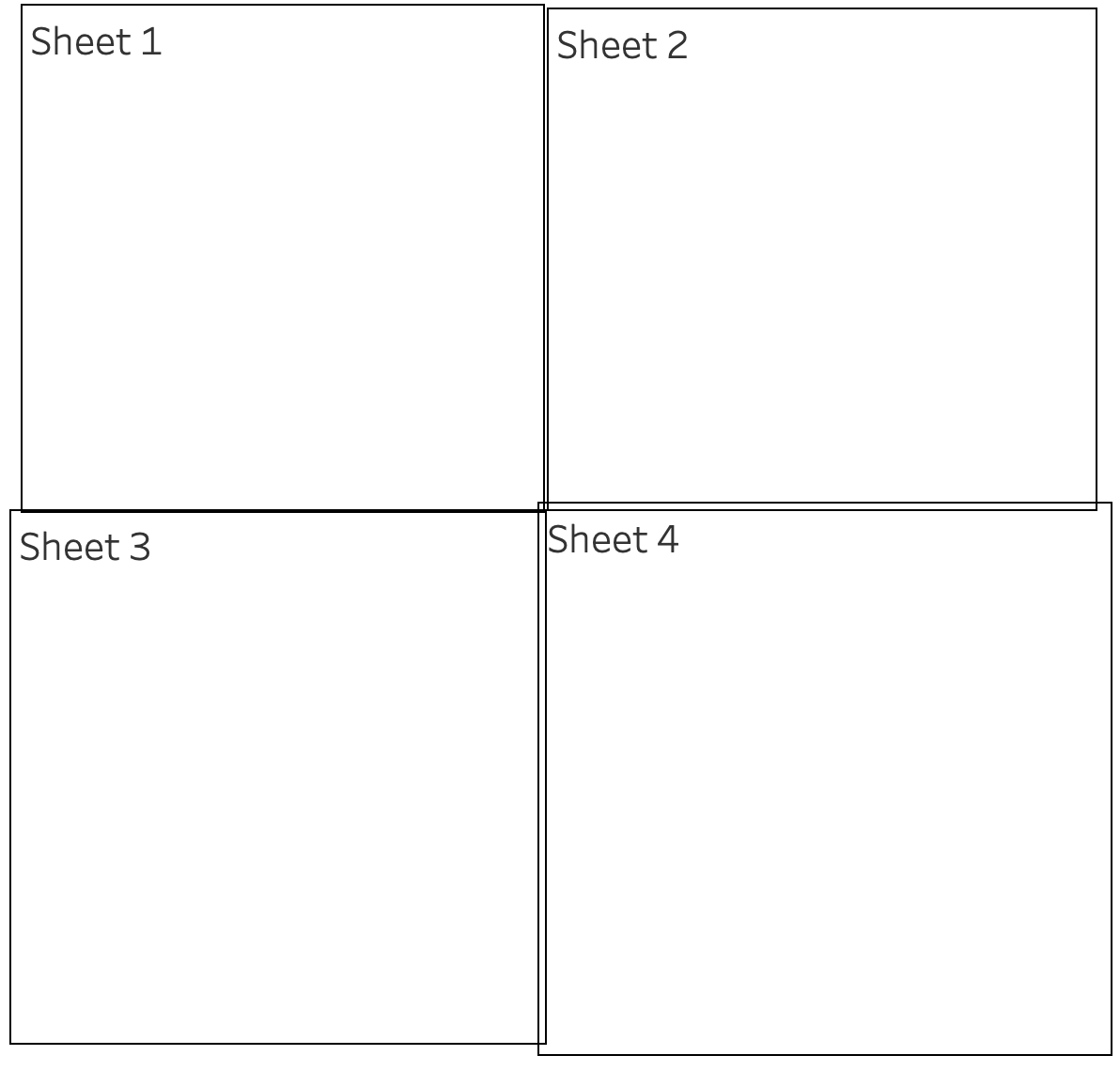
After:
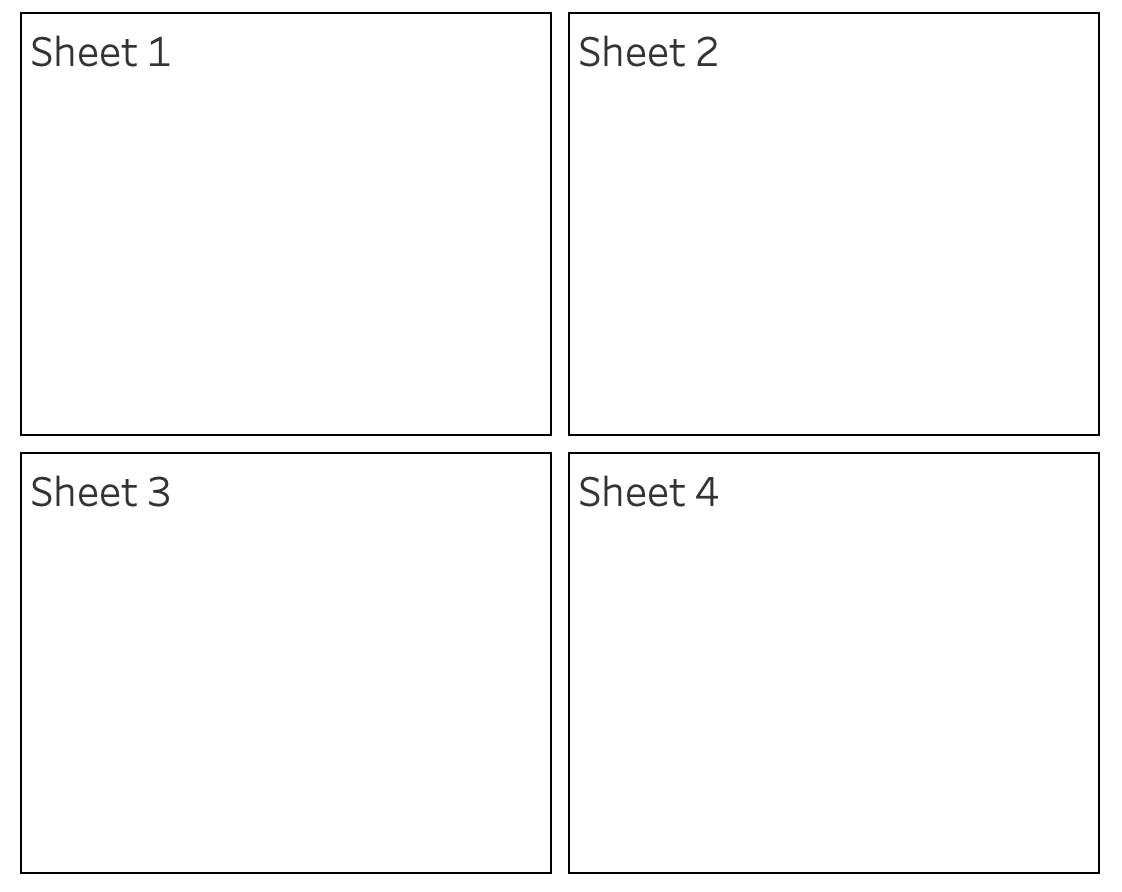
Steps
1. Under Objects on the Dashboard pane, select Horizontal or Vertical Containers.
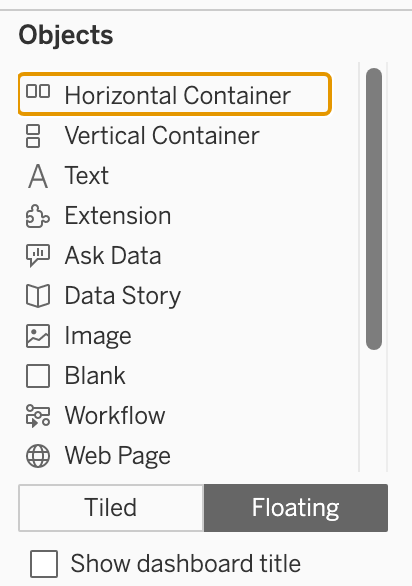
2. Drag the container to the dashboard.
3. Add views and objects to the layout container.
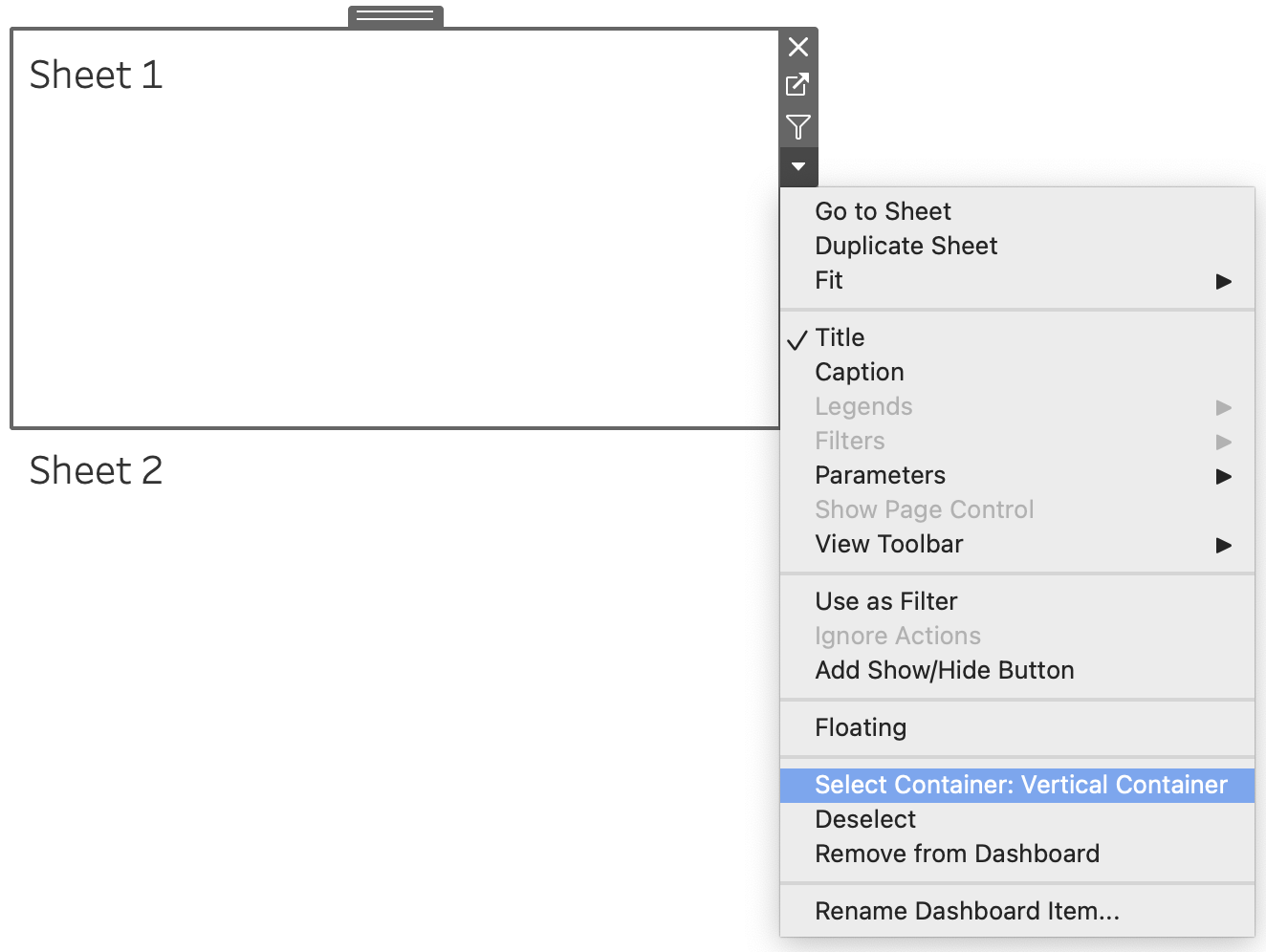
4. Select the layout container. To do this, select an individual item within the container and choose Select Container from the arrow drop-down as shown below:
Or from the Layout pane, Select Container in the Item hierarchy:
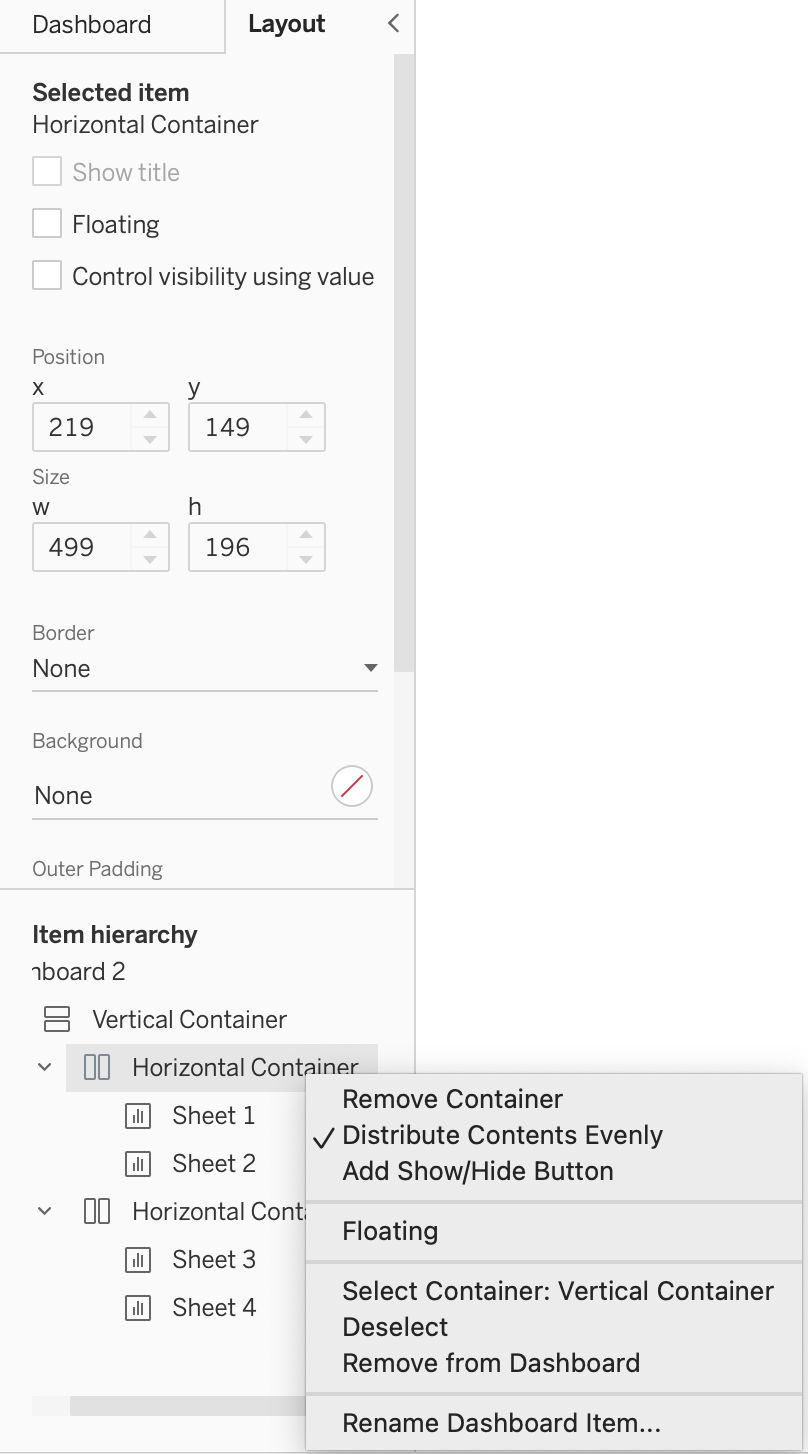
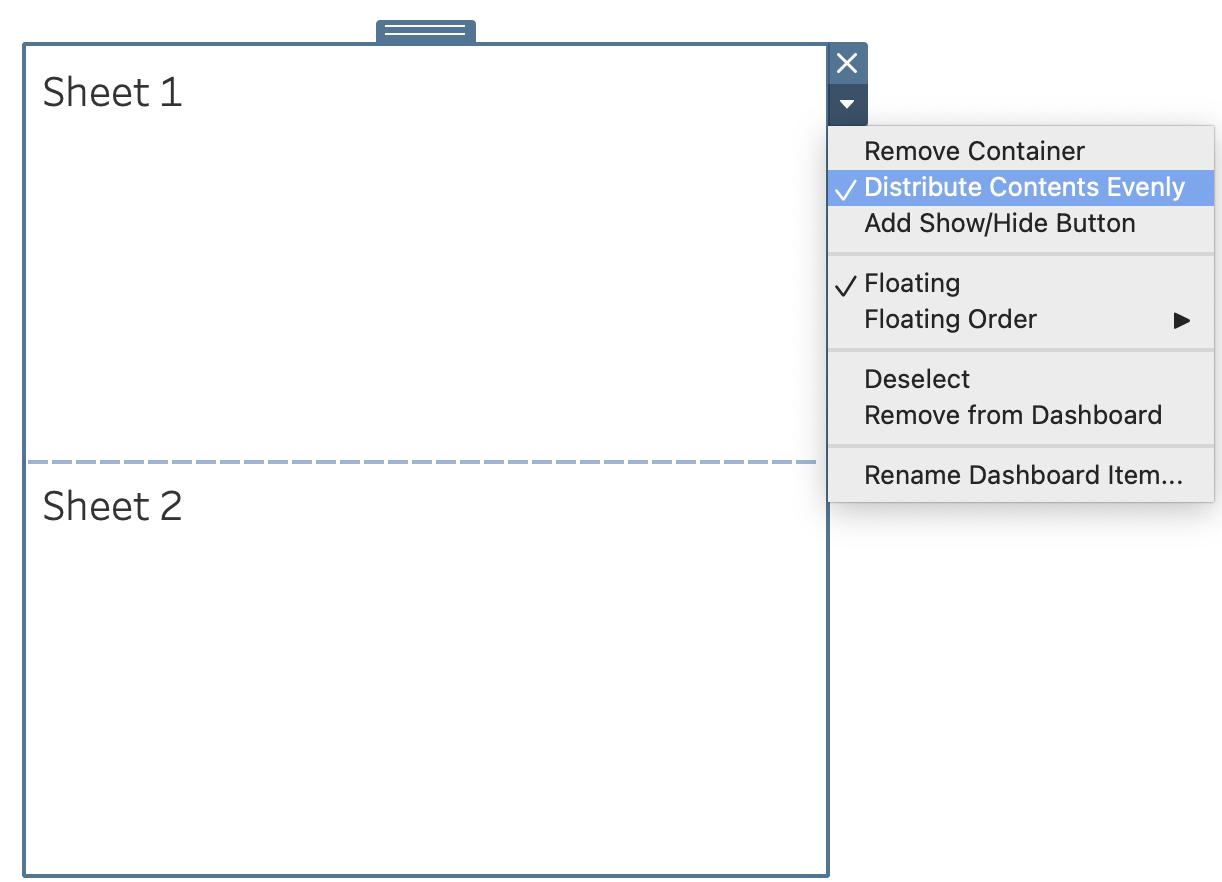
5. With the layout container selected, choose Distribute Contents Evenly from the arrow drop-down menu (shortcut):
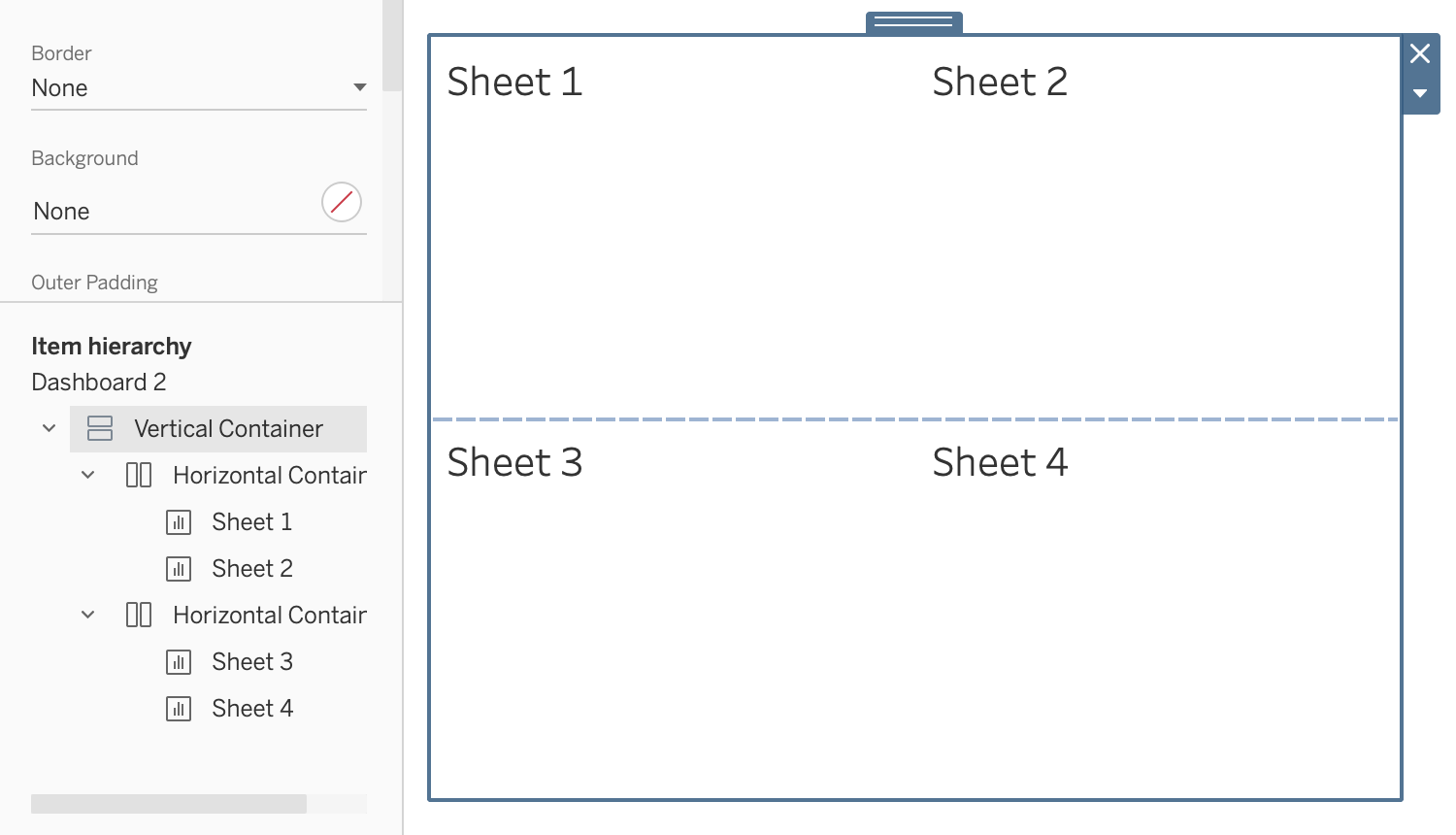
6. If you want more sheets to be aligned, organize them by nesting containers.
Additional Resources
Knowledge Article Number
001458586
Did this article solve your issue?
Let us know so we can improve!
