Vælg en organisation
How to Highlight a Specific Category in a Crosstab View with a Parameter
Udgivelsesdato: Apr 6, 2026
Opgave
How to change what category to highlight in a Crosstab view.
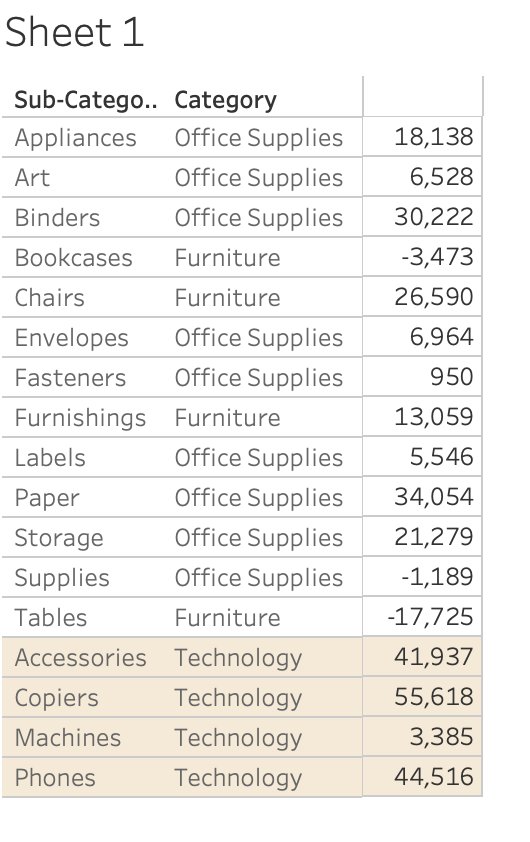
Trin
1. Create a parameter and name it Select a category with Data Type String. Select List under Allowable values and click on the Add values from drop-down list to select Category.
2. Create a calculated field named Color a row with the following formula:
Select a category = Category
3. Add Color a row as the first column on the Rows shelf.
4. From the top toolbar, select Format > Shading. On the Sheet tab, under Row Banding, select the desired color with Pane and Header. Set the Level to 0 and the Band size to 1. Close the Format Shading menu.
5. Hide the header by right-clicking on Color a row on the Rows shelf and uncheck the Show Header.
6. Show the parameter by right-clicking on Select a category and select Show Parameter.
7. Test your view by selecting a category to highlight.
Vidensartikelnummer
001458647
Løste denne artikel dit problem?
Giv os besked, så vi kan forbedre os!
