Välj en organisation
How To Calculate Sum Based On The Result of An Aggregated Data Field
Publiceringsdatum: Apr 28, 2025
Uppgift
Steg
To create this calculation, follow the steps below and see the attached workbook.
Create the original view
1. Click the link mark right to data field Sub-Category of the secondary data source Sheet1(target)2. Create a calculation field Diff
SUM([Sales])-SUM([Sheet1 (target)].[Target])3. Create a calculation field Fail or Succeed to check whether the region reached the sales target of a certain Sub-category or not
if [Diff]>0 then "Succeed"
else "Fail"
END
4. Add Fail or Succeed to Columns, Region to Rows, Sub-Category to Detail
5. Add Sub-Category to Columns
6. Right click Sub-Category, select Measure > Count(Distinct)
Create the solution view
1. Create different calculation fields to calculate COUNTD([Sub-Category]) for Succeed and Fail
Succeed:
if [Diff]>0 then
COUNTD([Sub-Category])
END
Fail:
if [Diff]<=0 then
COUNTD([Sub-Category])
END
2. Create calculation field Solution_Fail or Succeed to calculate the sum of Fail or Succeed of each region
if [Diff]>0 then
window_sum([Succeed])
else
window_sum([Fail])
END
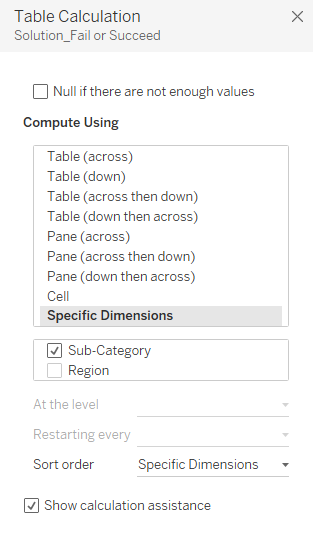
3. Set the Table Calculation of Solution_Fail or Succeed, compute using Sub-Category
4. Create the Filter calculation field to keep only one value show in the view
if [Diff]>0 then
window_sum([Succeed])=running_sum([Succeed])
else
window_sum([Fail])=running_sum([Fail])
END
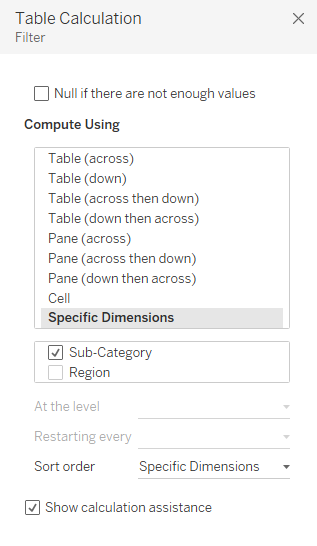
5. Set the Table Calculation of Filter, compute using Sub-Category
6. Change the selected value of Filter to True.
Knowledge-artikelnummer
001459711
Löste denna artikel ditt problem?
Berätta för oss vad vi kan förbättra!
