Valitse organisaatio
How To Set Different Parameter Values For Different Worksheets
Julkaisupäivä: Apr 13, 2024
Tehtävä
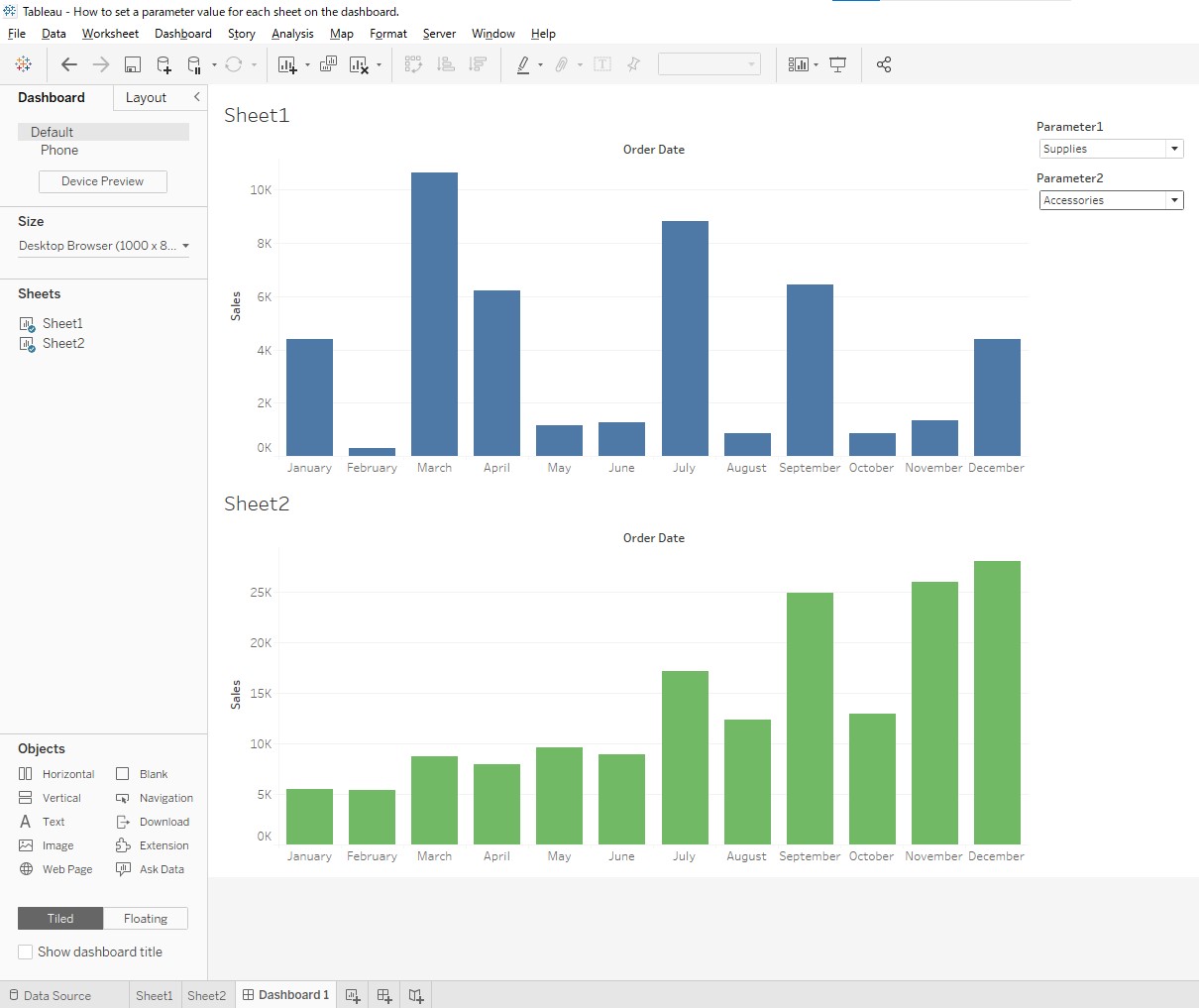
Vaiheet
Preparations
- Connect to Sample - Superstore.
- Drag and drop [Sales] to the Rows and [Order Date] to the Columns.
- Change the graph to a bar chart.
- Duplicate Sheet1 and create Sheet2.
- Change the color of bar chart to green.
- Create a new Dashboard and drag and drop Sheet1 and Sheet2.
Creating the Parameters, Calculated fields and Filters
Sheet1:
1. Create a Parameter named "Parameter1" with the following settings.- Data Type: String
- Allowable values: List
- Check the "Fixed > Add values" from Sub-Category
	IF [Sub-Category]=[Parameter1]
	THEN [Sales]
	END
3. Create a Calculated field named "Filter1" with the following calculations.
[Sub-Category] = [Parameter1]
- Drag and drop Filter1 to Filters pane.
- Select True.
- Show Parameter1.
Sheet2:
1. Create a Parameter named "Parameter2" with the following settings.- Data Type: String
- Allowable values: List
- Check the "Fixed > Add values" from Sub-Category
    IF [Sub-Category]=[Parameter2]
    THEN [Sales]
    END
3. Create a Calculation field named "Filter2" with the following calculations.
[Sub-Category] = [Parameter2]
- Drag and drop Filter2 to Filters pane.
- Select True.
- Show Parameter2.
Lisäresurssit
Knowledge-artikkelin numero
001460233
Ratkaisiko tämä artikkeli ongelmasi?
Anna palautetta, jotta voimme kehittyä!
