Seleziona un'organizzazione
How To Download Data From All Sheets In A Dashboard Into One File
Data pubblicazione: May 1, 2025
Operazione
How to download the data from all sheets in a dashboard into one file
Fasi
The ability to download data from all sheets into one file is not currently built into the product but we have few alternate workaround steps to achieve similar request.
Workaround 1
1. Create a new worksheet containing all the data to be downloaded.
2. After republishing the workbook, confirm the URL of the new worksheet.
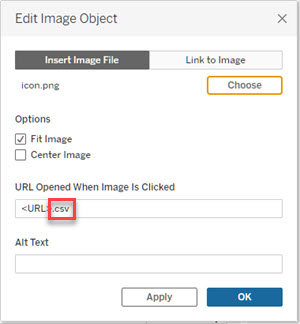
3. Add ".csv" to the end of the URL to create a link for downloading. For more information, see Link to a PNG, PDF, or CSV of a View.
4. Edit the dashboard, insert the image object as a floating object, use the icon as a CSV download button, and set it with the link above. See the example below.
5. After republishing, click the icon added above to open a new tab in the web browser and save the CSV file of the new worksheet.
Workaround 2
Although not a single Excel worksheet, the extension "Export All" Tableau Exchange can output data from different worksheets to different Excel worksheets into a single Excel file.
Risorse aggiuntive
When downloading from the dashboard, it is necessary to first click on the specific sheet with the data. For related information, see Download Views and Workbooks.
To add your support for the inclusion of this feature in a future release of the product, please vote on the related Salesforce Ideas.
Related community discussion - Exporting a table in a Dashbaord to csv or Excel.
Numero articolo Knowledge
001462950
Questo articolo ha risolto il problema?
Facci sapere, così possiamo migliorare!
