Sélectionner une organisation
Set a Selected Date Field to a Parameter in the Change Parameter Action
Date de publication: Feb 19, 2026
Tâche
How to set a selected date field to a parameter in the Change Parameter action.
Étapes
1. Drag Order Date to Columns. At this time, the data type varies depending on the date field options you set.
Please refer to Date Functions website for the data type of returned value.
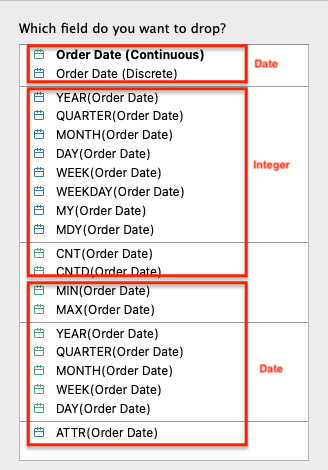
2. Drag SUM(Sales) to Rows.
3. Create a parameter according to the data type option selected and name it Selected Date.
4. Right-click the Selected Date parameter and select Show Parameter.
5. Select Menu > Worksheet > Actions.
6. Click Add Action and select Change Parameter. Create a parameter action with the following:
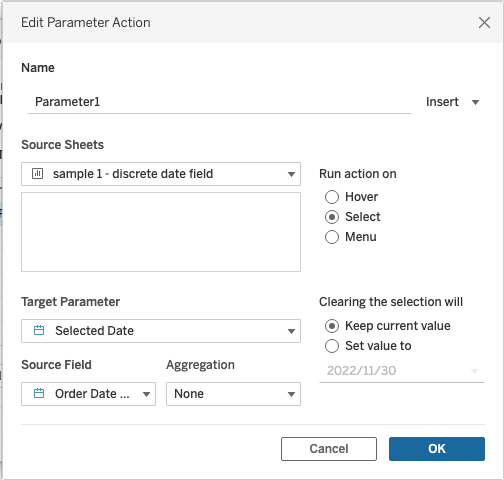
7.Click on a value in the view and check that the parameter is changed.
Numéro d’article de la base de connaissances
001464368
Cet article a-t-il résolu votre problème ?
Dites-nous ce que nous pouvons améliorer !
