Valitse organisaatio
How to Change the Format for Each Item in a Dimension/Measure
Julkaisupäivä: Feb 26, 2025
Tehtävä
How to set the format for each item in a dimension/measure.
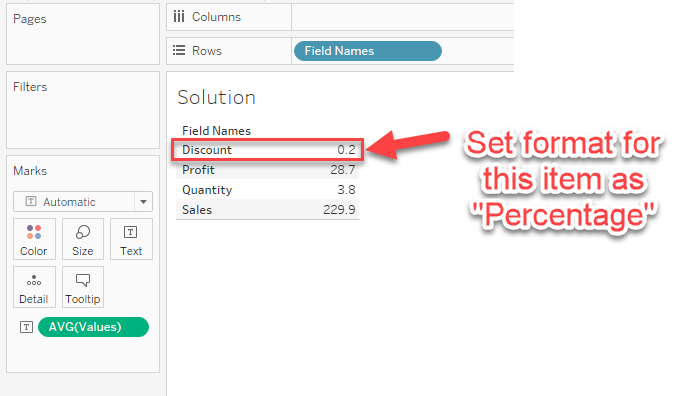
For example, in the below crosstab, how to set the format for "Discount" as [percentage] and others as [Integer]?
This technique is needed after you pivot many measure fields to one measure which should have different formats.
Vaiheet
Please consider the below workaround:
Use the IF statement to format a numerical value in each item and then change it to a string (STR).
The steps are as follows.
1. Make a calculation to format each item and set them as Strings.
IF MIN([Field Names])="Discount" THEN STR(ROUND(AVG([Values]),1))+"%"
ELSEIF MIN([Field Names])="Profit" THEN STR(ROUND(AVG([Values]),1))
ELSEIF MIN([Field Names])="Quantity" THEN STR(ROUND(AVG([Values])))
ELSEIF MIN([Field Names])="Sales" THEN STR(ROUND(AVG([Values])))
END
2. Add the calculations make in Step 1 to [Text] mark
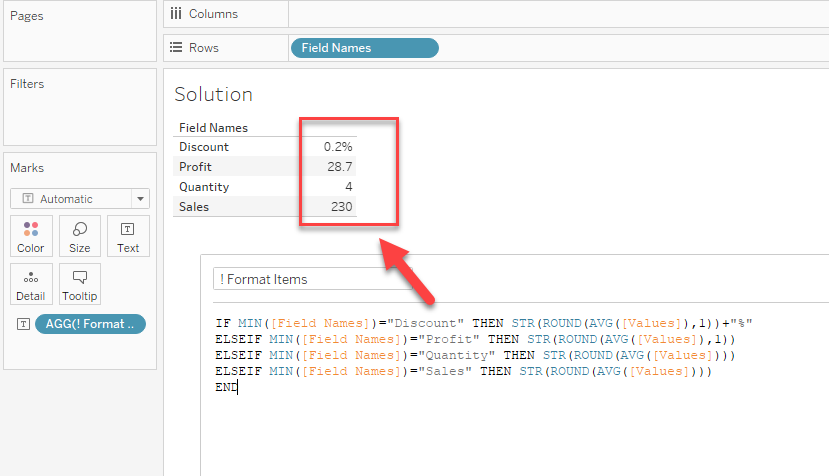
Please also check the attached workbook for details
Knowledge-artikkelin numero
001464420
Ratkaisiko tämä artikkeli ongelmasi?
Anna palautetta, jotta voimme kehittyä!
