Valitse organisaatio
Making a Secondary Filter Dependent on a Primary Filter
Julkaisupäivä: Mar 19, 2026
Tehtävä
How to make the values shown in a filter dependent on the values selected in another filter.
Vaiheet
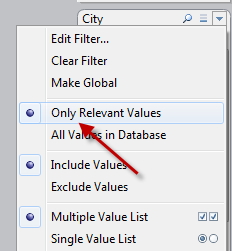
To make a secondary filter dependent on a primary filter in Tableau Desktop—often called cascading filters—the most common method is to use the Only Relevant Values setting. This ensures the secondary filter only displays options that exist within the current selection of the primary filter.
Step-by-Step Implementation
- Add Both Filters: Drag the dimension fields you want to use (e.g., Region as primary and State as secondary) onto the Filters shelf.
- Show Filter Controls: Right-click each field on the Filters shelf and select Show Filter to make them visible on the worksheet or dashboard.
- Configure Dependency:
- Find the secondary filter card in the view.
- Click the down arrow (drop-down menu) in the top-right corner of that filter card.
- Select Only Relevant Values.
- Test the Link: Change the selection in your primary filter; the secondary filter should now automatically update to show only compatible choices
In the sample packaged workbook attached, the values in the City filter are dependent on the value selected in the State filter.
Lisäresurssit
Knowledge-artikkelin numero
001466881
Ratkaisiko tämä artikkeli ongelmasi?
Anna palautetta, jotta voimme kehittyä!
