Select An Org
How to Synchronize Axes of Multiple Views/Worksheets with a Parameter on Tableau Desktop 2023.3 or later
Publish Date: Apr 13, 2024
Task
How to synchronize axes of multiple views/worksheets with a parameter?
Steps
Please use version 2023.3.0 and newer version to execute the steps below.
Follow along with the below steps in the packaged workbook in the Attachments section of this article to see we start with two bar charts View1 and View2.
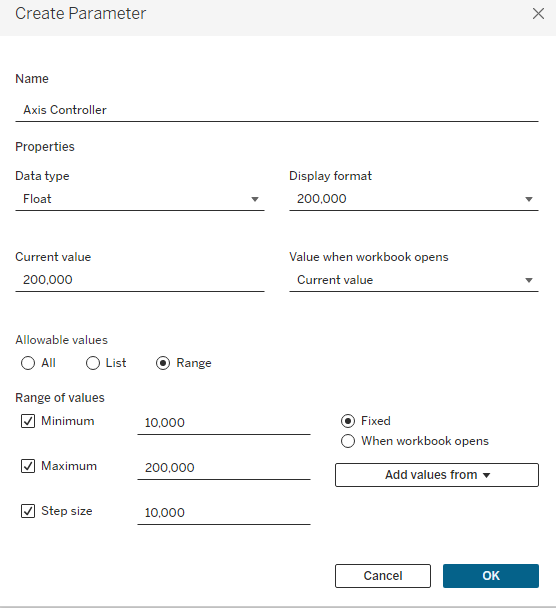
1. Create a parameter Axis Controller as below.
Name: Axis Controller
Date type: Float
Current value: 10,000
Allowable List: Range
- Minimum: 10,000
- Maximum: 200,000
- Step size: 10,000
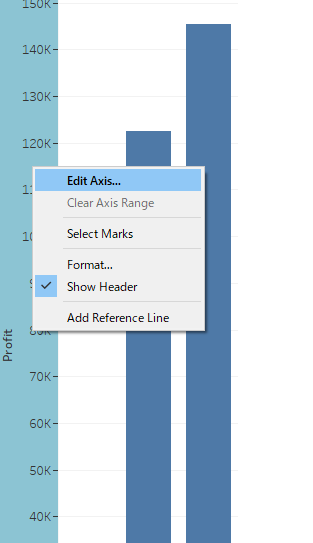
2. Right-click on the measure axis of View1 and select Edit Axis
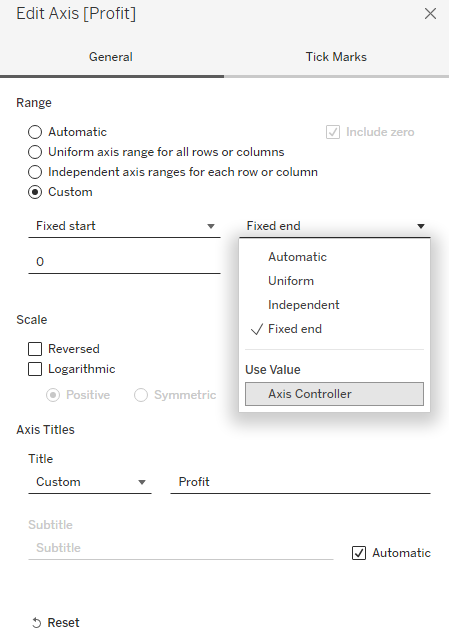
3. For the Range, choose Custom. Next, select the parameter Axis Controller created for end axis extent.
4. Close the dialog box.
5. Move to worksheet View2.
6, Right-click on the y-axis of View1 and click-on Edit Axis, then repeat the Step 3 to select the parameter Axis Controller created for end axis extent.
7. Close the dialog box.
8. Right-click on parameter Axis Controller and select Show parameter from the Context menu.
9. Change the value on parameter and check that the axis is being synchronized by the parameter.
Additional Resources
If you're using the older version of Tableau Desktop, below is another workaround to achieve the same result.
How to Synchronize Axes Across Sheets
Knowledge Article Number
001467763
Did this article solve your issue?
Let us know so we can improve!
