Seleziona un'organizzazione
How to Adjust the Text Alignment in a Simulated Crosstab Made by Dual Axes of SUM(0) and SUM(0)
Data pubblicazione: Apr 13, 2024
Operazione
How to change the text alignment on simulated crosstab made of dual axis of SUM(0) and SUM(0).
Fasi
* Please refer to the [Original Sheet] in the Sample(Format).twbx.
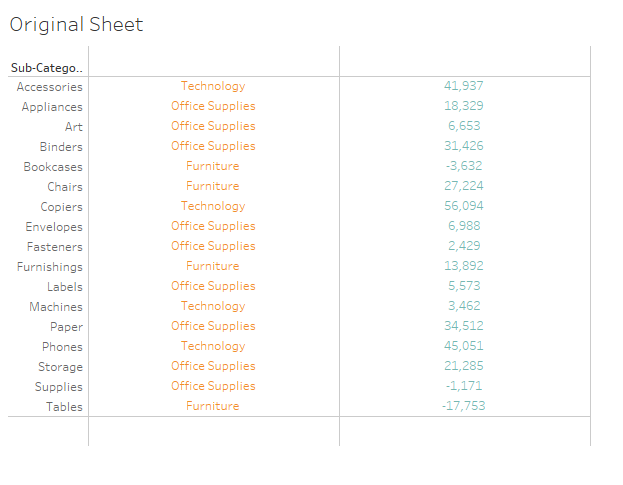
How to change the text alignment of the sub-category(Orange column) column to be left.
1. Create a calculation field [1]
AVG(1)
2. Replace the original SUM(0) with field [1] and adjust the format of the view.
Please refer to the video Sample(Format).mp4 to check the detailed steps.
After changing the format:
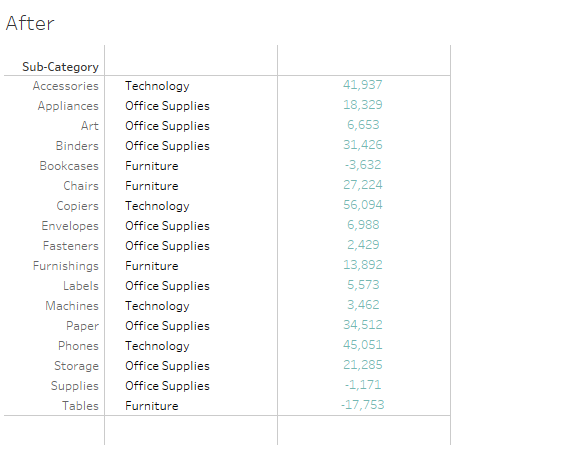
*Please refer to worksheet [After] in the Sample(Format).twbx.
Risorse aggiuntive
However, as the simulated crosstab is not a real text crosstab, the text alignment can not be simply adjusted by [Format] menu. The method introduced above is a workaround when text alignment adjustment is needed.
For regular crosstab with dual axis, please refer to the solution below:
How to Align Text Displayed in a Dual Axis Measure Column
Numero articolo Knowledge
001467830
Questo articolo ha risolto il problema?
Facci sapere, così possiamo migliorare!
