Seleziona un'organizzazione
How to Confirm the Database Name of Tables in Snowflake When Using the feature "Cross-database joins for Snowflake" Starting in Tableau 2023.1
Data pubblicazione: Apr 24, 2025
Operazione
Starting in 2023.1, "Cross-database joins for Snowflake" was released.
When using this new feature, is there any way to confirm the database name of the Snowflake tables in a data connection window?
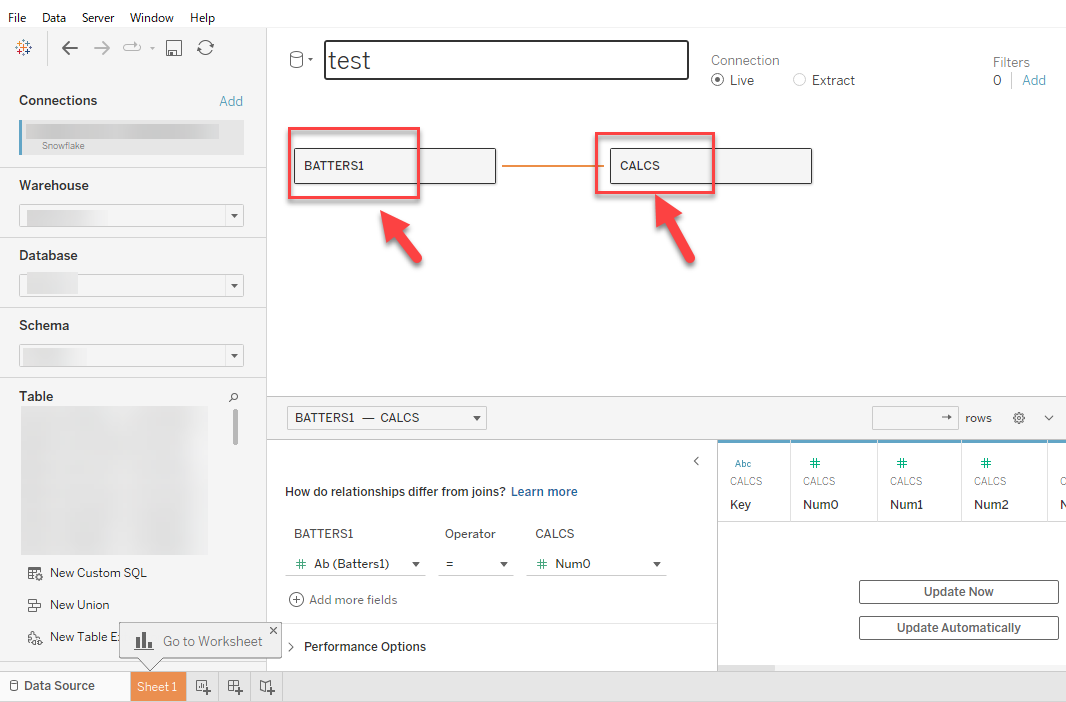
For example, when we create a table relation with tables from different databases, we notice it only shows the table name without the database name. In the below example, BATTERS1 and CALCS are from different databases and it is not possible to see what database each table belongs to.
Fasi
Option 1
1. On the Datasource editing window in Tableau Desktop / Tableau Server / Tableau Cloud, right-click your table and click "Convert to Custom SQL".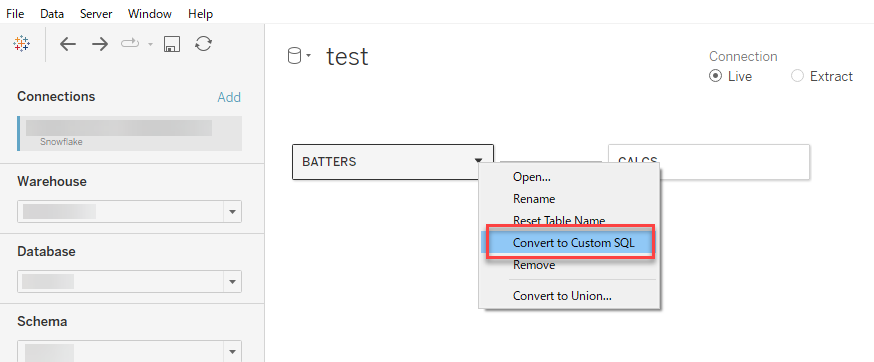
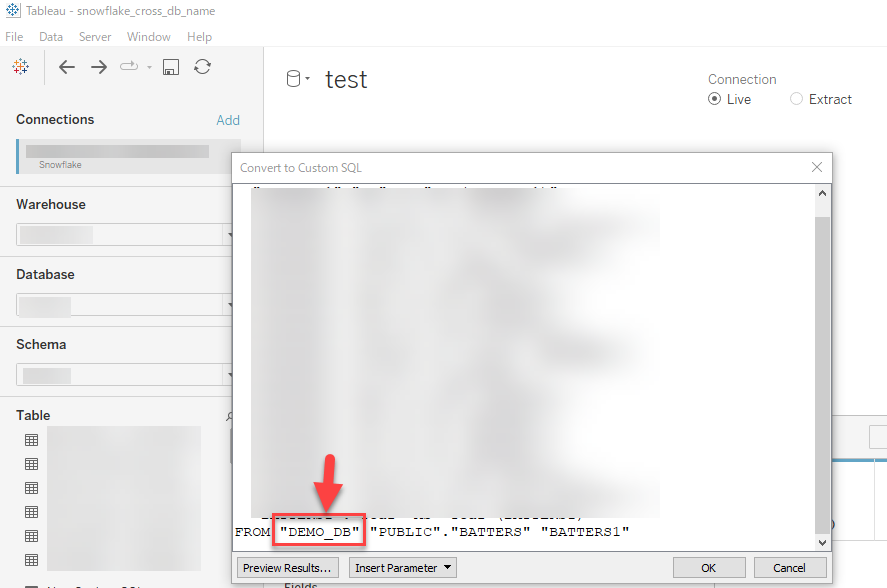
2. From the "Convert to Custom SQL" window, you will see the database name in the FROM part of the custom SQL as demonstrated below.
Option 2
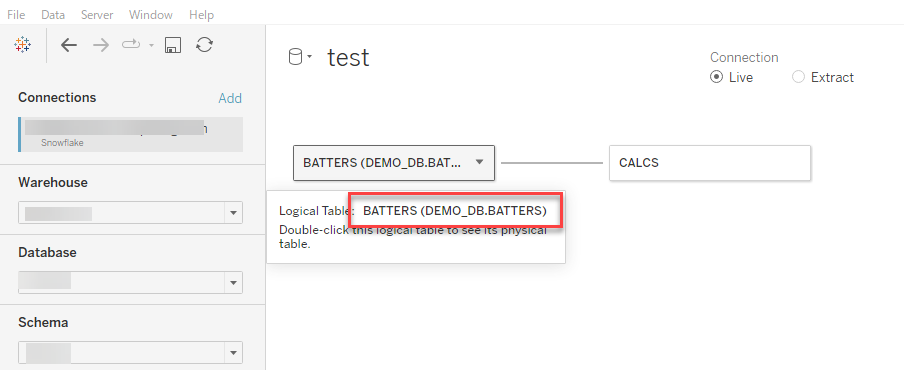
1. On the Datasource editing window in Tableau Desktop / Tableau Server / Tableau Cloud, right-click your table and click "Reset Table Name".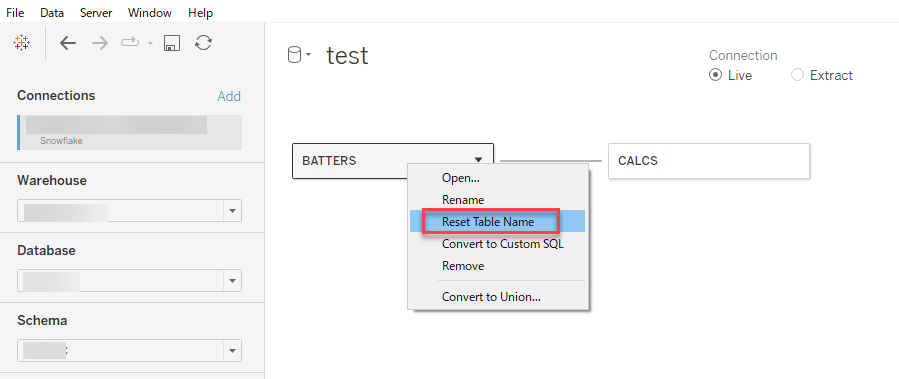
2. Hover over the table to see the database name.
Numero articolo Knowledge
001468329
Questo articolo ha risolto il problema?
Facci sapere, così possiamo migliorare!
