Sélectionner une organisation
How to Display the Last Published Dates in Tableau Desktop When the Data Sources Were Published from Tableau Prep Builder
Date de publication: Apr 13, 2024
Tâche
How can we display the last published dates in Tableau Desktop when the data sources were published from Tableau Prep Builder?
Étapes
1. Add a calculated field in Tableau Prep Builder and name it Last Published Date.
Now()2. Run the flow as a published data source to Tableau Server / Tableau Cloud.
Note: Now() function is updated after running the flow.
3. Connect to the published data source from Tableau Desktop and add the Last Published Date in your view.
Option 2
1. Create a parameter in Tableau Prep Builder. Refer to Create and Use Parameters in Flows for instructions on how to create a parameter.
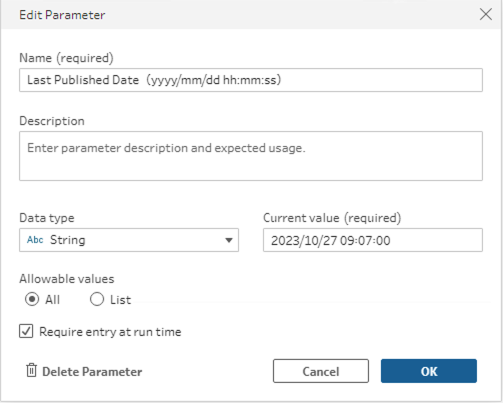
2. In a Clean step, add a calculated field and name it Last Published Date. Apply the parameter to the calculated field.
DATETIME([Parameters.Last Published Date(yyyy/mm/dd hh:mm:ss)])3. Run the flow and enter the value as you need.
Note: Valid date and time value must be entered manually.
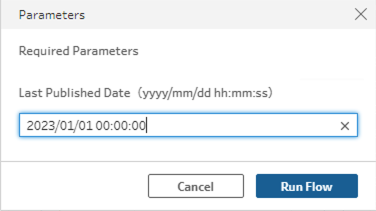
4. Connect to the published data source from Tableau Desktop and add the Last Published Date in your view.
Option 3
1. Connect to Tableau Server / Tableau Cloud and select Site Contents data sources from Tableau Desktop.
Note: Site Contents data is included in Admin Insights project. Users need to have a permission to access the data.
2. Add Item Name to Filter shelf and choose the data source name that you would like to display the last published date.
3. Add Last Published At to Text.
Note: The data sources can be updated daily or weekly. For more details, refer to About data freshness.
Ressources supplémentaires
Manage Admin Insights
Use Admin Insights to Create Custom Views
Numéro d’article de la base de connaissances
001468380
Cet article a-t-il résolu votre problème ?
Dites-nous ce que nous pouvons améliorer !
