Seleziona un'organizzazione
How to append multiple outputs to an Excel in a predefined order
Data pubblicazione: Apr 28, 2025
Operazione
When appending multiple outputs (more than 3) to an Excel file, the order of the Excel worksheets becomes random. For example, in this flow, there are 5 parallel steps, and in the output setting dialog, the "output type" is "Excel" and the "Full refresh" is "Append to table"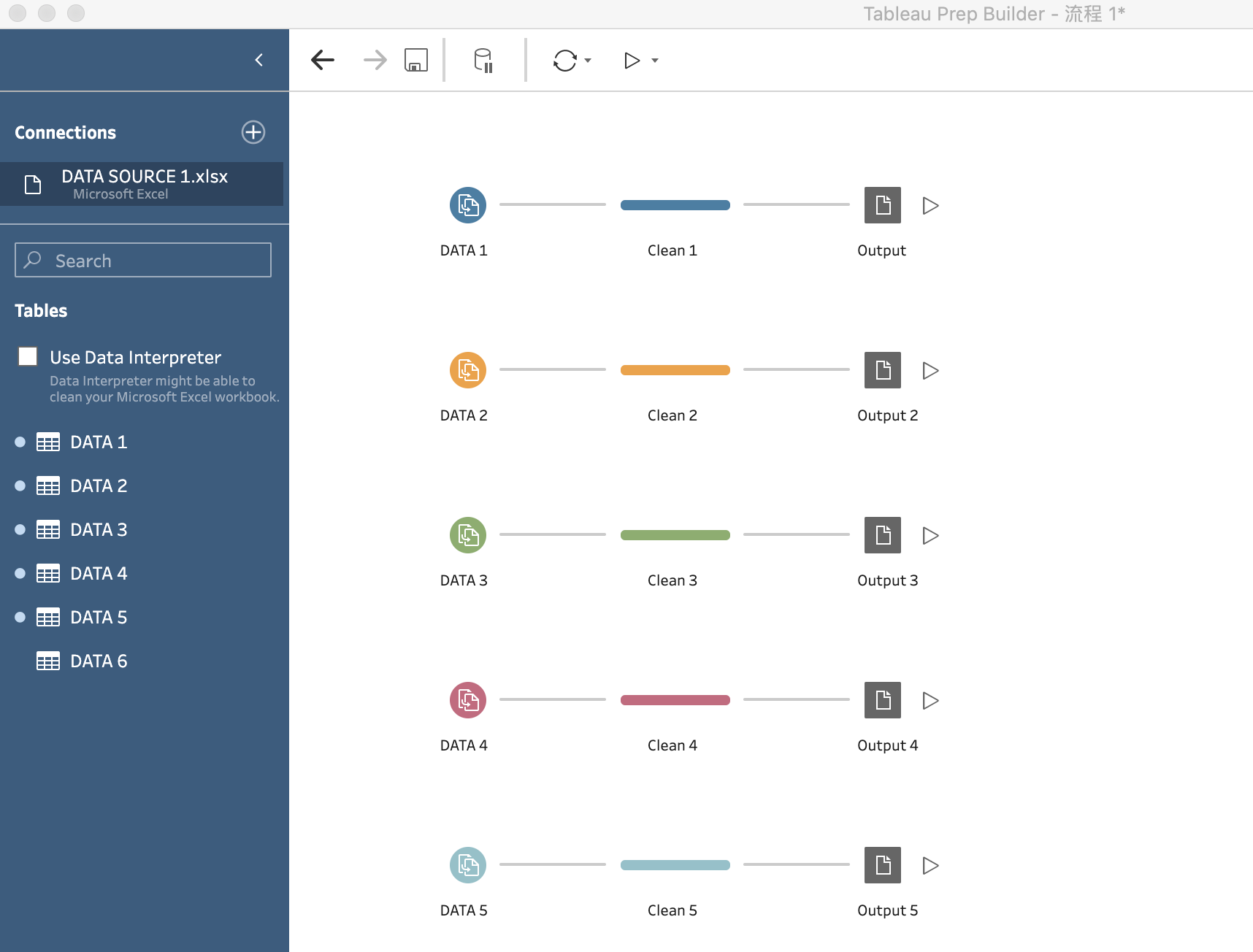
When running this flow, the order of the worksheets in the output Excel becomes random, instead of DATA 1, DATA 2, DATA 3.......
How to make the output steps execute by order or in a pre-defined order?
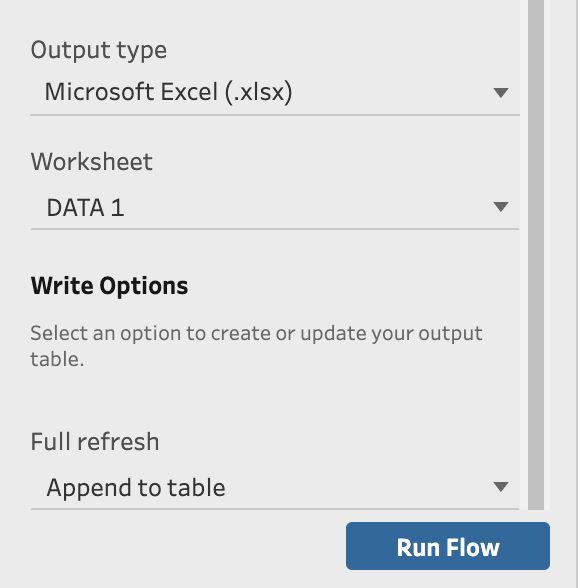

Fasi
Option 1
Append the outputs to pre-created Excel worksheets1. Create the output Excel file.
2. Create 5 empty worksheets and name the worksheets in the order which aligns with the order of the output.
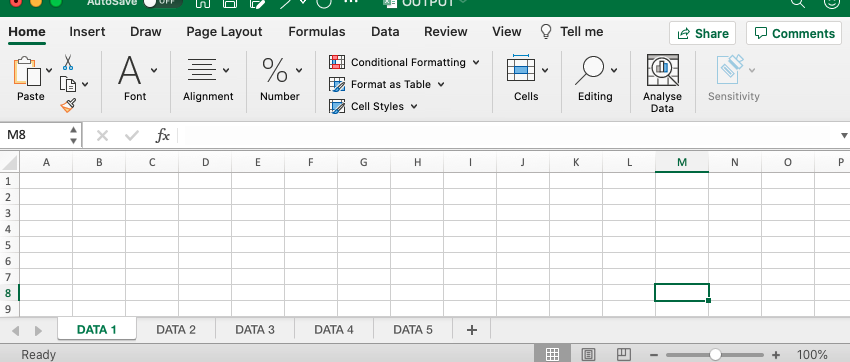
3. Create the Prep flow, select the corresponding re-created worksheet for each step in the output setting.
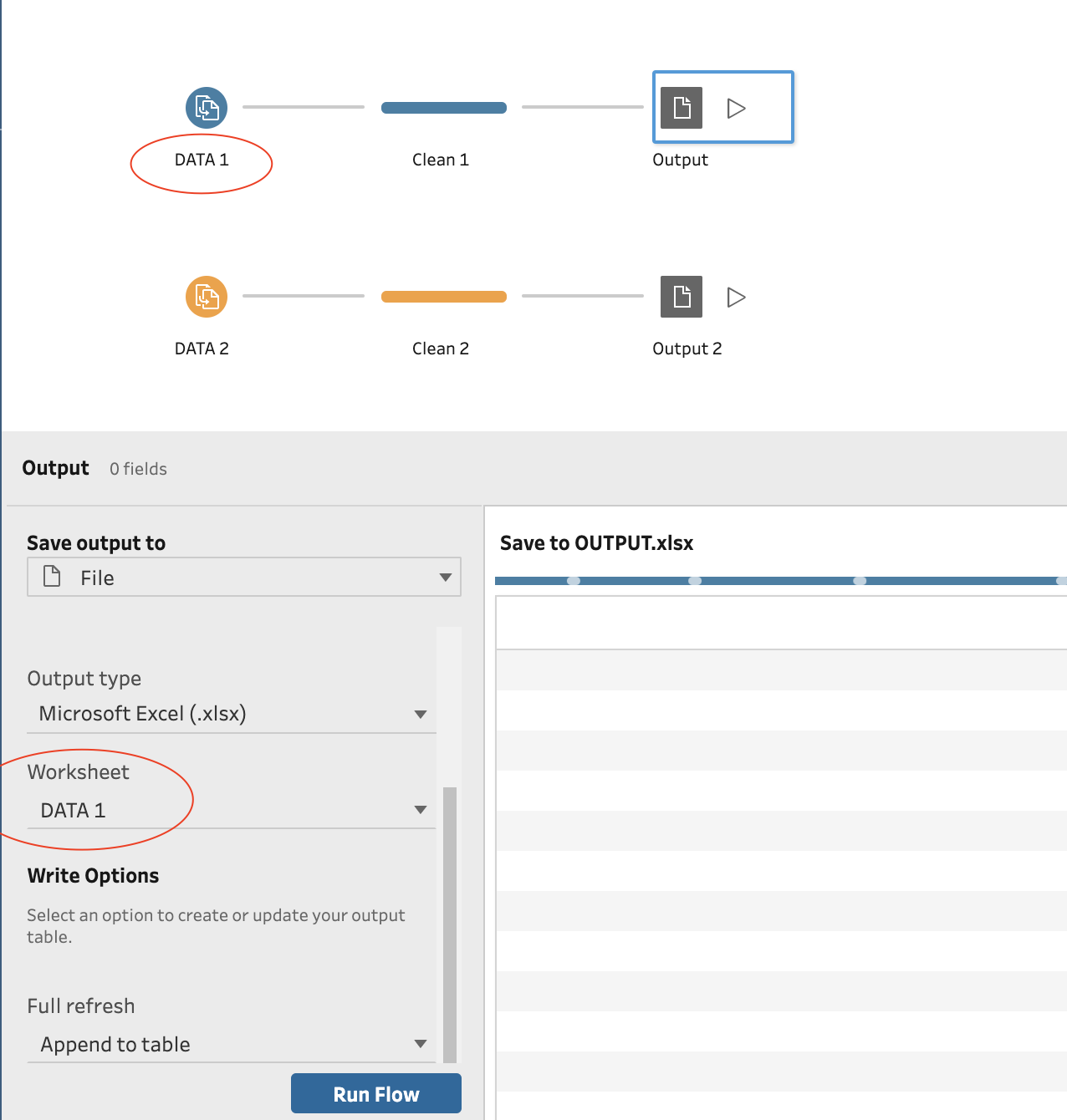
4. Click "Run all flows" at the top bar
Option 2
Execute the flow steps by order1. Create an output Excel file.
2. Create the Prep flow, set the output file location in each step to the pre-created Excel file.
3. Click "Run Flow" next to each step in the order you would like to set. The order of the Excel worksheets will align with the order you click the output steps.
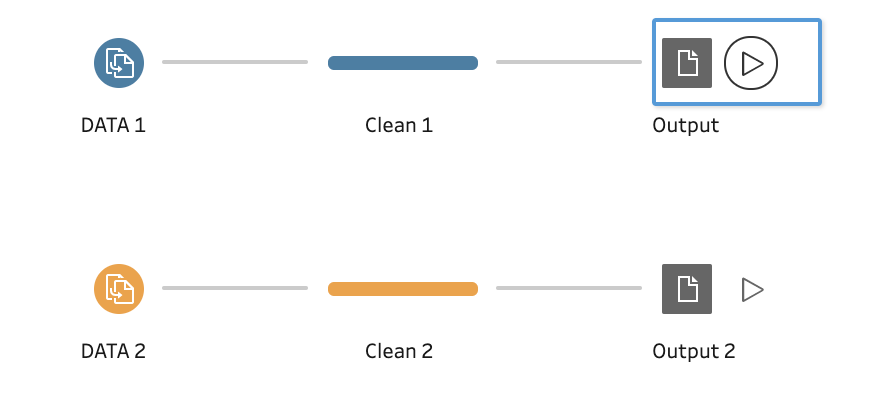
For both options above, once the sheets are appended in a pre-defined order to the Excel file, changing the steps in the flow or re-running the flow will not change the order of the worksheets.
Please note, when adding a new output step into the flow to append a new data set, the corresponding new worksheet will be added to the end of the output Excel file.
Risorse aggiuntive
There are also two other possible workarounds below but they are more complicated than the workarounds above and you may need to redesign the Prep flow.
1.[Refresh flow output files from the command line] to make the execution of output steps run by an order
2.[Union your data] to combine the separate steps
Numero articolo Knowledge
001470536
Questo articolo ha risolto il problema?
Facci sapere, così possiamo migliorare!
