Valitse organisaatio
Preventing the Selection of Multiple Values in an Interactive Filter When the Dimension is Also Used in a User Filter
Julkaisupäivä: Apr 30, 2025
Tehtävä
How to prevent the selection of multiple values in an interactive filter (also known as a quick filter) when the dimension is also used in a user filter
Vaiheet
- In Tableau Desktop, ensure that the dimension filter selection is for all values.
- Click the drop-down menu on the filter card, and select one of the Single Value modes (List, Dropdown or Slider).
- Click the drop-down menu on the filter card, select Customize, and click on Show "All" Value to deselect it.
- Publish the visualization to Tableau Server.
- Embed the view into a web page, and append to the URL a query string that is not a valid filter value, e.g.:
http:<servername>/#/views/Userfiltertest/SalesbyProduct?Category=Pick%20a%20value
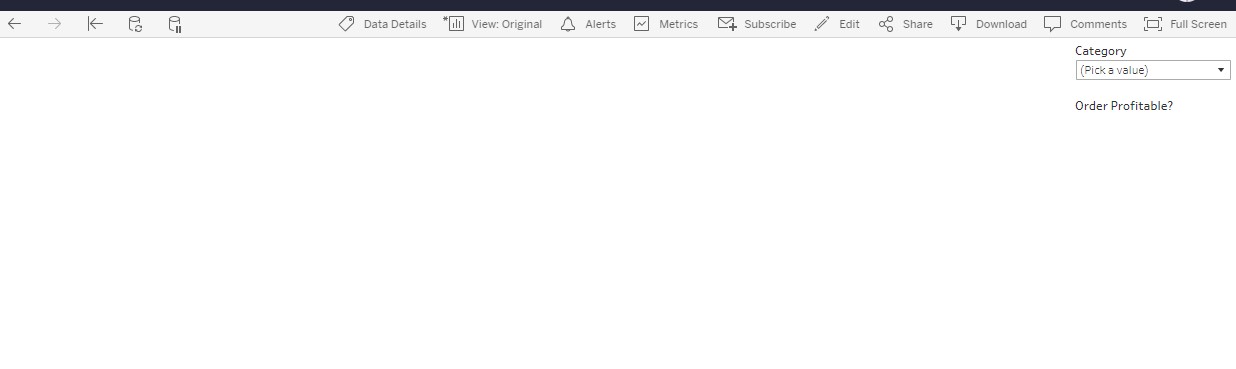
Note: The embedded view would load without any data displayed initially, and the viewer will need to pick a value in the interactive filter. For example:
Lisäresurssit
- If only one of the dimension members is selected in the interactive filter when the visualization is published, users who do not have access to that member will not see any data in the visualization, and they will not be able to change the value of the filter.
- When the dimension filter selection is for all values, and the base URL is used, users who have access to multiple members of the dimension will see a view that includes data for all these members.
Filter Data from Your Views
Knowledge-artikkelin numero
001470546
Ratkaisiko tämä artikkeli ongelmasi?
Anna palautetta, jotta voimme kehittyä!
