Выбрать организацию
Creating Trailblazer ID for Tableau Users
Дата публикации: Jan 14, 2026
Задача
Действия
Trailblazer Account Setup for Salesforce Help Page
Prepare for Your Technical Support Case Migration to Salesforce Help
Create Trailblazer Account and Add Tableau Email
If you already use Salesforce Help for product support or Trailhead, you already have a Trailblazer profile, and there is no need to set up a new Trailblazer account. In the future, you will be able to sign in to Salesforce Help and submit a technical support case for a Tableau issue. Remember to use the email address associated with your Tableau account when logging in.
If you don't have a Trailblazer profile, you can create a Trailblazer account by using the email address associated with your Tableau account by following the steps in how to Get Started with Trailblazer. Please note the following:
- Select the same email address associated with your Tableau login. Do not choose Gmail or other Social Options.
- The email selected will be receiving a single-use code for verification.
- If you have multiple Trailblazer accounts attached to the same email address, we will merge them so that you have one Trailblazer profile that reflects all of your accomplishments. You can't opt out of the merge. For more information on merging accounts, see Merge Trailblazer.me Accounts.
Salesforce Help Portal
Logging in to Salesforce Help Portal Using Trailblazer
Signing up or logging in to Trailblazer account with an email address means that you never set a password. Instead, you verify your identity with a single-use code sent to your email address. Let’s walk through the steps for using a single-use code.
- Visit Salesforce Help Portal
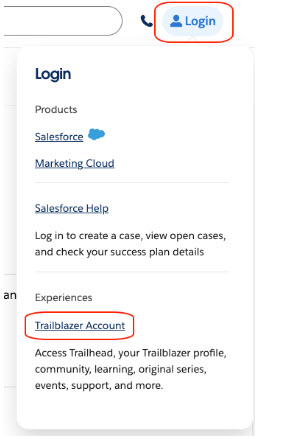
- Click “Login” in the upper right corner of the screen
- Select Trailblazer Account
- Use the Email field to enter your email address. Trailblazer will send a single-use code to that address.
- Using a new tab or browser window, open your email account. Retrieve the single-use code.
- Return to the Trailblazer. Enter Your Single-Use Code screen and enter the code.
- That’s all there is to it—you’re logged in!
Дополнительные ресурсы
Notes:
- If you can't access the email account that is associated with your Trailblazer account to get the single-use code, and you have no other login method available, contact Customer Support. After you're back in, add another login method to your account on the Trailblazer Settings page so you don't get locked out again.
- To stop getting the single-use code from your email every time you log in, go to your Settings page and add a login method other than email. It can be a Salesforce, Google, or LinkedIn login. Then, use that login method instead of email.
- If you have multiple Tableau accounts using different email addresses, you may be prompted to log in again using your alternate email address, before submitting a case which will be allowed in the future for Tableau products.
To keep your account secure, Trailblazer prompts you to verify any unverified email addresses or socials.
If you see a prompt to verify them when logging in, or from your Trailblazer.me account settings page, there are some possible reasons.
- You logged in with a social or Salesforce account that has an unverified email address.
- When you logged in, we found other accounts that we think you own and are asking you to verify them.
Support Portal Experience Enhancements for Tableau Customers and Partners
Номер статьи базы знаний
001470592
Эта статья решила вашу проблему?
Оставьте свой отзыв, чтобы мы могли стать лучше!
