Seleziona un'organizzazione
How to Apply [Keep Only] or [Exclude] Filter to Other Worksheets
Data pubblicazione: Feb 28, 2025
Operazione
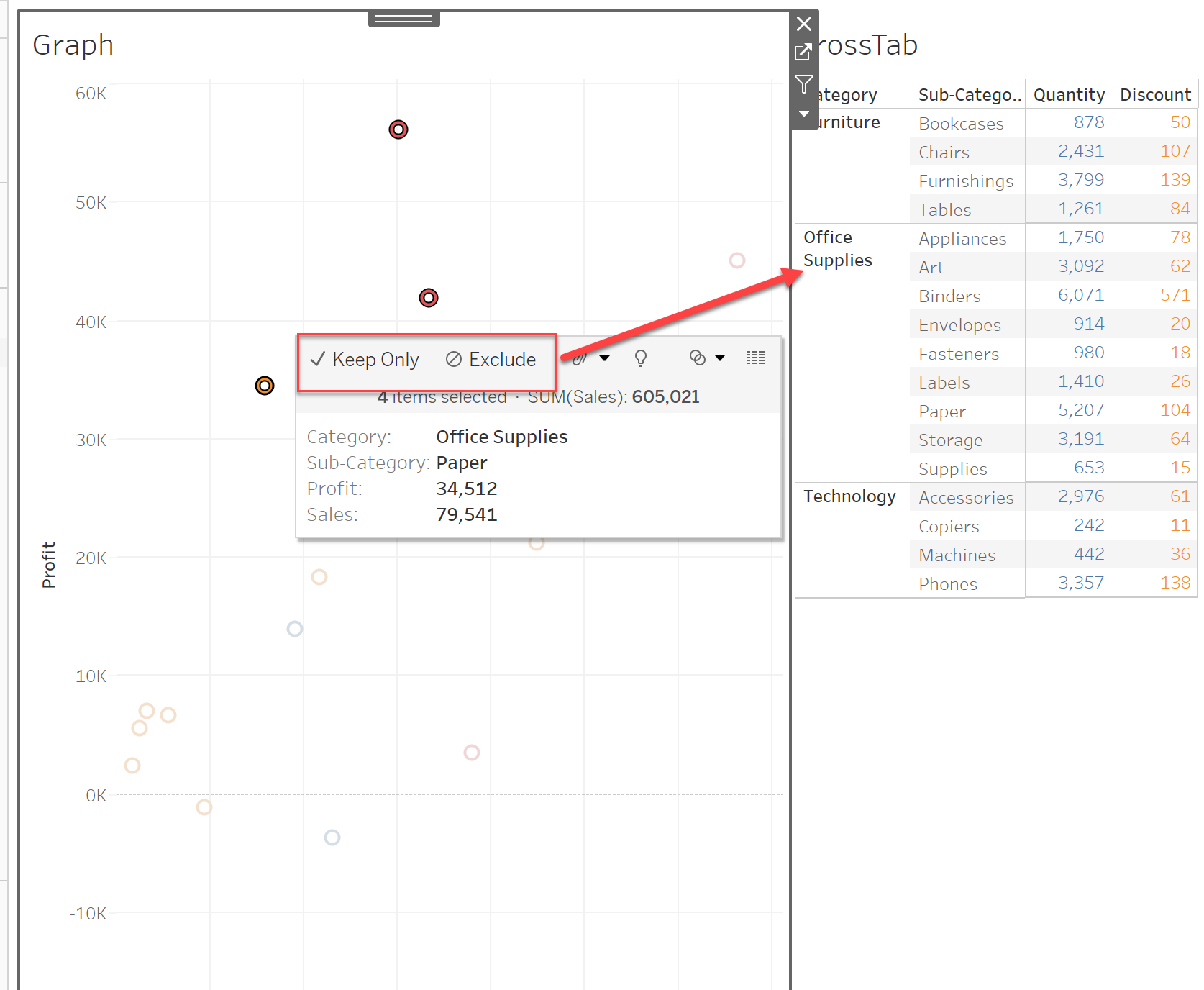
How to apply the "Keep Only" or "Exclude" filters to other worksheets in a dashboard.
For example, after selecting "Keep Only" in the left graph, how to also apply the filter to the right CrossTab?
Fasi
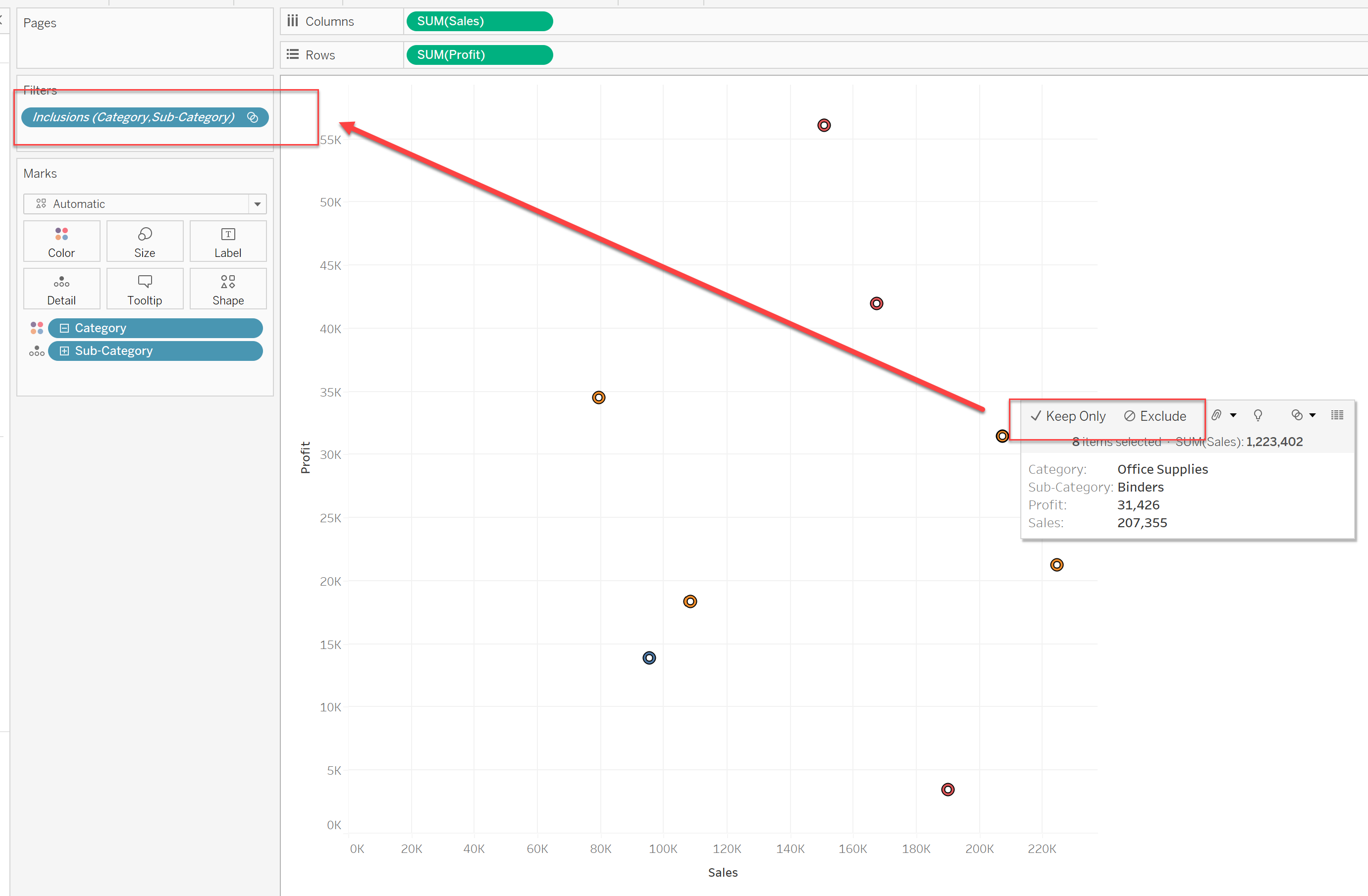
1. Move to the Graph Worksheet and use the "Keep Only" or "Exclude" options to filter the data. There is a new object on our Filters shelf like the image below.
This filter is automatically added after using the "Keep Only" or "Exclude" options.
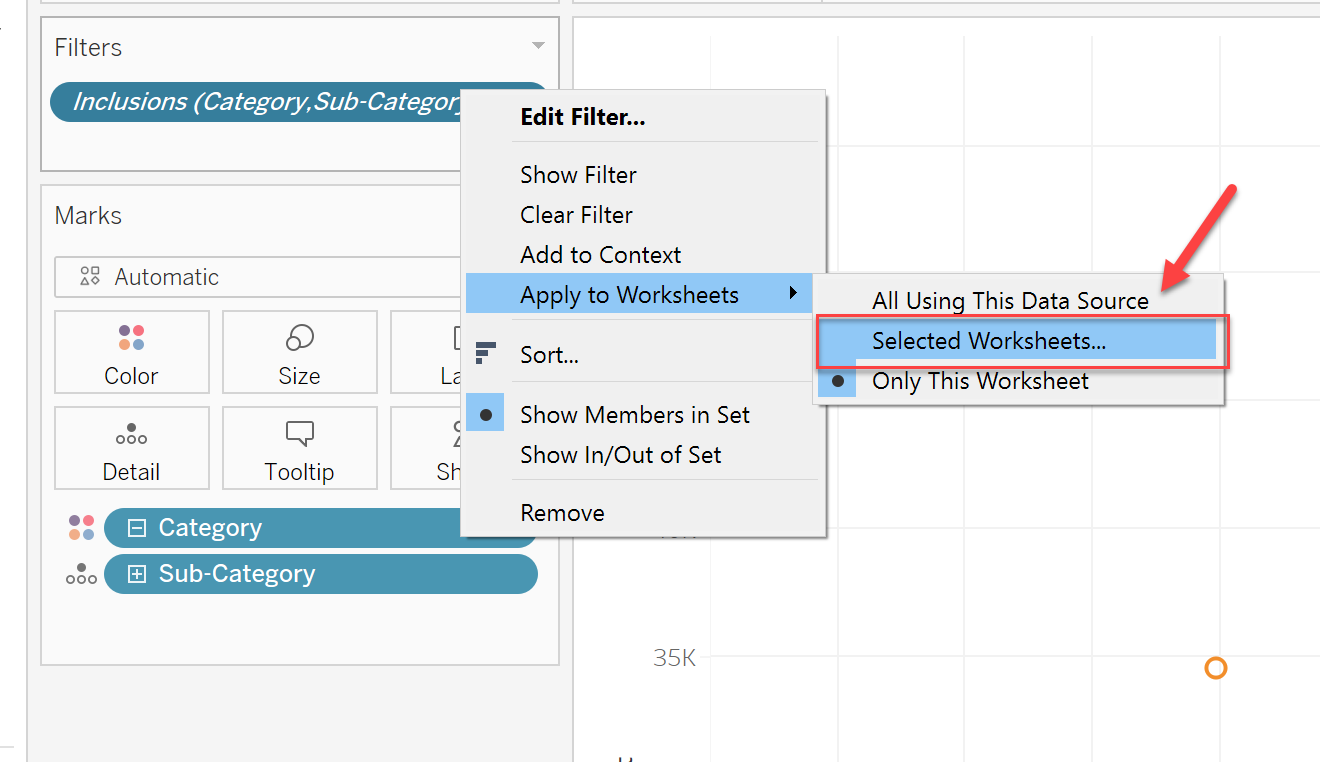
2. Right-click on the filter object, and choose [Apply to Worksheets] > [Selected Worksheets]. The worksheet that you created the filter on will be greyed out. Select the other worksheets you want ‘Keep Only’ filter applied.
Now, when you select some bars to keep, other worksheets will now show only the corresponding points.
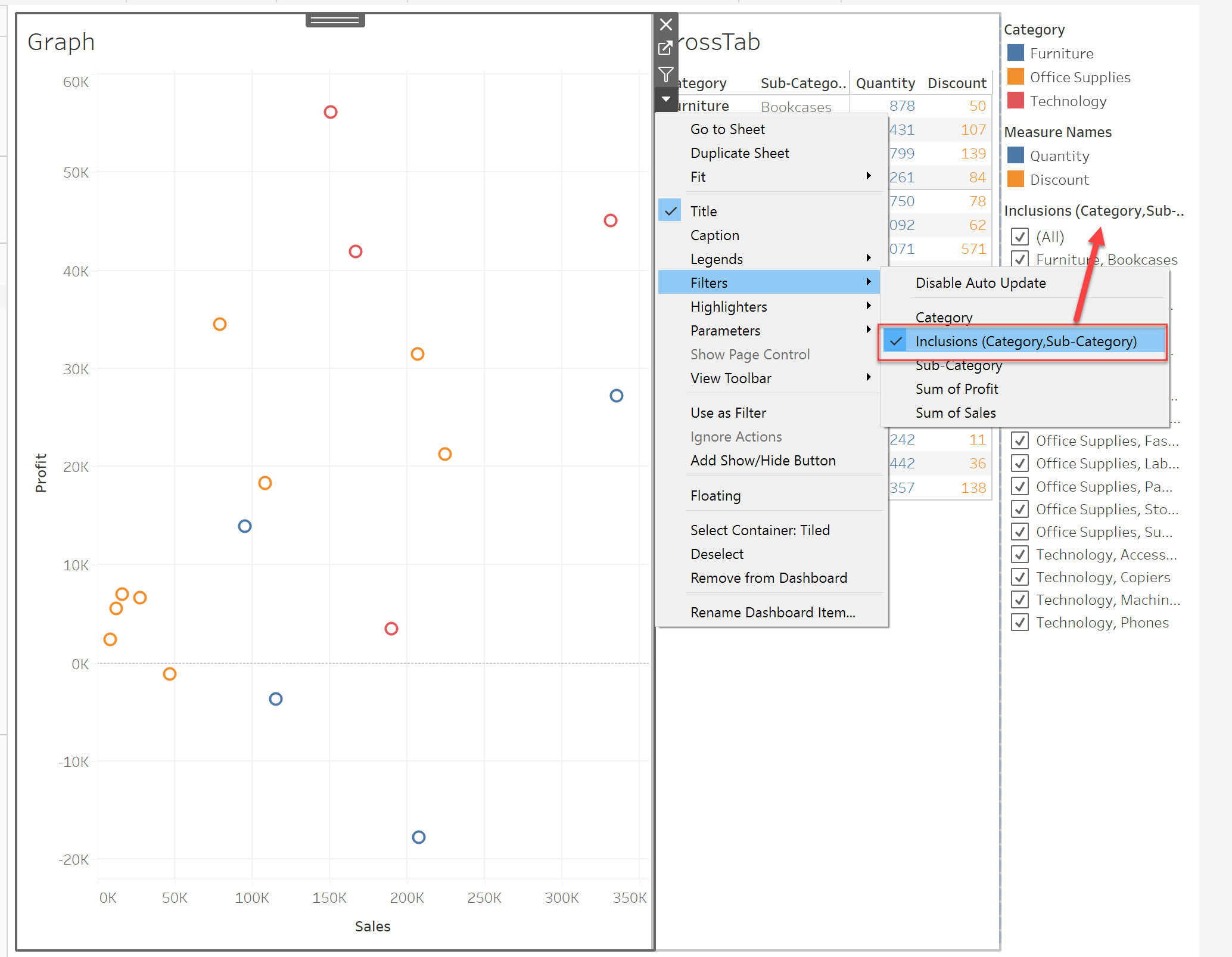
3. (Optional) Move back to the dashboard and add the newly added filter. It will help you to show all the values after selecting the Keep Only or Exclude options.
Please also check the attached workbook for details.
Risorse aggiuntive
Numero articolo Knowledge
001470679
Questo articolo ha risolto il problema?
Facci sapere, così possiamo migliorare!
