Välj en organisation
How to color the text only when specific data is selected in the filter
Publiceringsdatum: Apr 8, 2026
Uppgift
<Example>
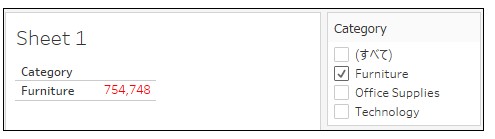
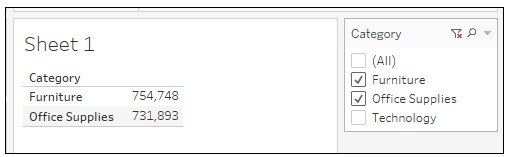
In this case, there is a view showing Sales data by Category.
Only when 'Furniture' is selected in the Category filter, the text color of the value will be 'red' (Image 1)
otherwise it will be 'black'. (Image 2)
(Image 1)
(Image 2)
Steg
2. Drag [Category] to Rows.
3. Drag [Sales] to Text on Marks.
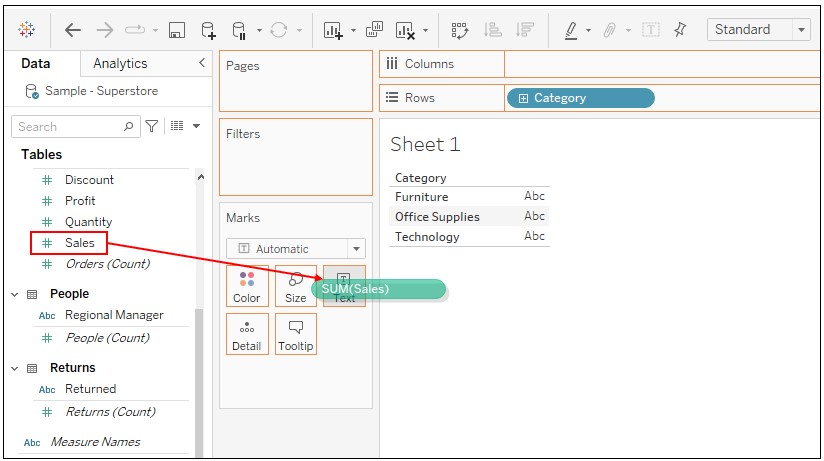
4. Drag [Category] to Filter pane.
5. Right click on [Category] on Filter pane -> Show Filter
6. Crate a new parameter as following -> Right click on parameter [Select Category] -> Show Parameter
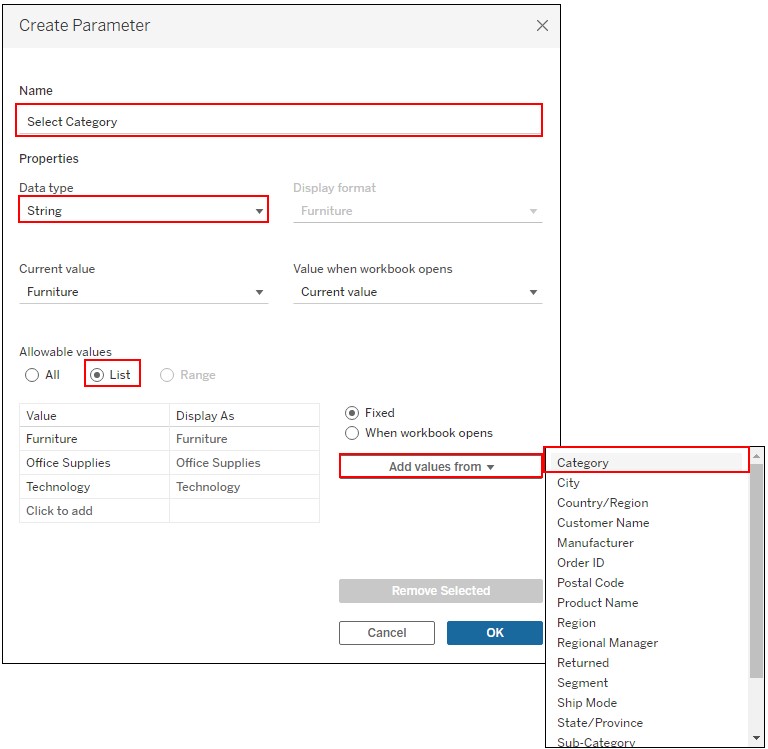
7. Create a new calculated field as following.
Name : Color the text
Calculation :IF ATTR([Category]) = ATTR([Select Category])
AND
WINDOW_SUM(COUNTD([Category])) = 1
THEN TRUE
ELSE FALSE
END
8. Drag [Color the text] to Color on Marks
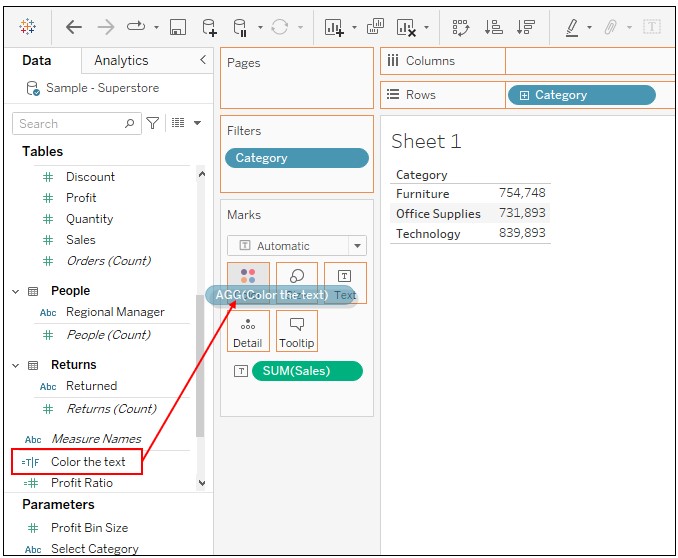
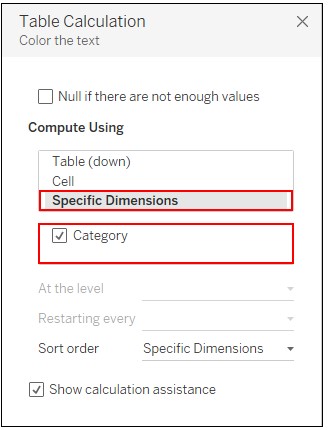
9. Right click on [Color the text] on Marks -> Edit Table Calculation -> Set as following.
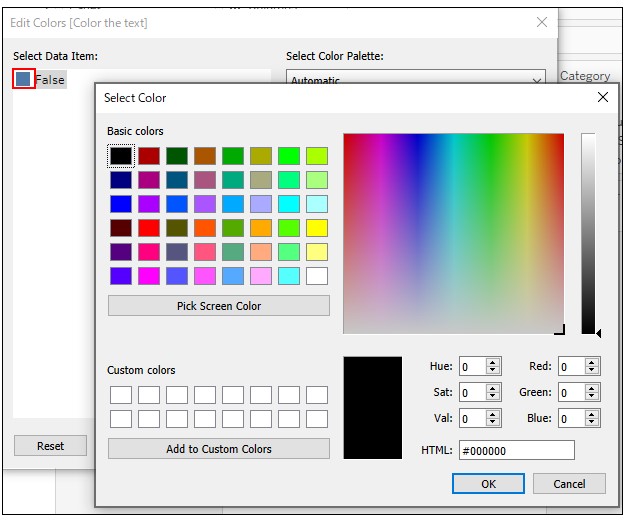
10. Click on Color on Marks -> Edit Colors -> Double click on the color to the left of 'False' -> Select black.
11. Check in only 'Furniture' in Category Filter.
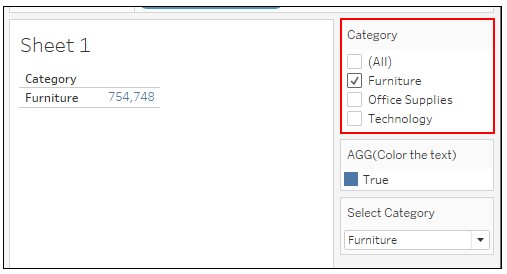
12. Click on Color on Marks -> Edit Colors -> Double click on the color to the left of 'True' -> Select Red.
Knowledge-artikelnummer
001470683
Löste denna artikel ditt problem?
Berätta för oss vad vi kan förbättra!
