Velg en organisasjon
Increasing Admin Insights Data Beyond 90 Days
Publiseringsdato: Feb 18, 2025
Beskrivelse
Tableau Cloud’s Admin Insights retains data for the previous 90 days by default. Some scenarios may require data going back further than 90 days.
Cause
The ability to increase the Admin Insights data retention past 90 days requires the purchase of the Advanced Management option.Løsning
There are multiple ways to retain Admin Insights data for longer than 90 days.
Option 1
Purchase Advanced Management to receive 365 days of data.
Option 2
Tableau Prep Builder output to a data source or external database.
Using Tableau Prep Builder, connect to the desired published data source in the Admin Insights project. In the Prep flow, include an output to either a new published data source or directly to an external database (Prep Builder version 2020.3 or newer required). This will write the Admin Insights data to that location. If you choose to publish to Tableau Cloud, do not overwrite the existing Admin Insights published data source. If you do, your data will be overwritten the next time the data is updated.
Publish the Prep flow to Tableau Cloud, and using Data Management, set up a recurring schedule to append new data. (If you do not have Data Management enabled, you can refresh the Prep flow manually or from the command line.) Whenever the Prep flow runs, data will be written to your new published data source or external database. Repeat for all required Admin Insights data sources. Note: Depending on your needs, you may want to leverage an incremental refresh.
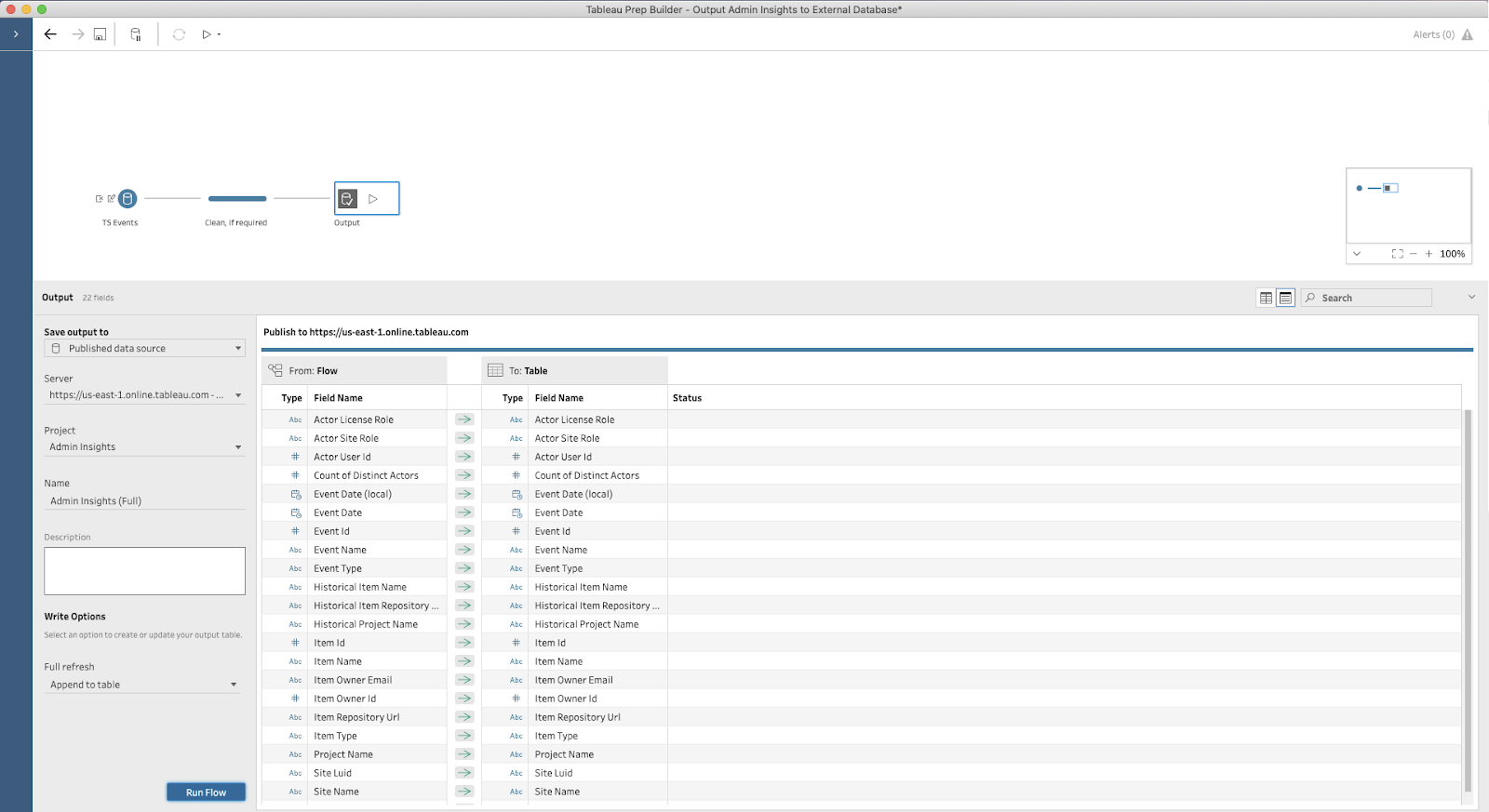
Optional: Tableau Prep allows you to incorporate other data sources in your flow. You may want to add supplemental user attributes to enrich the Admin Insights data.
Option 3
Download the data via the REST API.
Using the REST API, download the Admin Insights published data source. The resulting .tdsx file will contain all data in the data source at the time of download. Save this file to a location that you will be able to access at a later date. Then use your preferred scheduling tool to automate this process moving forward.
When needed, you can open this file with Tableau Desktop to understand the actions that took place in the time period included in the .tdsx file.
Option 4
Download the data manually.
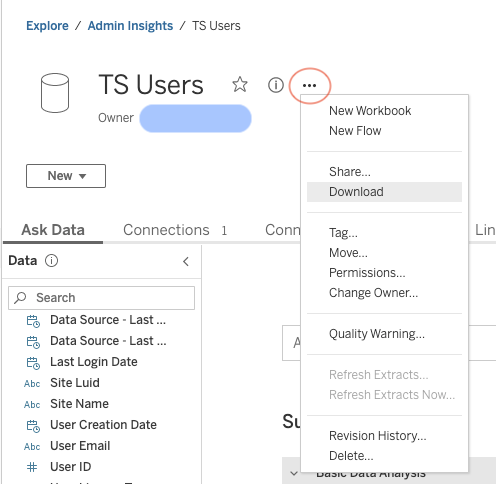
Navigate to the Admin Insights published data source and select “Download” from the menu next to the published data source. The resulting .tdsx file will contain all data in the data source at the time of download. Save this file to a location that you will be able to access at a later date.
When needed, you can open this file with Tableau Desktop to understand the actions that took place in the time period included in the .tdsx file.
Knowledge-artikkelnummer
001471354
Hjalp denne artikkelen med å løse problemet ditt?
La oss få vite det slik at vi kan forbedre!
