Select An Org
Creating a Pie Chart Using Multiple Measures
Publish Date: Feb 24, 2025
Description
Resolution
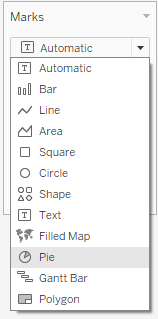
- In the Marks card, select Pie from the drop down menu.
- Drag Measure Values to Size.
- Drag Measure Names to Color.
- Right click Measure Values or Measure Names on the Marks card and select Edit Filter…
- Select the measures you would like to include in your pie chart.
- (optional) Drag a specific measure to Label (or Measure Names or Measure Values to add the name of the measures or the measures) to the pie chart.
Additional Resources
Note: video has no sound.
Knowledge Article Number
001473133
Did this article solve your issue?
Let us know so we can improve!
